informs about the location of elements in a document,
enables setting the page margins, paragraph indents and the location of tabtabtab stops,
is useful for creating tables.
RWRGejYuD3lpt1
Zrzut ekranu przedstawia linijkę w edytorze tekstowym. Po lewej i prawej stronie dwu-centymetrowe szare odcinki oznaczają marginesy dokumentu. Z linijki możemy odczytać, że obszar roboczy dokumentu w tym przypadku ma 17 cm.
The grey or blue area at the right and left ends of the rulerrulerruler represents the size of the right and left margins. At the left end of the ruler you can find a marker for defining the left indentindentindent of a paragraph. The marker at the right end of the ruler enables controlling the right indent of the paragraph. The top triangle at the left end of the ruler can be used to set the first line indentindentindent of the paragraph. On the top of the vertical ruler you can see the Tab Selectortab selectorTab Selector, which enables choosing a tabtabtab.
Tab stopstab stopsTab stops are invisible lines on the screen that indicate the location the text cursor moves to when you press the TAB key. Tabs are used to align text in columnscolumnscolumns. Even if you have not defined any tab stops, you must know, that they are predefined. The default tab stops are set at every 1,25 cm in a document. You can change these default distances in the Default tab stopstab stopstab stops box in the Tabs dialogue box. The default tabs are not displayed on the ruler.
You can set the location of tab stopstab stopstab stops:
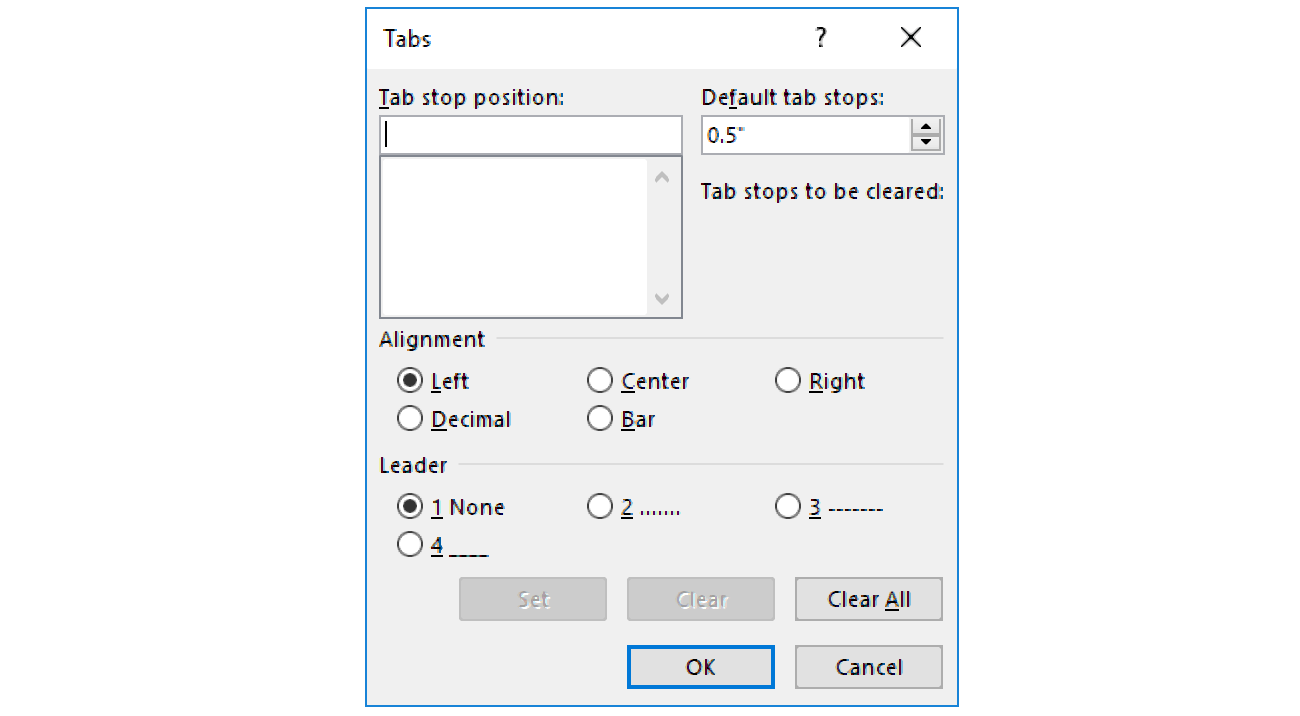
in the Tabs dialogue box which appers after selecting the Tabs button in the Paragraph group,
Zrzut przedstawia formatkę Tabs. Na górze w lewej części widoczne jest okno Tab stop position, poniżej okno z listą zdefiniowanych tabulatorów w dokumencie (w przykładzie jest pusta). W prawej części lista rozwijana Default tab stops z wpisaną wartością 0.5. Poniżej sekcja Alignment, gdzie znajdują się radiobuttony: Left, Center, Right, Decimal, Bar. Niżej sekcja Leader, gdzie znajdują się radiobuttony: 1 None, 2 ......, 3 ------, 4______. Niżej przyciski: Set. Clear, Clear All. Na dole formatki kolejne przyciski OK oraz Cancel.
Apart from aligning text with the use of tabs, Word can fill empty space in a line resulting from the use of a tabtabtab with special characters called leaders.
RLWCJSORWdJ27
Ilustracja interaktywna przedstawia ikony reprezentujące rodzaje tabulatorów ułożone w rzędzie obok siebie. Pierwsza - dwa równej długości odcinki ułożone pod kątem prostym jak w wielkiej literze L (lub lewy i dolny bok kwadratu). Druga - dwa odcinki ułożone pod kątem prostym jak w odwróconej do góry nogami wielkiej literze T. Trzecia - dwa równej długości odcinki ułożone pod kątem prostym jak w odbiciu lustrzanym wielkiej literze L (lub prawy i dolny bok kwadratu). Czwarta - dwa odcinki ułożone pod kątem prostym jak w odwróconej do góry nogami wielkiej literze T. W utworzonym przez odcinki kącie prostym po prawej stronie widoczna jest kropka. Piąta - Pionowy odcinek, jak wielka litera I. Na ilustracji widoczne są numery, a na nich podpisy. 1. Left Tab aligns text to the left {audio}, 2. Centre Tab centres text {audio}, 3. Right Tab aligns text to the right {audio}, 4. Decimal Tab aligns numbers to the left of the decimal {audio}, 5. Bar Tab inserts a vertical bar {audio}.
Ilustracja interaktywna przedstawia ikony reprezentujące rodzaje tabulatorów ułożone w rzędzie obok siebie. Pierwsza - dwa równej długości odcinki ułożone pod kątem prostym jak w wielkiej literze L (lub lewy i dolny bok kwadratu). Druga - dwa odcinki ułożone pod kątem prostym jak w odwróconej do góry nogami wielkiej literze T. Trzecia - dwa równej długości odcinki ułożone pod kątem prostym jak w odbiciu lustrzanym wielkiej literze L (lub prawy i dolny bok kwadratu). Czwarta - dwa odcinki ułożone pod kątem prostym jak w odwróconej do góry nogami wielkiej literze T. W utworzonym przez odcinki kącie prostym po prawej stronie widoczna jest kropka. Piąta - Pionowy odcinek, jak wielka litera I. Na ilustracji widoczne są numery, a na nich podpisy. 1. Left Tab aligns text to the left {audio}, 2. Centre Tab centres text {audio}, 3. Right Tab aligns text to the right {audio}, 4. Decimal Tab aligns numbers to the left of the decimal {audio}, 5. Bar Tab inserts a vertical bar {audio}.
Adding, editing and removing tabs with the use of the rulerrulerruler In order to set a tab stop, after selecting the appropriate tab in the Tab Selectortab selectorTab Selector, position the mouse pointer in the selected location on the ruler and click with the left mouse button. If you want to move the tab, drag it with the mouse to a new location on the ruler. If you want to remove the tab, drag it from the ruler, i.e. move it to any location outside the ruler.
In a text editor write the names of 10 selected European countries along with their capital cities. Place the text in two columnscolumnscolumns: country and capital city. Use the features of the tabtabtab for this purpose. Do the task in two steps: first type the text and separate the words using the tab key, and then order the columns by adding a new tab stop: use the left tab and set it at 5 cm. Save the file with the name Capital Cities. Enable the preview of non‑printing charactes and check what the non‑printing tab character looks like.
In a text editor, by using various types of tabulation, create the list of 10 places you would like to see in the nearest future. Write the text in columnscolumnscolumns and align them as follows: ‘place’ – with the left tab, ‘means of transport’ – with the right tab, ‘journey duration’ – with the centre tab, ‘distance’ – with the decimal tab. Fit the text to the page width. Save the file with the name Journey.
Never align text in a line by using spaces. Tabs are suitable for this purpose. The width of the space may vary in different fonts and moreover, the text aligned with the use of spaces on the screen may not look the same on the printed copy.
Exercises
Exercise 1
RZaEwEwvw3eEb
Wersja alternatywna ćwiczenia: Determine which sentences are true. Możliwe odpowiedzi: 1. The grey or blue area at the right and left ends of the ruler represents the size of the right and left margins., 2. Tab stops are invisible lines on the screen that indicate the location the text cursor moves to when you press the TAB key. , 3. You can set the location of tab stops in the Tabs dialogue box., 4. You cannot set the location of tab stops by using the ruler.
Wersja alternatywna ćwiczenia: Determine which sentences are true. Możliwe odpowiedzi: 1. The grey or blue area at the right and left ends of the ruler represents the size of the right and left margins., 2. Tab stops are invisible lines on the screen that indicate the location the text cursor moves to when you press the TAB key. , 3. You can set the location of tab stops in the Tabs dialogue box., 4. You cannot set the location of tab stops by using the ruler.
Determine which sentences are true.
The grey or blue area at the right and left ends of the ruler represents the size of the right and left margins.
Tab stops are invisible lines on the screen that indicate the location the text cursor moves to when you press the TAB key.
You can set the location of tab stops in the Tabs dialogue box.
You cannot set the location of tab stops by using the ruler.
zadanie
Source: GroMar, licencja: CC BY 3.0.
Exercise 2
In a text editor write down the dates of your 6 favourite holidays so that their dates are in one column and their names – in the other. Use the right tab for the dates and set it at 5 cm, while for the names of the holidays use the left tab set at 6 cm. Save the file with the name Holidays. After typing the text in two columnscolumnscolumns, check the possibility of moving the columns. Move the column with the names of the holidays to the right, and then to the left.
Exercise 3
Describe in English the types of tabs.
Exercise 4
R1A1hMuBkYso3
Wersja alternatywna ćwiczenia: Indicate which pairs of expressions or words are translated correctly. Możliwe odpowiedzi: 1. tabulator - tab, 2. punkty tabulacji - tab stops, 3. linijka - ruler, 4. margines - margin, 5. wcięcie akapitu - tab selector, 6. selektor tabulatorów - indent
Wersja alternatywna ćwiczenia: Indicate which pairs of expressions or words are translated correctly. Możliwe odpowiedzi: 1. tabulator - tab, 2. punkty tabulacji - tab stops, 3. linijka - ruler, 4. margines - margin, 5. wcięcie akapitu - tab selector, 6. selektor tabulatorów - indent
Indicate which pairs of expressions or words are translated correctly.
tabulator - tab
punkty tabulacji - tab stops
linijka - ruler
margines - margin
wcięcie akapitu - tab selector
selektor tabulatorów - indent
zadanie
Source: GroMar, licencja: CC BY 3.0.
R1Iem5uQ2HimO1
Interaktywna gra, polegająca na łączeniu wyrazów w pary w ciągu jednej minuty. Czas zaczyna upływać wraz z rozpoczęciem gry. Jeden ruch to odkrywanie najpierw jednej potem drugiej karty z wyrazem. Każdy wyraz jest odczytywany. Kolejny ruch to odkrywanie trzeciej i czwartej karty. W ten sposób odsłuchasz wszystkie wyrazy. Nawigacja z poziomu klawiatury za pomocą strzałek, odsłuchiwanie wyrazów enterem lub spacją. Znajdź wszystkie pary wyrazów.
Interaktywna gra, polegająca na łączeniu wyrazów w pary w ciągu jednej minuty. Czas zaczyna upływać wraz z rozpoczęciem gry. Jeden ruch to odkrywanie najpierw jednej potem drugiej karty z wyrazem. Każdy wyraz jest odczytywany. Kolejny ruch to odkrywanie trzeciej i czwartej karty. W ten sposób odsłuchasz wszystkie wyrazy. Nawigacja z poziomu klawiatury za pomocą strzałek, odsłuchiwanie wyrazów enterem lub spacją. Znajdź wszystkie pary wyrazów.
Match Polish terms with their English equivalents.
tab
ruler
linijka
tab stops
punkty tabulacji
tabulator
Source: Zespół autorski Politechniki Łódzkiej, licencja: CC BY 3.0.