Capturing the image displayed on the monitor
Przechwytywanie obrazu z monitora
the principles of capturing the image from the monitor,
how to capture a monitor image in differentdifferent operating systems.
While you are working on the computer, you may need to save the image which is displayed on the monitor (as a single photo or video) in the memory of your computer. It is not as difficult as it seems, although in different operating systems (Windows, Linux, MacOS and others) you can do this in different ways. Due to the common use of the MS Windows system, we will focus on capturing the image in this operating system family.
The basic type of images that we may want to capture are static images, i.e. single „photos”. The mechanism of capturingcapturing static images (also called „screenshots”) is provided by the operating system itself, and the „Print Screen” key is used for that purpose. On some keyboards the description can be found in a short form of „PrtScr”. All you need to do is to press this key shortly and the system will save the imageimage of the entire screen (workspace) to the clipboard from which you can paste it into a graphic program or a text editor. Pressing the key and saving the image will not be signaled by any sound or any other form of message. Having a captured image in the clipboard it is sufficient to paste it into the graphic program by using the appropriate function (this function often appears under the keyboard shortcutkeyboard shortcut „Ctrl + V”). The saved imageimage does not contain the mouse cursor, so we do not have to worry that the cursor will overshadow, for example, a fragment of the picture. We must remember that such picture will have the resolutionresolution identical with that displayed on our monitor. Thus, if we are going to display, for example, a photo or a map hoping to get a picture of high resolution, the quality of the picture will be exactly of the quality that our monitor provides.
If we want to capture only a fragment of the entire work screen, after pasting the screenshot into the graphic program which we use, we need to cut out this fragment we are interested in. If the current work window is the part we are interested in, then we can simplify the procedure by using the „Alt + Prtint Screen” shortcut, which will capture only the current window instead of the whole work area.
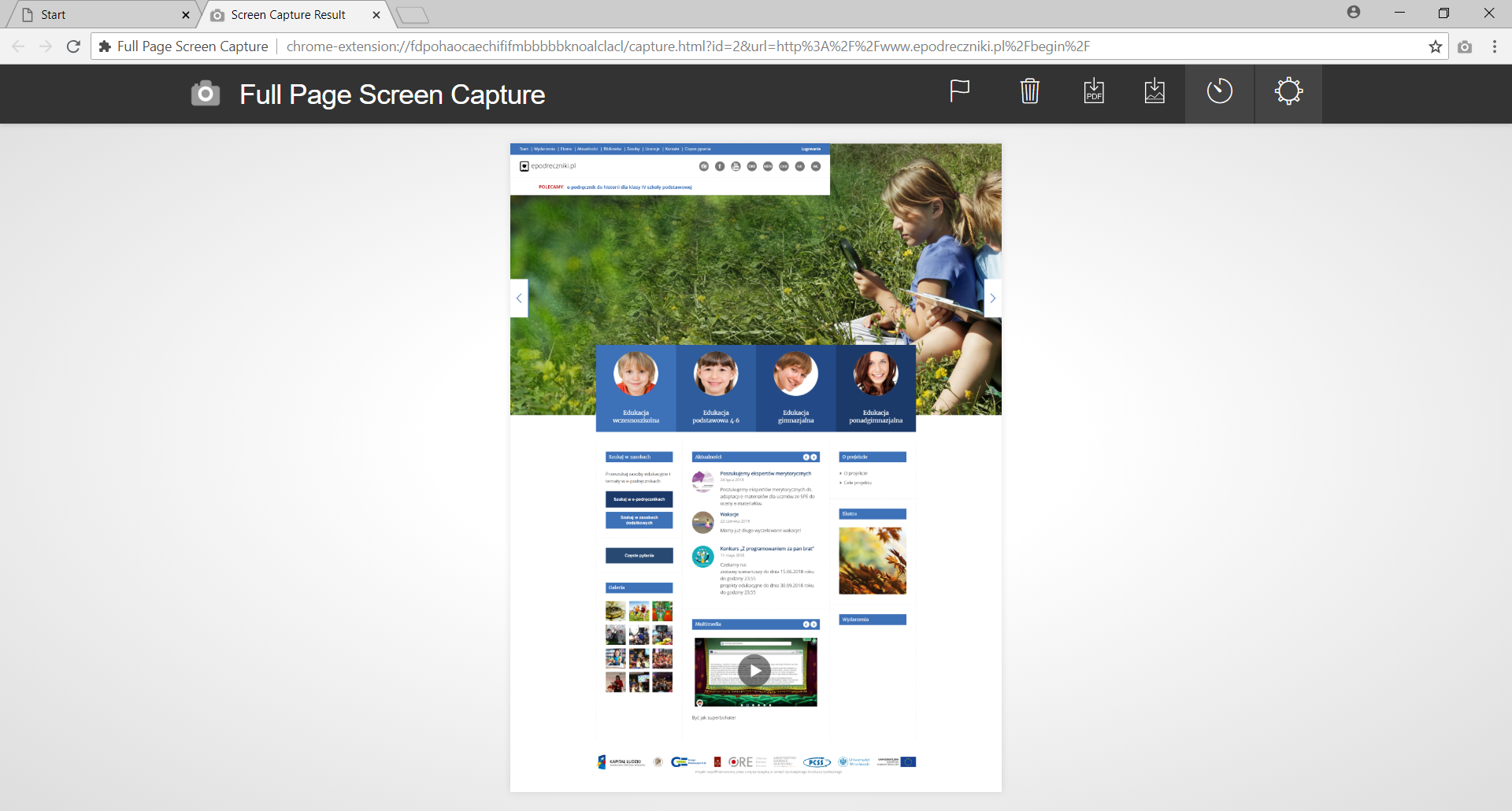
In the case of screenshots of websites, the most common problem is that the page is long and cannot fit the screen, so the screenshot will not cover the whole page. Producers of some browsers have noticed this problem and they have developed add‑ons that enable the user to capture whole pages, including very long ones. In the Chrome browser, you can install the „Full Page Screen Capture” add‑on which, by the „Alt + Shift + P” shortcut captures the whole page screenshot and displays it in the newly opened browser tab. We can save such a picture on the disk or copy it to the clipboard. However, this plugin will not work on pages with proprietary content. If you use Firefox, you can use the „FireShot” add‑on (you can also find it under the name „Full Web Page Screenshots”). In this case, you can use the shortcut „Shift + Ctrl + Y” to copy the window. Regardless of the browser add‑ons, you can use „Site Shoter” application. You can find it at nirsoft.net. This softwaresoftware enables capturingcapturing a screenshot of any website (or page list) by saving its imageimage to disk. Unlike the above mentioned add‑ons, in this program it is possible to specify many parameters in the configuration, including the imageimage format and the degree of compression, as well as to use a differentdifferent browser window resolutionresolution than the one we actually use.
Open the aplet „Screenshots”, watch it and then do the quiz.
Zasób interaktywny dostępny pod adresem https://zpe.gov.pl/a/Dcl160kep



In other systems we capture images in the same way but using differentdifferent keyboard shortcuts. In Linux we press PrtSc or PrtSc + Ctrl to save the whole screen imageimage or Alt + PrtSc to save the image of the active windowactive window. In the Mac OS operating systemoperating system the Shift + cmd + 3 shortcut is used to save the entire screen image or the Shift + cmd + 4 shortcut is used to keep the imageimage of the active window.
To capture the imageimage from the monitor, appropriate keyboard shortcuts should be used.
For Windows the PrtSc button should be used to save the entire screen image or Alt + PrtSc to save the image of the active window.
In the Linux system, the screenshotscreenshot is captured in the same way.
DifferentDifferent abbreviations are used in the Mac OS operating systemoperating system. These are Shift + cmd + 3 to save the whole screen imageimage or Shift + cmd + 4 to save the image of the active windowactive window.
After capturingcapturing the image, it should be pasted into any raster graphics editor and saved in the memorymemory of the computer.
Exercises
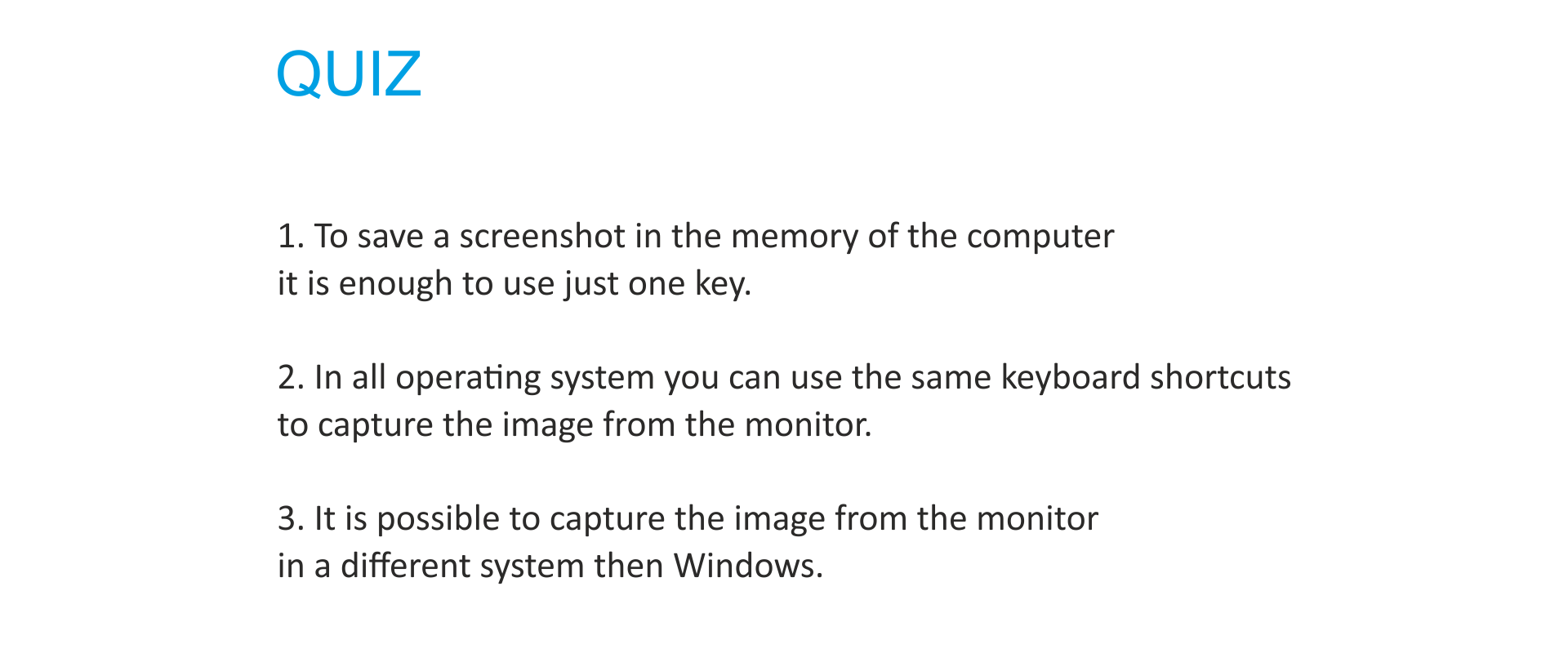
Decide which sentences are true.
- To capture a monitor image in Windows, press at the same time Ctrl and P.
- In every operating system, the keyboard shortcuts used to capture the image are the same.
- You can only capture exactly what you see on the screen; there is no possibility to capture the whole webpage.
- You can capture an image from the monitor regardless of the installed system.
- A special program must be installed on the computer to capture the active monitor window.
- The resolution of the captured image depends on the resolution of the monitor.
Complete the table
Operating system | keyboard shortcuts to save the image of the active window | keyboard shortcuts to save the whole screen image |
Windows | ||
Linux | ||
Mac OS |
Describe in English the process of capturing an image displayed on the monitor.
Indicate which pairs of expressions or words are translated correctly.
- system operacyjny - operating system
- zrzut ekranu - screenshot
- skrót klawiszowy - keyboard shortcut
- aktywne okno - active window
- wtyczka - resolution
- dodatki - memory
- zrzut ekranu
- wtyczka
- plug
- screenshot
- aktywne okno
- skrót klawiszowy
- system operacyjny
- active window
- keyboard shortcut
- operating system
Glossary
aktywne okno
Nagranie dostępne na portalu epodreczniki.pl
wymowa w języku angielskim: active window
przechwytywanie
Nagranie dostępne na portalu epodreczniki.pl
wymowa w języku angielskim: capturing
różne
Nagranie dostępne na portalu epodreczniki.pl
wymowa w języku angielskim: different
obraz
Nagranie dostępne na portalu epodreczniki.pl
wymowa w języku angielskim: image
skrót klawiaturowy - połączenie co najmniej dwóch klawiszy, najczęściej CTRL, ALT, SHIFT i klawisza z cyfra bądź literą w celu wywołania funkcji używanego programu
Nagranie dostępne na portalu epodreczniki.pl
wymowa w języku angielskim: keyboard shortcut
pamięć
Nagranie dostępne na portalu epodreczniki.pl
wymowa w języku angielskim: memory
system operacyjny
Nagranie dostępne na portalu epodreczniki.pl
wymowa w języku angielskim: operating system
rozdzielczość (ekranu) – parametr trybu wyświetlania określający liczbę pikseli obrazu wyświetlanego na monitorze w bieżącym trybie pracy
Nagranie dostępne na portalu epodreczniki.pl
wymowa w języku angielskim: resolution
zrzut ekranu
Nagranie dostępne na portalu epodreczniki.pl
wymowa w języku angielskim: screenshot
oprogramowanie
Nagranie dostępne na portalu epodreczniki.pl
wymowa w języku angielskim: software
Keywords
capturingcapturing
keyboard shortcutkeyboard shortcut resolution
operating systemoperating system
resolutionresolution
screenshotscreenshot