What is the purpose of inserting images into text?
to illustrate text,
text with illustrations is more attractive,
images often explain some complex issues more easily.
R6umyodHJfM4a1
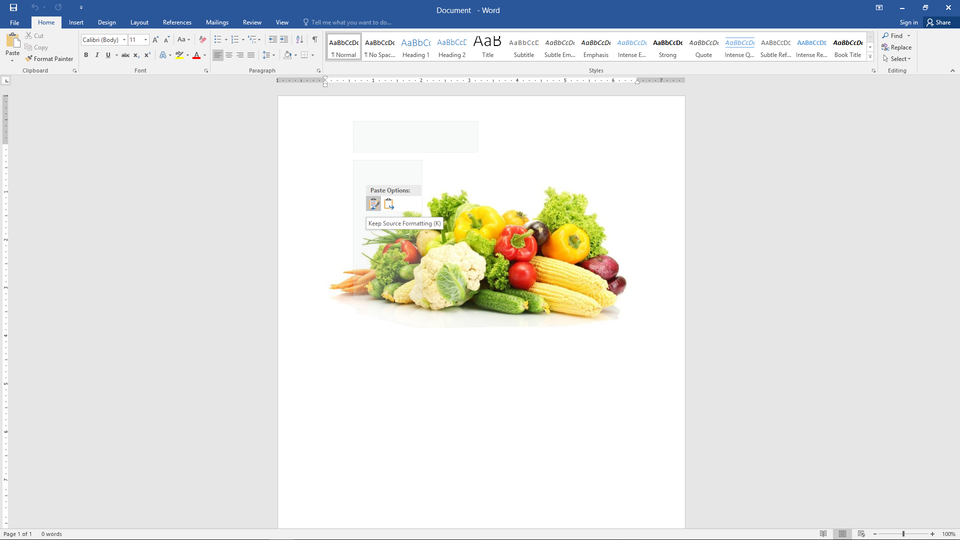
Pokaz slajdów – Jak wstawić grafikę do dokumentu tekstowego. Instrukcja obsługi z poziomu klawiatury: 1. Uruchomienie aplikacji - ENTER, 2. Na każdym ze slajdów czytany jest automatycznie tekst alternatywny po polsku, 3. Przy pierwszym uruchomieniu na pierwszym slajdzie, czytanie tekstu po angielsku - TAB, 4. Przejście między slajdami: do następnego slajdu - TAB, do poprzedniego slajdu - TAB + SHIFT, 5. Przejście do czytania napisu po angielsku - strzałka w górę + strzałka w dół (czyta tekst po angielsku widoczny na slajdzie).
Pokaz slajdów – Jak wstawić grafikę do dokumentu tekstowego. Instrukcja obsługi z poziomu klawiatury: 1. Uruchomienie aplikacji - ENTER, 2. Na każdym ze slajdów czytany jest automatycznie tekst alternatywny po polsku, 3. Przy pierwszym uruchomieniu na pierwszym slajdzie, czytanie tekstu po angielsku - TAB, 4. Przejście między slajdami: do następnego slajdu - TAB, do poprzedniego slajdu - TAB + SHIFT, 5. Przejście do czytania napisu po angielsku - strzałka w górę + strzałka w dół (czyta tekst po angielsku widoczny na slajdzie).
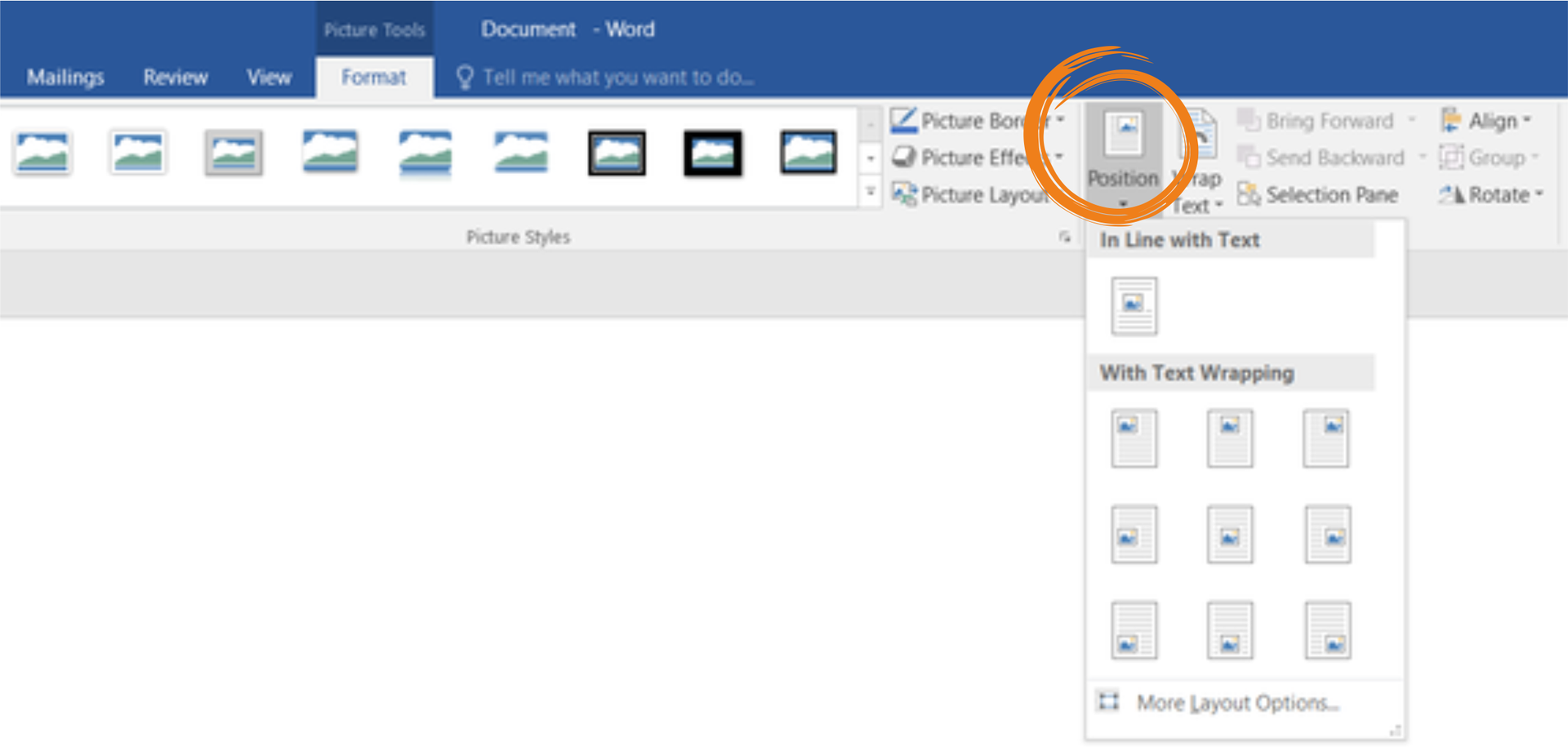
To change the positionpositionposition of an image in a text, just drag it with the mouse. You can also select it by using the mouse and then find the Position option on the Format tab, in the Arrange group. The default position of the picture in MS Word 2016 is In Line with Text.
R1NzAyv6FuCXd
Zrzut ekranu przedstawia fragment wstążki MS Word pokazującej zakładkę Picture Tools - Format. Aktywne jest polecenie Position - opcje położenia obrazu na stronie. Widoczna lista rozwijana przedstawia możliwe położenie ilustracji w tekście. In Line with Text (równo z tekstem) oraz With Text Wrapping (z lewej, po środku, z prawej - każda z opcji na górze, po środku, na dole strony).
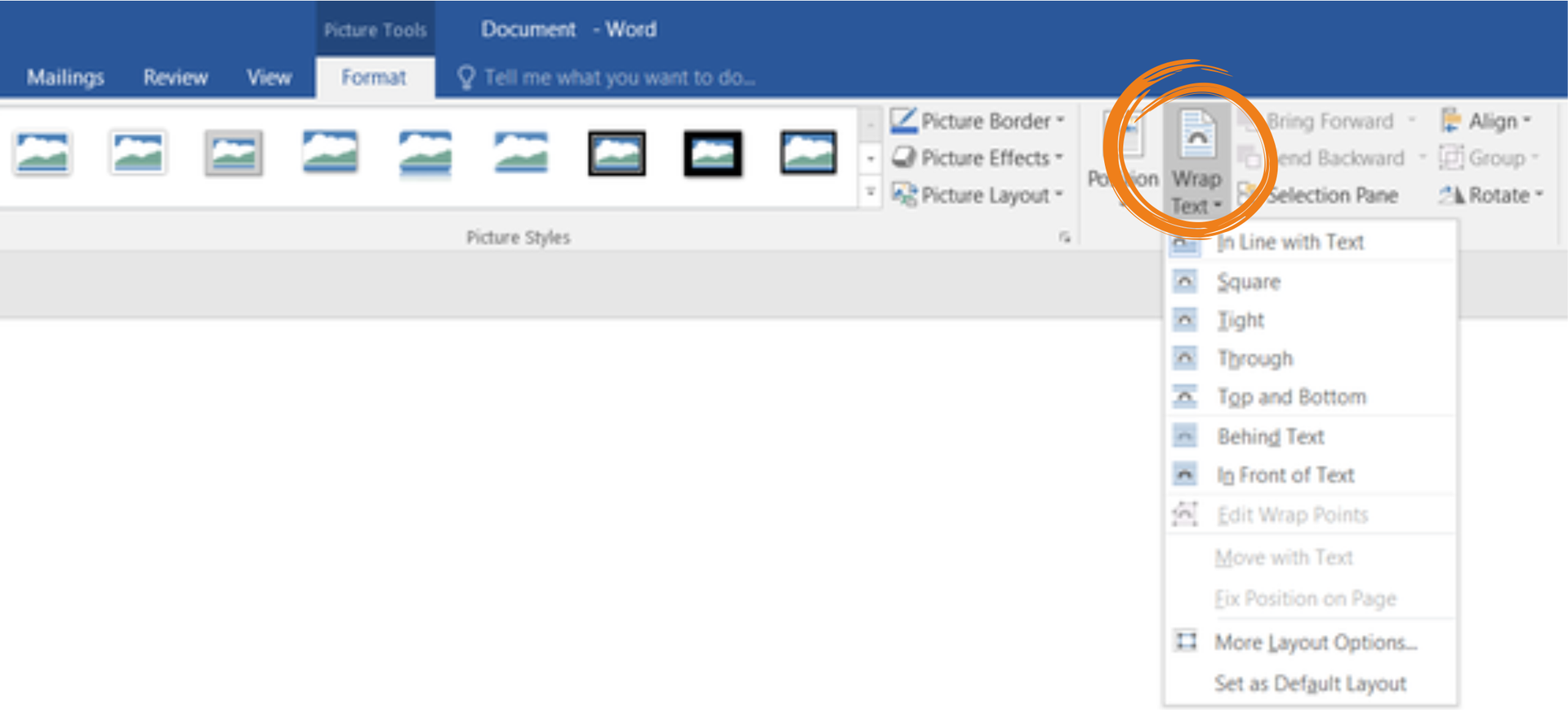
In order to adjust text wrappingwrappingwrapping to a picture, find Wrap Text on the Format tab and choose the layout you want.
RzBynAc1bkBT2
Zrzut ekranu przedstawia fragment wstążki MS Word pokazującej zakładkę Picture Tools - Format. Aktywne jest polecenie Wrap Text. Widoczna lista rozwijana przedstawia możliwe opcje zawijania tekstu w stosunku do wstawionego obrazka: In Line with Text, Square, Tight, Through, Top and Bottom, Behind Text, In Front of Text, Edit Wrap Position, Move with Text, Fiz Position on Paper, More Layout Options, Set as Default Layout.
On the Internet find the information about the place you live in and copy it to a text document. Add a picture, select it, and find the Arrange group on the Format tab and then the Wrap Text option, and select the layout you want. Check the options In Line with Text and With Text Wrapping in the PositionpositionPosition menu.
Zrzut ekranu przedstawia fragment wstążki MS Word pokazującej zakładkę Picture Tools - Format. Od lewej w grupie Adjust znajdują się polecenia: Remove Background, Corrections, Color, Artistic Effects, Compress pictures, Change Picture, Reset Picture. W kolejne grupie Picture Styles widoczna jest ramka przedstawiająca przedefiniowane artystyczne obramowania oraz polecenia: Picture Border, Picture Effects, Picture Layout.
Do not confuse the Crop option with the feature of changing size. When you change the height or width of an image, the programme automatically rescales it and changes the other value respectively – the view of the picture does not change. However with the use of the Crop option you can remove unwanted portions of the picture while the size of the essential part remains unchanged.
A text box lets you add text anywhere in your document.
In order to add a text boxtext boxtext box, click Text Box on the Insert tab, in the Text group. Then you can select the style of the box by clicking one of the options. When you click inside the box, you can type or paste text, which can be formatted by selecting the Font option on the Home tab.
R10vAthLBs2Js
Zrzut ekranu przedstawia fragment wstążki MS Word pokazującej zakładkę Insert. Aktywne jest polecenie Text Box. Widoczna lista rozwijana przedstawia przedefiniowane formaty pól tekstowych (Built-in), widoczne są kolejno Simple Text Box, Austin Quote, Austin Sidebar, Banded Quote, Banded Sidebar, Facet Quote. Poniżej dodatkowe polecenia: More Text Boxes form Office.com, Draw Text Box, Save Selection to Text Box Gallery.
adding text and shape effects to it, such as shadows, glows, reflections, bevels, and three‑dimensional rotations,
changing text direction.
You can reposition a text boxtext boxtext box in the same way as images – find the Arrange group on the same tab and select the options PositionpositionPosition and Wrap Text, among others.
In MS Word create a simple business card by adding a text box. Format it with the use of the options you have learnt.
R1HCXeGdRimBR
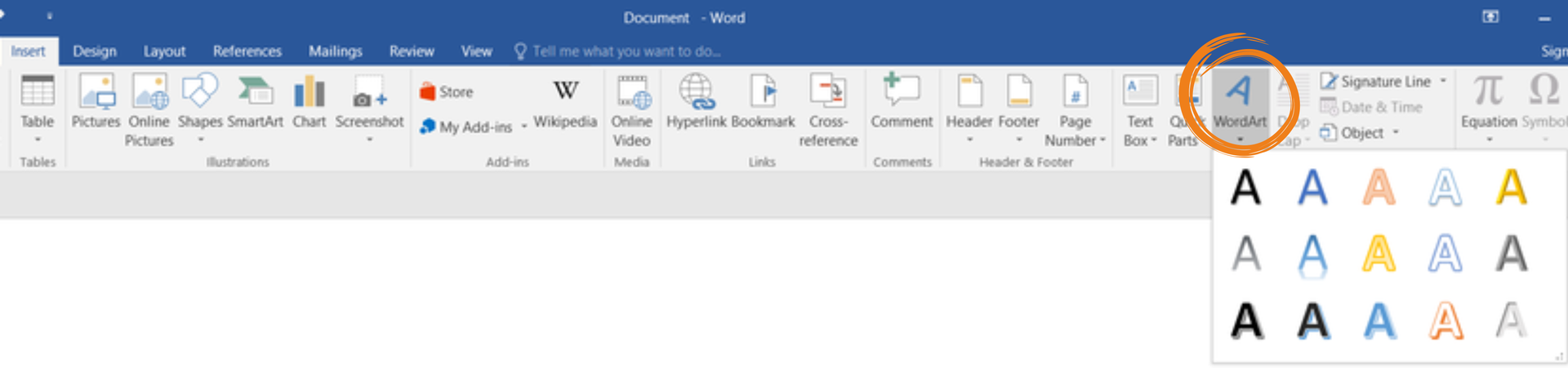
Zrzut ekranu przedstawia fragment wstążki MS Word pokazującej zakładkę Insert. Aktywne jest polecenie WordArt. Widoczna lista rozwijana przedstawia przedefiniowane formaty umożliwiające wstawienie ozdobnego tekstu.
WordArt is a gallery of text stylesstylesstyles that you can add in MS Word.On the Insert tab, in the Text group, select WordArt and choose a style from the gallery of objects, and then type any text in the text boxtext boxtext box. You can add entire sentences and even paragraphs as WordArt – in the case of paragraphs you may need to change the font size. It is also possible to convert an existing text into WordArt. Select the text which you want to convert and then follow the above instructions.
You can customise your WordArt by using the options from the Format tab. You can apply special effects such as shadows, rotation, curves, and fill and outline colors (the WordArt StylesstylesStyles group). The same effects can be applied also to the box and background surrounding your WordArt.
You can add shapes in the same way as pictures. On the Insert tab in the Illustrations group click Shapes, and then select a shapeshapeshape you want. Click anywhere in the document and drag to draw the shape. To create a perfect circle or square, press and hold the SHIFT key while you drag.
In order to add text to an existing shape, right‑click it and then click Add Text.
If you want to change from one shapeshapeshape to another, click the shape you want to change and then find the Insert Shapes group on the Format tab. Click Change Shape, and then select the new shape from the list.
Add any two shapes. Format one by using quick stylesstylesstyles and add text to it, and then format the other by selecting the particular options independently.
Exercises
Exercise 1
R15esNZvyO9sL
Wersja alternatywna ćwiczenia: Identify true sentences: Możliwe odpowiedzi: 1. To change the position of an image in a text, just drag it with the mouse., 2. You can change the colour of the inserted picture., 3. The change of the image size is the same as its cropping., 4. You can add a text box in any location in a document., 5. WordArt objects contain decorative text.
Wersja alternatywna ćwiczenia: Identify true sentences: Możliwe odpowiedzi: 1. To change the position of an image in a text, just drag it with the mouse., 2. You can change the colour of the inserted picture., 3. The change of the image size is the same as its cropping., 4. You can add a text box in any location in a document., 5. WordArt objects contain decorative text.
Identify true sentences:
To change the position of an image in a text, just drag it with the mouse.
You can change the colour of the inserted picture.
The change of the image size is the same as its cropping.
You can add a text box in any location in a document.
WordArt objects contain decorative text.
zadanie
Source: GroMar, licencja: CC BY 3.0.
Exercise 2
In a text document create a poster about environmental protection. Use your knowledge about inserting and formatting objects like images, shapes, text boxes and WordArt.
Exercise 3
Describe in English the croppingcroppingcropping of images in a text editor.
Exercise 4
R1eAzGHyKNtcN
Wersja alternatywna ćwiczenia: Indicate which pairs of expressions or words are translated correctly. Możliwe odpowiedzi: 1. pole tekstowe - text box, 2. kształt - shape, 3. położenie - position, 4. zawijanie - wrapping, 5. style - formatting, 6. formatowanie - cropping
Wersja alternatywna ćwiczenia: Indicate which pairs of expressions or words are translated correctly. Możliwe odpowiedzi: 1. pole tekstowe - text box, 2. kształt - shape, 3. położenie - position, 4. zawijanie - wrapping, 5. style - formatting, 6. formatowanie - cropping
Indicate which pairs of expressions or words are translated correctly.
pole tekstowe - text box
kształt - shape
położenie - position
zawijanie - wrapping
style - formatting
formatowanie - cropping
zadanie
Source: GroMar, licencja: CC BY 3.0.
R1TYsbFqq10tc1
Interaktywna gra, polegająca na łączeniu wyrazów w pary w ciągu jednej minuty. Czas zaczyna upływać wraz z rozpoczęciem gry. Jeden ruch to odkrywanie najpierw jednej potem drugiej karty z wyrazem. Każdy wyraz jest odczytywany. Kolejny ruch to odkrywanie trzeciej i czwartej karty. W ten sposób odsłuchasz wszystkie wyrazy. Nawigacja z poziomu klawiatury za pomocą strzałek, odsłuchiwanie wyrazów enterem lub spacją. Znajdź wszystkie pary wyrazów.
Interaktywna gra, polegająca na łączeniu wyrazów w pary w ciągu jednej minuty. Czas zaczyna upływać wraz z rozpoczęciem gry. Jeden ruch to odkrywanie najpierw jednej potem drugiej karty z wyrazem. Każdy wyraz jest odczytywany. Kolejny ruch to odkrywanie trzeciej i czwartej karty. W ten sposób odsłuchasz wszystkie wyrazy. Nawigacja z poziomu klawiatury za pomocą strzałek, odsłuchiwanie wyrazów enterem lub spacją. Znajdź wszystkie pary wyrazów.
Match Polish terms with their English equivalents.
text box
kształt
shape
położenie
pole tekstowe
position
Source: Zespół autorski Politechniki Łódzkiej, licencja: CC BY 3.0.