A hyperlinkhyperlinkhyperlink in a document, also the one created locally on the computer, can refer to a website, to a different document in the local resources or on the Internet as well as to a place within the same document (to any slideslideslide). A hyperlink can be a text or a graphical object (an image or a shape).
RUoH0ltQxRbjz
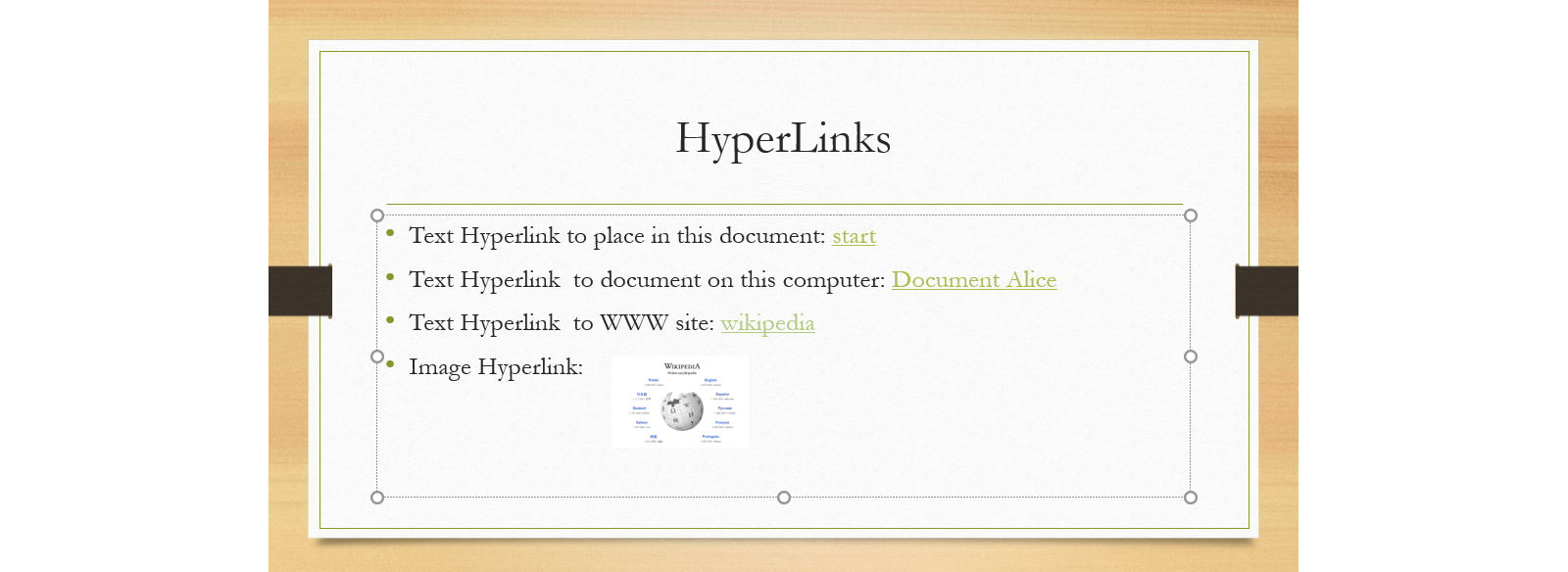
Ilustracja przedstawia slajd z hiperłączami tekstowymi i graficznymi. Na grze tytuł slajdu Hyperlink. Na slajdzie lista przedstawiająca przykładowe linki. • Text Hyperlink to place in this document: start. • Text Hyperlink to document on this computer: Document Alice. • Text Hyperlink to WWW site: Wikipedia. • Image Hyperlink: rysunek przedstawia stronę startową Wikipedii. Napis Wikipedia oraz kulę ziemską otoczoną nazwami języków do wyboru.
In order to add a link to a text or graphical object, you must:
select the object,
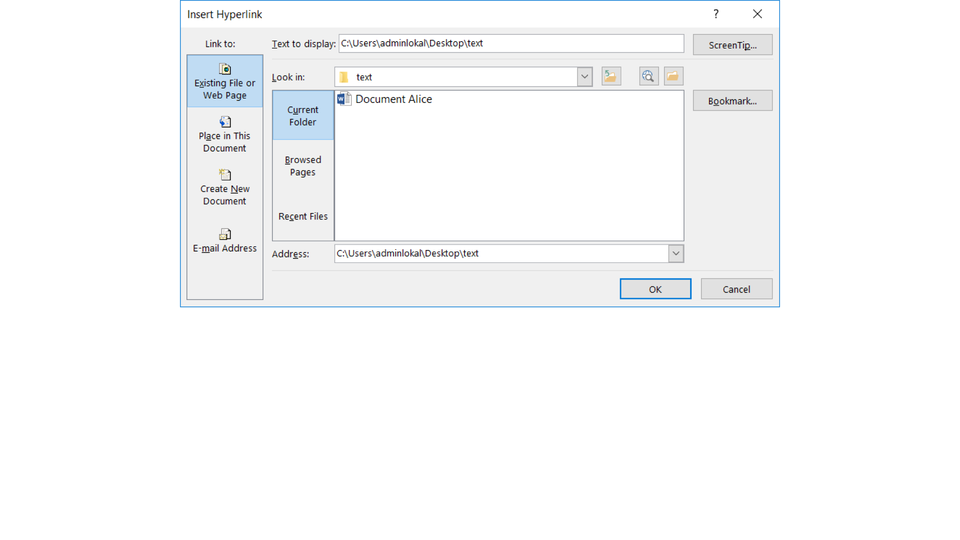
on the Insert tab in the Links group click the HyperlinkhyperlinkHyperlink button,
select the appropriate option from the Link to menu and point to or type the location of the document you want to refer to.
R1EdSd3o35KQj
Pokaz slajdów przedstawia różne możliwości wstawiania hiperłącza w programie PowerPoint. Instrukcja obsługi z poziomu klawiatury: 1. Uruchomienie aplikacji - ENTER, 2. Na każdym ze slajdów czytany jest automatycznie tekst alternatywny po polsku, 3. Przy pierwszym uruchomieniu na pierwszym slajdzie, czytanie tekstu po angielsku - TAB, 4. Przejście między slajdami: do następnego slajdu - TAB, do poprzedniego slajdu - TAB + SHIFT, 5. Przejście do czytania napisu po angielsku - strzałka w górę + strzałka w dół (czyta tekst po angielsku widoczny na slajdzie).
Pokaz slajdów przedstawia różne możliwości wstawiania hiperłącza w programie PowerPoint. Instrukcja obsługi z poziomu klawiatury: 1. Uruchomienie aplikacji - ENTER, 2. Na każdym ze slajdów czytany jest automatycznie tekst alternatywny po polsku, 3. Przy pierwszym uruchomieniu na pierwszym slajdzie, czytanie tekstu po angielsku - TAB, 4. Przejście między slajdami: do następnego slajdu - TAB, do poprzedniego slajdu - TAB + SHIFT, 5. Przejście do czytania napisu po angielsku - strzałka w górę + strzałka w dół (czyta tekst po angielsku widoczny na slajdzie).
If you want to change the text of the link which has been created, right‑click it and select the command Edit link.
Note: If you type a URL in the text of a presentation, PowerPoint will automatically convert it into a hyperlinkhyperlinkhyperlink.
Remove link – after pointing to the object select Remove Link from the pop‑up menu.
Note: Hyperlinks are activated automatically after a slideslideslide show is run. If you want to use a hyperlink during the edition of a presentation, right‑click the hyperlink and then select Open Hyperlink from the pop‑up menu.
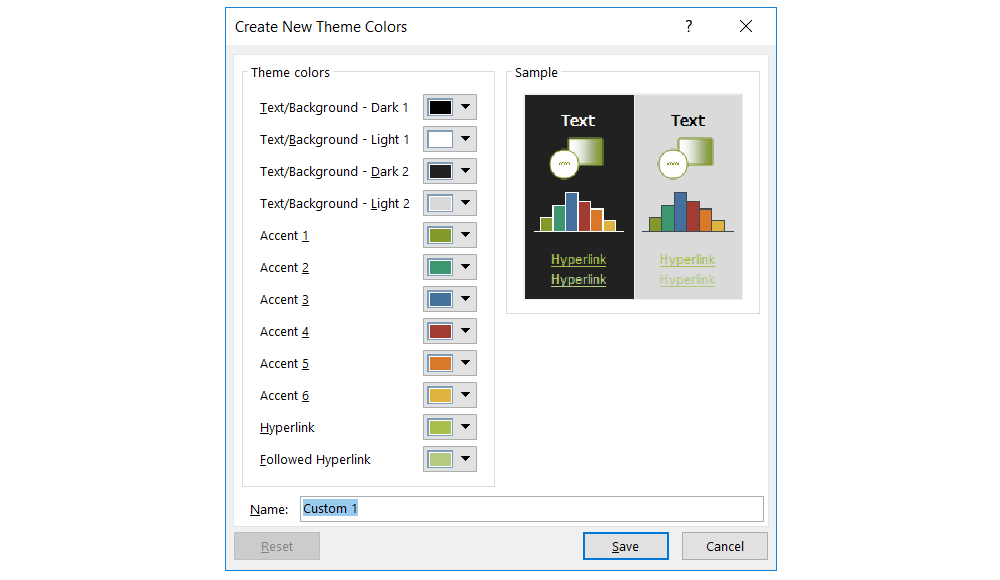
If you want, you can change the colours of hyperlinks and followed hyperlinks in the whole presentation. In order to do this, you must edit the colours of particular variants for the theme selected for the presentation.
RdyFE2fZdp5I9
Zrzut ekranu przedstawia formatkę umożliwiającą formatowanie kolorów linków, tworzenie motywów: Create new Theme Colors. Po lewej stronie listy rozwijane palet kolorów, umieszczone jedna pod drugą: Text/Background - Dark 1, Text/Background - Light 1, Text/Background - Dark 2, Text/Background - Light 2, Accent 1, Accent 2, Accent 3, Accent 4, Accent 5, Accent 6, Hyperlink, Followed Hyperlink. Po prawej stronie podgląd tworzonego motywu kolorów: Sample. Na dole formatki pole tekstowe do wpisania nazwy motywu zatytułowane Name. Na dole trzy przyciski Reset, Save oraz Cancel.
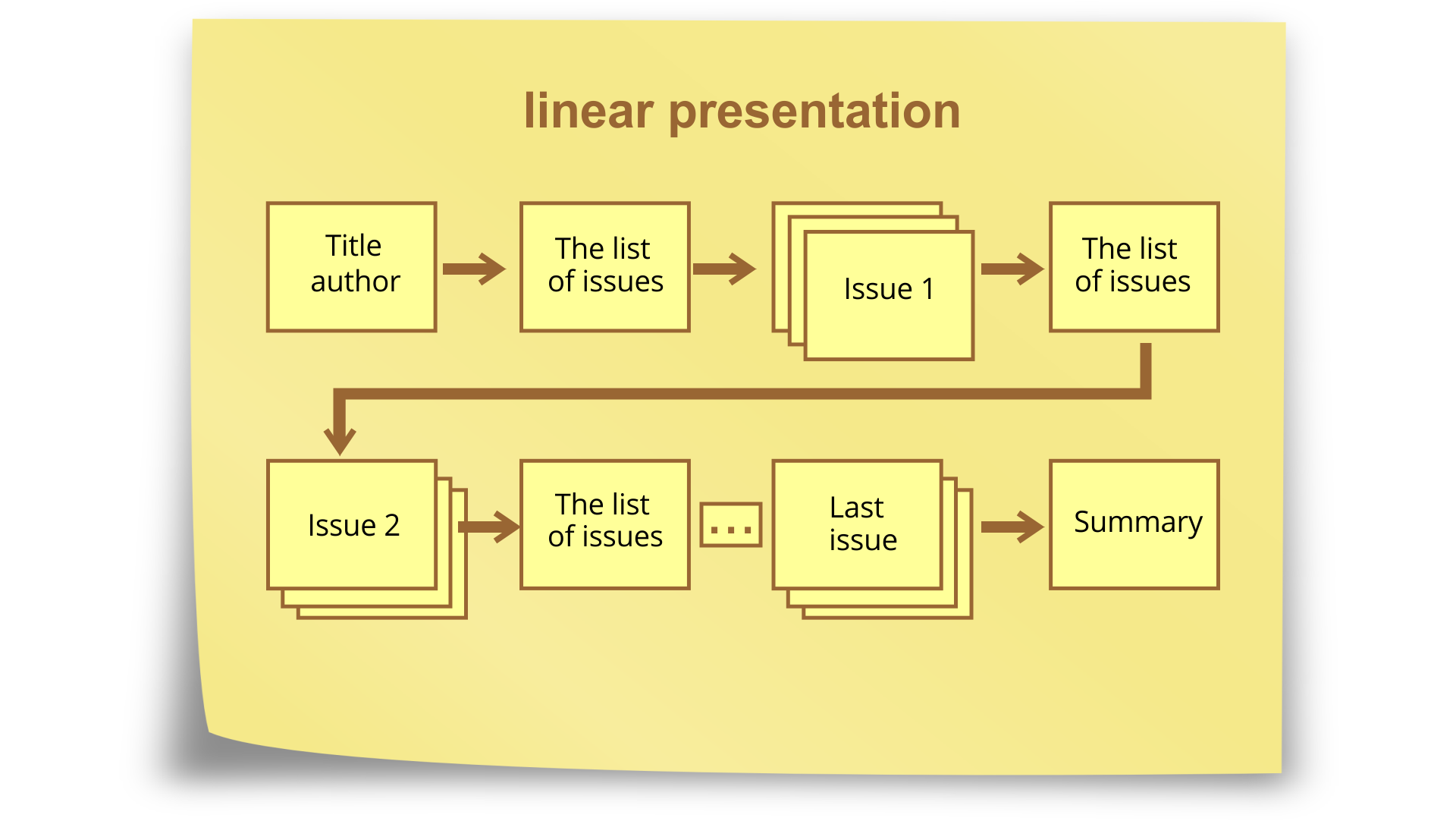
When a presentation is run, the slides are usually presented one after another in numerical order. A presentation which displays the slides in a strictly defined order is called a linear presentationlinear presentationlinear presentation.
R4HkV6QEHSroj1
Ilustracja prezentuje schemat układu prezentacji liniowej zatytułowany linear presentation. slajdy zostały schematycznie przedstawione za pomocą prostokątów połączonych strzałkami. W pierwszym prostokącie napis: Title, author. Następnie strzałka prowadzi do prostokąta, w którym jest napis: The list of issues. Następnie strzałka prowadzi do trzech prostokątów ułożonych jeden na drugim. W wierzchnim prostokącie jest napis Issue 1. Następnie strzałka prowadzi do prostokąta, w którym jest napis: The list of issues. Następnie strzałka prowadzi do kolejnych trzech prostokątów ułożonych jeden na drugim. W wierzchnim prostokącie jest napis Issue 2. Następnie strzałka prowadzi do prostokąta, w którym jest napis: The list of issues. Obok znajduje się mały prostokąt z trzema kropkami. Dalej kolejne trzy prostokąty ułożone jeden na drugim. W wierzchnim prostokącie jest napis Last issue. Następnie strzałka prowadzi do prostokąta, w którym jest napis: Summary.
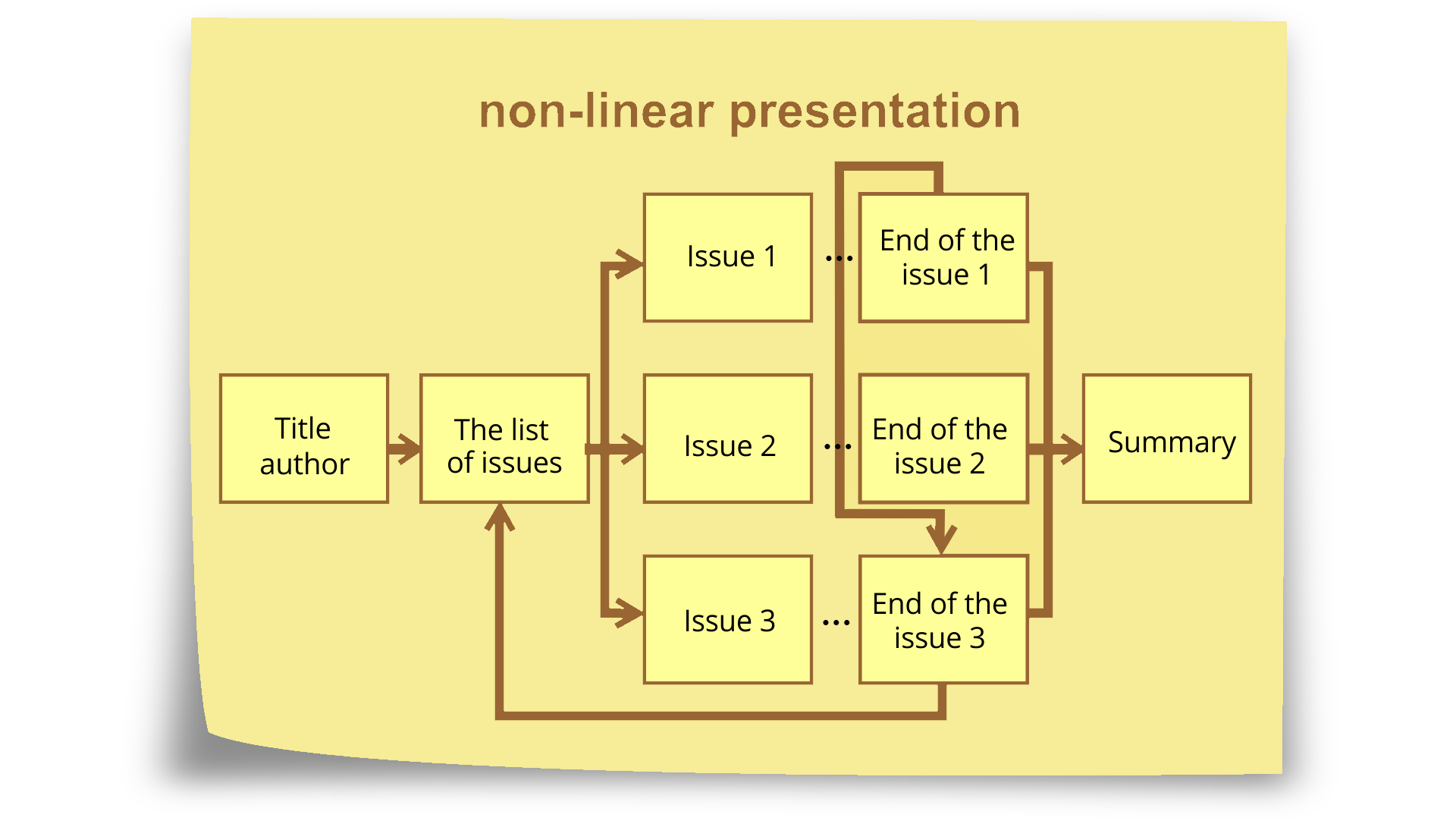
The other presentation type is a non‑linear presentationnon‑linear presentationnon‑linear presentation. Its free structure enables unrestricted jumping to any slides, which can be linked in an out‑of‑order way. The creating of such a presentation is more difficult since it requires to design an order which ensures the integrity of the content and the connection between slides and at the same time does not determine the sequence of presenting the slides. You can use hyperlinks to create connections between slides (navigation).
RRKNA18jb42Bw
Ilustracja prezentuje schemat układu prezentacji nieliniowej zatytułowany non-linear presentation. Slajdy zostały schematycznie przedstawione za pomocą prostokątów połączonych strzałkami. W pierwszym prostokącie napis: Title, author. Następnie strzałka prowadzi do prostokąta, w którym jest napis: The list of issues. Następnie trzy strzałka prowadzą do trzech prostokątów, w których znajdują się napisy: Issue 1, Issue 2, Issue 3. Po prawej stronie każdego z prostokątów narysowane są trzy kropki i prostokąty zawierające odpowiednio napis End of the issue 1, End of the issue 2, End of the issue 3. od każdego z tych prostokątów prowadzi strzałka do prostokąta, w którym jest napis: Summary. Dodatkowo od prostokąta z napisem End of the issue 1 prowadzi strzałka do prostokąta z napisem End of the issue 3. Kolejna strzałka prowadzi od prostokąta z napisem End of the issue 3 do prostokąta z napisem The list of issues.
Using PowerPoint for creating a non‑linear presentationnon‑linear presentationnon‑linear presentation is not intuitive and requires preparation and imagination. A much better solution in order to create such a presentation is the Prezi application.
By using hyperlinks you can develop a system to navigate your presentation. Very similar principles apply when you want to navigate your presentation with action buttons, which are based on hyperlinks.
Exercises
Exercise 1
ROYoRKt75P2iU
Wersja alternatywna ćwiczenia: Identify true sentences concerning inserting hyperlinks into a multimedia presentation: Możliwe odpowiedzi: 1. Hyperlinks are activated automatically after a slide show is run., 2. A hyperlink can be a text or a graphical object (an image or a shape)., 3. Hyperlinks are not activated automatically after a slide show is run., 4. If you type a URL in the text of the presentation, PowerPoint will automatically convert it into a hyperlink., 5. A hyperlink can be a text but not a graphical object (an image or a shape).
Wersja alternatywna ćwiczenia: Identify true sentences concerning inserting hyperlinks into a multimedia presentation: Możliwe odpowiedzi: 1. Hyperlinks are activated automatically after a slide show is run., 2. A hyperlink can be a text or a graphical object (an image or a shape)., 3. Hyperlinks are not activated automatically after a slide show is run., 4. If you type a URL in the text of the presentation, PowerPoint will automatically convert it into a hyperlink., 5. A hyperlink can be a text but not a graphical object (an image or a shape).
Identify true sentences concerning inserting hyperlinks into a multimedia presentation:
Hyperlinks are activated automatically after a slide show is run.
A hyperlink can be a text or a graphical object (an image or a shape).
Hyperlinks are not activated automatically after a slide show is run.
If you type a URL in the text of the presentation, PowerPoint will automatically convert it into a hyperlink.
A hyperlink can be a text but not a graphical object (an image or a shape).
Source: GroMar, licencja: CC BY 3.0.
Exercise 2
Create a presentation entitled „My favourite web sites” about five web sites which you visit the most often, including a printscreen, a short description and a hyperlinkhyperlinkhyperlink to a given portal. Moreover, place a table of contents as the first slideslideslide, into which you will insert hyperlinks to the particular slides.
Exercise 3
Describe in English the instruction to insert a hyperlink to any web page into a multimedia presentation.
Exercise 4
R1Hi6R6VL0d7D
Wersja alternatywna ćwiczenia: Indicate which pairs of expressions or words are translated correctly. Możliwe odpowiedzi: 1. hiperłącze - hyperlink, 2. nawigacja w prezentacji - navigation in a presentation, 3. slajd - slide, 4. prezentacja rozgałęziona - linear presentation, 5. prezentacja liniowa - non-linear presentation
Wersja alternatywna ćwiczenia: Indicate which pairs of expressions or words are translated correctly. Możliwe odpowiedzi: 1. hiperłącze - hyperlink, 2. nawigacja w prezentacji - navigation in a presentation, 3. slajd - slide, 4. prezentacja rozgałęziona - linear presentation, 5. prezentacja liniowa - non-linear presentation
Indicate which pairs of expressions or words are translated correctly.
hiperłącze - hyperlink
nawigacja w prezentacji - navigation in a presentation
slajd - slide
prezentacja rozgałęziona - linear presentation
prezentacja liniowa - non-linear presentation
zadanie
Source: GroMar, licencja: CC BY 3.0.
R104lhtYJcbS91
Interaktywna gra, polegająca na łączeniu wyrazów w pary w ciągu jednej minuty. Czas zaczyna upływać wraz z rozpoczęciem gry. Jeden ruch to odkrywanie najpierw jednej potem drugiej karty z wyrazem. Każdy wyraz jest odczytywany. Kolejny ruch to odkrywanie trzeciej i czwartej karty. W ten sposób odsłuchasz wszystkie wyrazy. Nawigacja z poziomu klawiatury za pomocą strzałek, odsłuchiwanie wyrazów enterem lub spacją. Znajdź wszystkie pary wyrazów.
Interaktywna gra, polegająca na łączeniu wyrazów w pary w ciągu jednej minuty. Czas zaczyna upływać wraz z rozpoczęciem gry. Jeden ruch to odkrywanie najpierw jednej potem drugiej karty z wyrazem. Każdy wyraz jest odczytywany. Kolejny ruch to odkrywanie trzeciej i czwartej karty. W ten sposób odsłuchasz wszystkie wyrazy. Nawigacja z poziomu klawiatury za pomocą strzałek, odsłuchiwanie wyrazów enterem lub spacją. Znajdź wszystkie pary wyrazów.
Match Polish terms with their English equivalents.
slide
linear presentation
non-linear presentation
hiperłącze
slajd
prezentacja liniowa
hyperlink
navigation in a presentation
nawigacja w prezentacji
prezentacja rozgałęziona
Source: Zespół autorski Politechniki Łódzkiej, licencja: CC BY 3.0.