Certainly you know computer games, in which the protagonistprotagonistprotagonist walks around the mazemazemaze and collects various items or avoids contact with them. Your task is to create a simple version of such a game.
Think about who may be the protagonist of your game, how the boardboardboard should look, how characters should move, what rules will apply to it.
Before you start to implement the scenario of your game, do the following exercises. These exercises show what solutions you can use in your game.
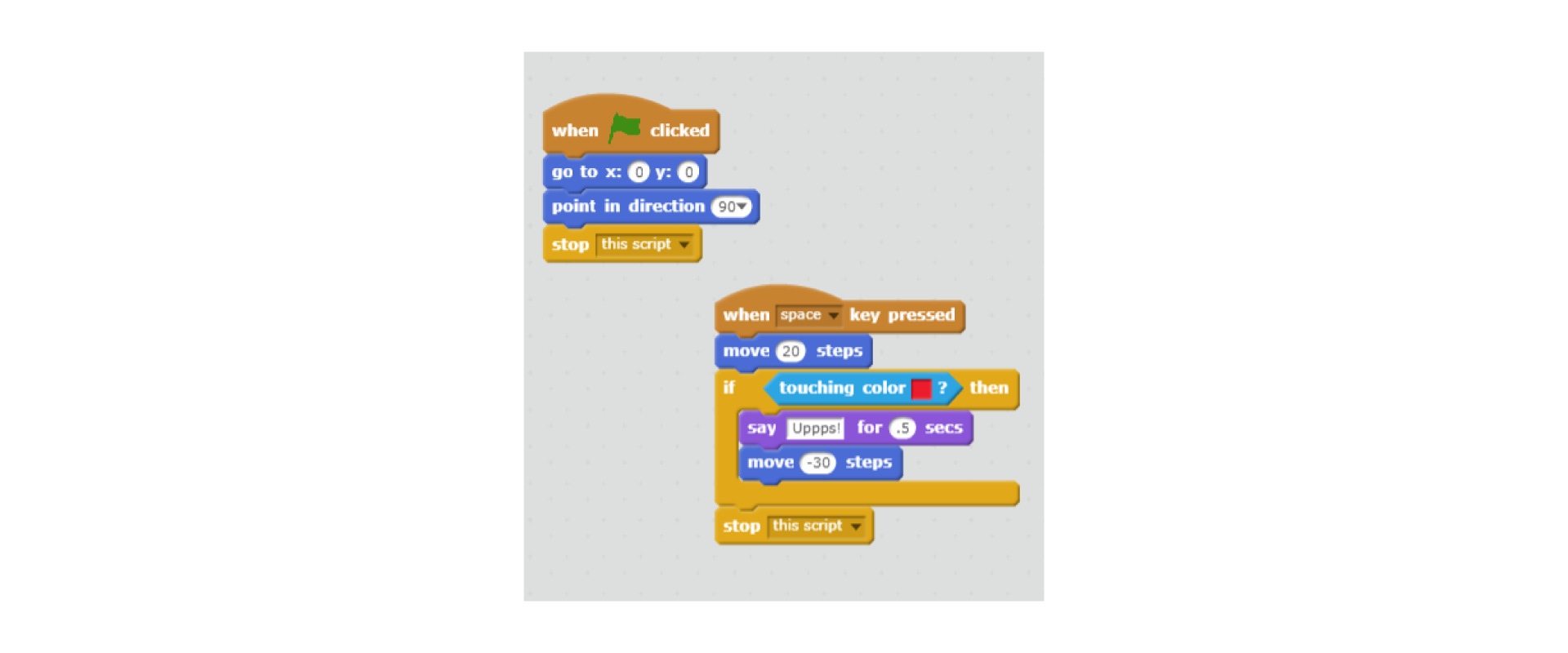
Na ilustracji przedstawiony jest skrypt sterujący ruchem duszka po napotkaniu przez niego przedmiotu o zadanym kolorze. Od góry bloczki: when ‘play’ clicked; go to x: 0, y: 0; point in direction 90; stop this script. Obok bloczki od góry: when space key pressed; move 20 steps; if touching color red then; say Uppps! for 0,5 secs; move minus 30 steps; end if; stop this script.
To change the colour in the block touching ... colour, click the left mouse button on the colour box in the block. After clicking, the mouse pointer will change its appearance. Move the pointer to another object on the screen in the colour you need. When you click again on this object, the colour box in the block will change colour accordingly.
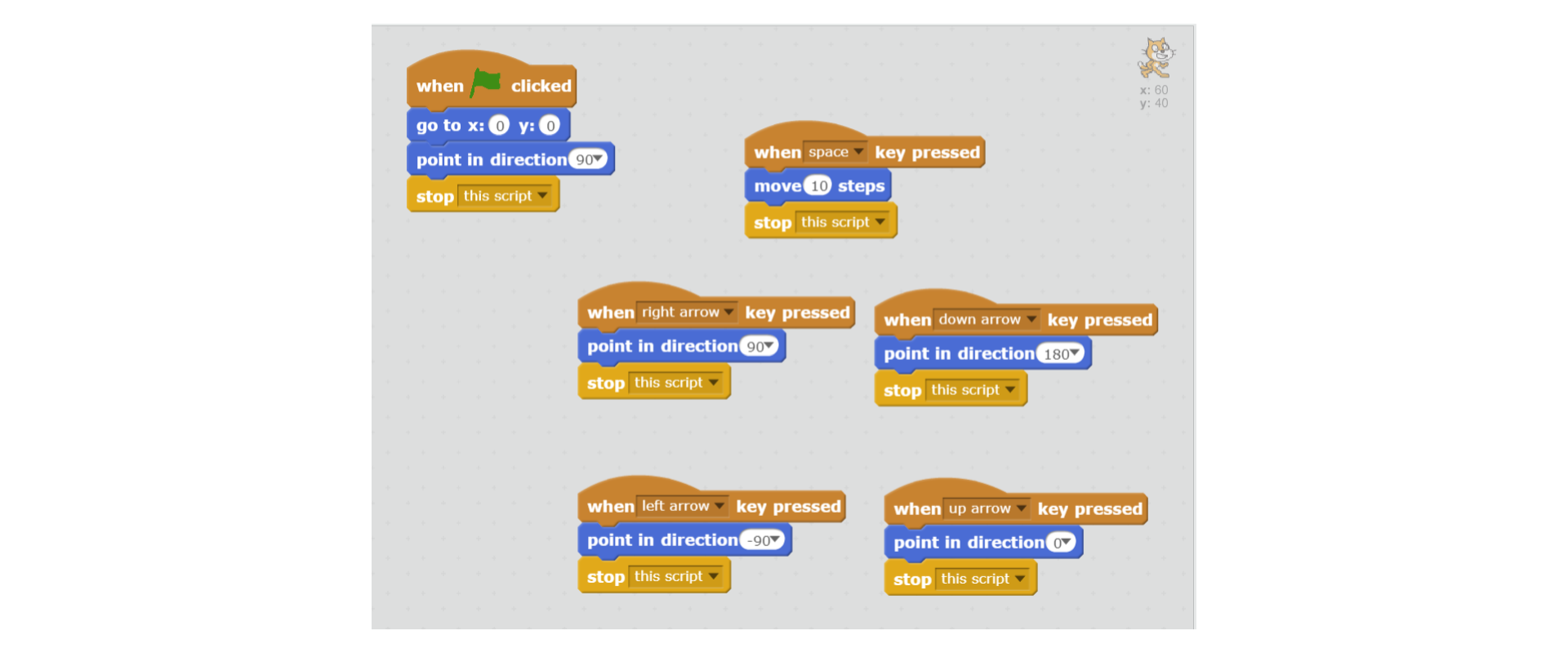
One of the possible solutions - pressing the spacebar causes the movement of the sprite. When we press the arrow, the sprite will change its directiondirectiondirection of movement. Check, which way it goes, by pressing the space again.
RA0zi7vIGy9ck1
Na ilustracji przedstawione są skrypty ustawiające kierunek duszka za pomocą strzałek na klawiaturze. Od góry bloczki: when ‘play’ clicked; go to x: 0, y: 0; point in direction 90; stop this script. Obok bloczki od góry: when space key pressed; move 10 steps; stop this script. Poniżej bloczki od góry: when right arrow key pressed; point in direction 90; stop this script. Obok bloczki od góry: when down arrow key pressed; point in direction 180; stop this script. Poniżej bloczki od góry: when left arrow key pressed; point in direction minus 90; stop this script. Obok bloczki od góry: when up arrow key pressed; point in direction 0; stop this script.
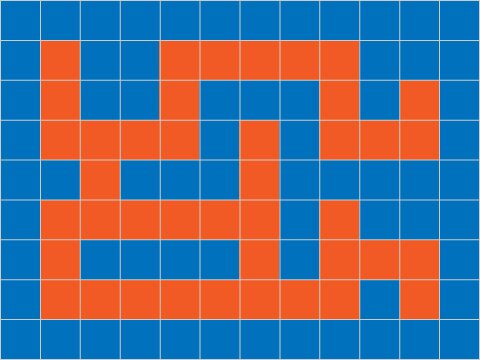
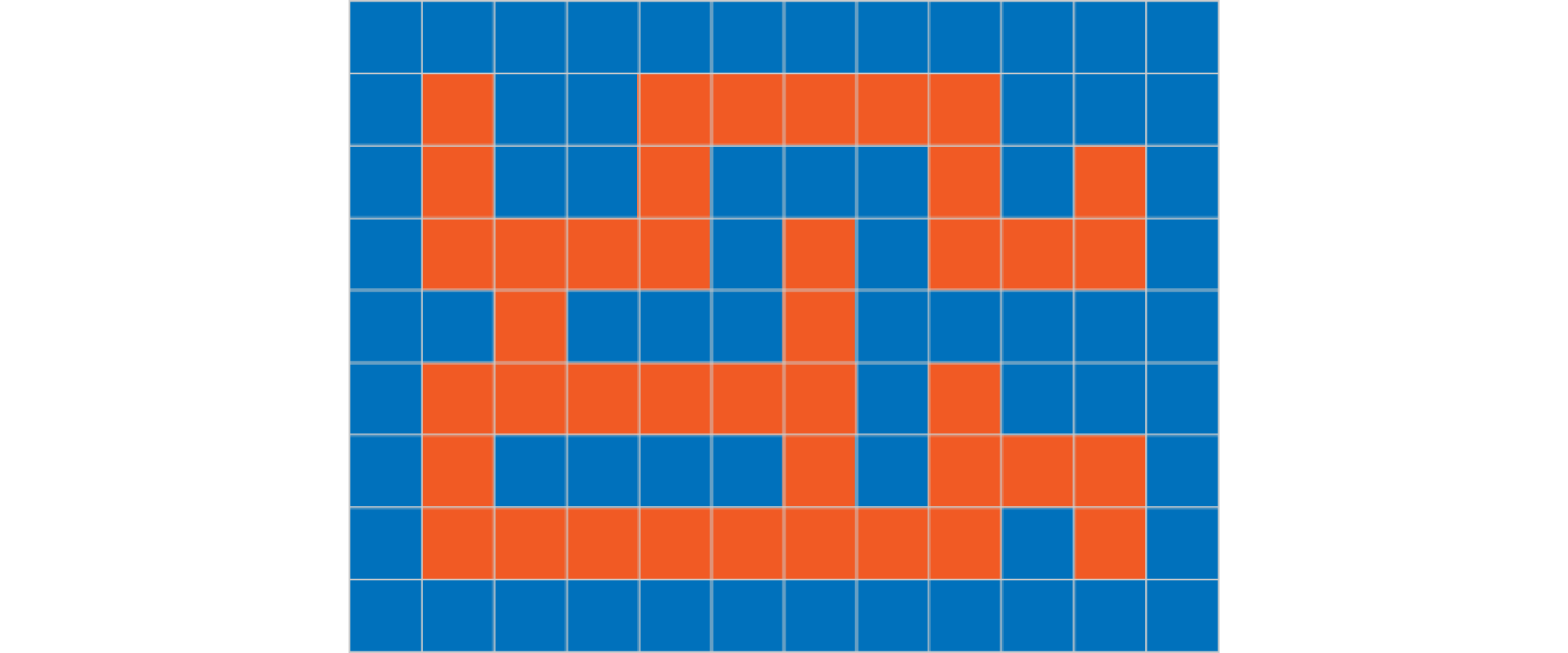
To create a game boardboardboard containing a mazemazemaze, you can create it from scratch in any graphic editor (remember that the Scratch scene is 480 points wide and 360 points high). You can also modify one of the backdrops from the program library called xy‑grid‑30px or use the following board.
Na ilustracji pokazane jest przykładowa plansza do gry. Przedstawia ona pomarańczowy labirynt na niebieskim tle. Plansza podzielona jest na 108 takich samych kwadratów, ustawionych w dziewięciu wierszach i dwunastu kolumnach. W drugim wierszu kwadraty pomarańczowe, od lewej: 2, 5, 6, 7, 8, 9. W trzecim wierszu kwadraty pomarańczowe, od lewej: 2, 5, 9, 11. W czwartym wierszu kwadraty pomarańczowe, od lewej: 2, 3, 4, 5, 7, 9, 10, 11. W piątym wierszu kwadraty pomarańczowe, od lewej: 3, 7. W szóstym wierszu kwadraty pomarańczowe, od lewej: 2, 3, 4, 5, 6, 7, 9. W siódmym wierszu kwadraty pomarańczowe, od lewej: 2, 7, 9, 10, 11. W ósmym wierszu kwadraty pomarańczowe, od lewej: 2, 3, 4, 5, 6, 7, 8, 9, 11. Pozostałe kwadraty są niebieskie.
Place two sprites on the board. Adjust their sizes to fit entirely in a single mazemazemaze field. Choose the coordinates of the position of the sprites so that after the green flag lights up they are always in the same place.
Choose the number of steps of one of the sprites, so that after pressing the space it would go entirely to the next field, and pressing the arrow would change the directiondirectiondirection of its movement. The second sprite remains still all the time.
If the sprite touches the field beyond the mazemazemaze path, it should go back to the previous position.
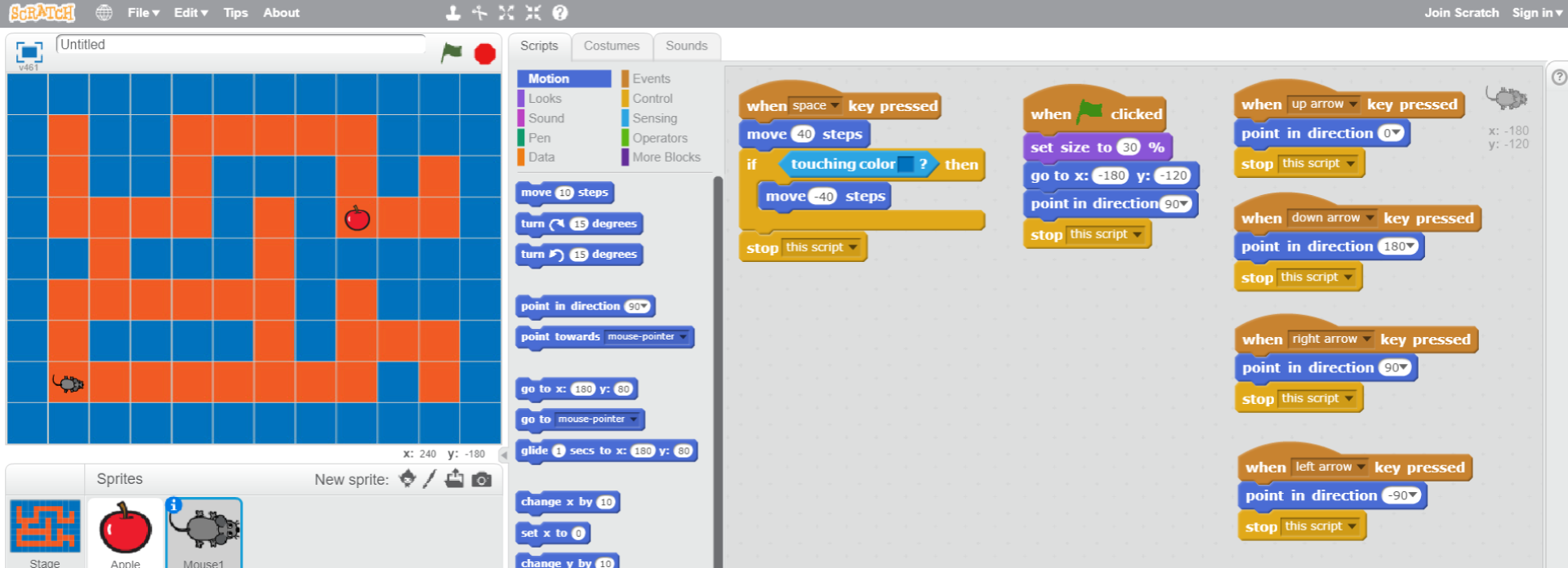
Na ilustracji przedstawiony jest zrzut ekranu, na którym widoczne są wszystkie okna programu Scratch. Na górze pasek menu z logo, ikoną umożliwiającą zmianę języka, File, Edit, Tips, About. Na środku paska ikony narzędzi: stempel, nożyce, pomniejszenie, powiększenie, pomoc. Poniżej po lewej okno podglądu. W nim na środku widoczne jest tło z planszą do gry. Przedstawia ona pomarańczowy labirynt na niebieskim tle. Plansza podzielona jest na 108 takich samych kwadratów, ustawionych w dziewięciu wierszach i dwunastu kolumnach. W drugim wierszu kwadraty pomarańczowe, od lewej: 2, 5, 6, 7, 8, 9. W trzecim wierszu kwadraty pomarańczowe, od lewej: 2, 5, 9, 11. W czwartym wierszu kwadraty pomarańczowe, od lewej: 2, 3, 4, 5, 7, 9, 10, 11. W piątym wierszu kwadraty pomarańczowe, od lewej: 3, 7. W szóstym wierszu kwadraty pomarańczowe, od lewej: 2, 3, 4, 5, 6, 7, 9. W siódmym wierszu kwadraty pomarańczowe, od lewej: 2, 7, 9, 10, 11. W ósmym wierszu kwadraty pomarańczowe, od lewej: 2, 3, 4, 5, 6, 7, 8, 9, 11. Pozostałe kwadraty są niebieskie. W czwartym wierszu w dziewiątej kolumnie znajduje się jabłko, natomiast w ósmym wierszu w drugiej kolumnie znajduje się duszek (myszka). Na górze okna po lewej ikona sceny, obok podpis Untitled, po prawej stronie ikona flaga oznaczająca play, ikona ośmiokąt oznaczająca stop. Na dole okna po prawej znaczniki położenia duszka na scenie x i y. Pod oknem podglądu znajduje się okno z ustawieniami. Po lewej stronie wyróżnione tło z okna podglądu Stage 1 backdrop. Poniżej New backdrop. Poniżej ikony nowe tło, edycja tła, pobranie tła z zewnętrznego pliku, podgląd tła. Na środku okna ustawień od góry napis Sprites, po prawej napis New sprite oraz ikony nowy duszek, edycja, pobranie z zewnętrznego pliku, podgląd. Poniżej obrazek czerwonego jabłka opisany Apple obok zaznaczony obrazek duszka (myszki) opisany Mouse1. Po prawej okno edycji zajmujące ponad połowę ekranu. Po lewej stronie okna edycji znajdują się zakładki Scripts (wyróżniona), Costumes, Sounds. Widoczne są działy w zakładce Scripts: zaznaczone Motion, Looks, Sound, Pen, Data, Events, Control, Sensing, Operators, More Blocks. Każdy dział wyróżniony jest innym kolorem. Poniżej bloczki do układania algorytmów. Po prawej skrypty odpowiedzialne za poruszanie się myszki w labiryncie. Od góry bloczki: when space key pressed; move 40 steps; if touching color blue then; move minus 40 steps; end if; stop this script. Obok bloczki, od góry: when ‘play’ clicked; set size to 30%; go to x: minus 180, y: minus 120; point in direction minus 90; set Lives to 3; stop this script. Obok bloczki, od góry: when up arrow key pressed; point in direction 0; stop this script. Poniżej bloczki, od góry: when left arrow key pressed; point in direction minus 90; stop this script. Poniżej bloczki, od góry: when down arrow key pressed; point in direction 180; stop this script. Poniżej bloczki, od góry: when right arrow key pressed; point in direction 90; stop this script.
Your sprite can move around the maze. Think about what should happen to the sprites in the moment they meet.
Remember to save individual stages of your game under various names, e.g. Maze_version1. This way it will be easier for you to make changes or go back to successful solutions.
The first sprite sends the message after encountering the second sprite:
RGgHHdbkLPXMq1
Na ilustracji pokazany jest zrzut ekranu z programu Scratch, na którym widoczny jest skrypt odpowiedzialny za wysyłanie wiadomości do innego duszka. Od góry bloczki: when space key pressed; move 40 steps; if touching color blue then; move minus 40 steps; end if; if touching Apple then; broadcast eat; end if; stop this script.
When the wandering sprite meets another sprite, he broadcasts a message to him. The second sprite, after receiving the message, executes a given command. You will find the blocks you need in the Events category.
The second sprite receives the message and executes the command:
R1GjiMCeCXZHc1
Na ilustracji pokazany jest zrzut ekranu z programu Scratch, na którym widoczny jest skrypt odpowiedzialny za odbieranie wiadomości od innego duszka. Od góry bloczki: when I receive eat; hide; stop all.
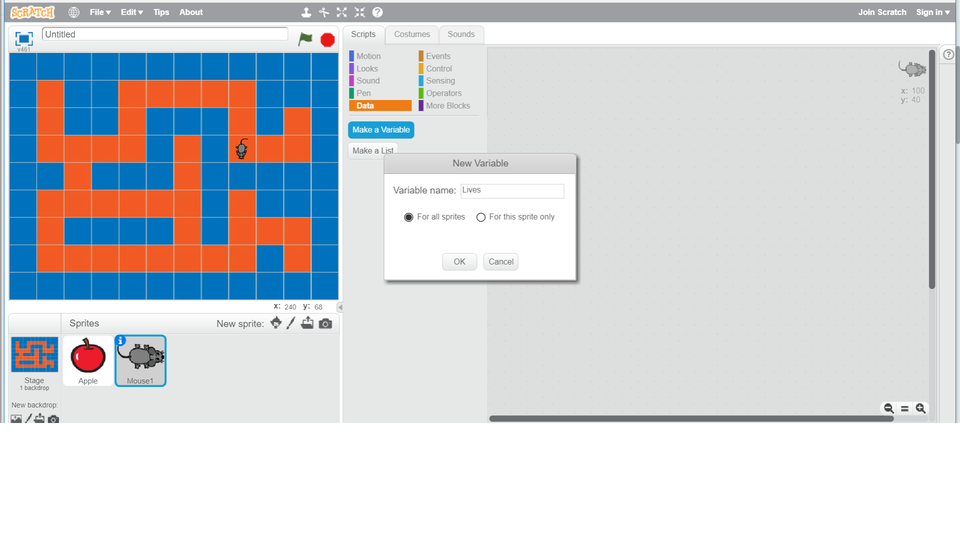
No game can go without a scorescorescore or lives counterlives counterlives counter. To add counters to the game, create a new variablevariablevariable in the Data category. We use this variable later to count the scored points or lost lives of the protagonistprotagonistprotagonist of the game. After creating the variable, new blocks automatically appear, which we use to build scripts.
In the Data category, create a new Lives variable. Look what new blocks appeared. Consider how to modify your codecodecode so that the sprite will lose one life after accidentally touching the wall of the maze. When the number of lives is exhausted, the game ends.
If you are not sure how to apply the newly created variable in the codecodecode, look at the following slideshow.
Rh6fUkBHEXvNp1
Prezentacja multimedialna - licznik. Instrukcja obsługi z poziomu klawiatury: 1. Uruchomienie aplikacji - ENTER, 2. Na każdym ze slajdów czytany jest automatycznie tekst alternatywny po polsku, 3. Przy pierwszym uruchomieniu na pierwszym slajdzie, czytanie tekstu po angielsku - TAB, 4. Przejście między slajdami: do następnego slajdu - TAB, do poprzedniego slajdu - TAB + SHIFT, 5. Przejście do czytania napisu po angielsku - strzałka w górę + strzałka w dół (czyta tekst po angielsku widoczny na slajdzie).
Prezentacja multimedialna - licznik. Instrukcja obsługi z poziomu klawiatury: 1. Uruchomienie aplikacji - ENTER, 2. Na każdym ze slajdów czytany jest automatycznie tekst alternatywny po polsku, 3. Przy pierwszym uruchomieniu na pierwszym slajdzie, czytanie tekstu po angielsku - TAB, 4. Przejście między slajdami: do następnego slajdu - TAB, do poprzedniego slajdu - TAB + SHIFT, 5. Przejście do czytania napisu po angielsku - strzałka w górę + strzałka w dół (czyta tekst po angielsku widoczny na slajdzie).
In Scratch you can define new variables. Sprites can communicate with each other.
Exercises
Exercise 1
R1U15cE807EOr
Wersja alternatywna ćwiczenia: Determine which sentences are true. Możliwe odpowiedzi: 1. By creating variables, you decide whether only the scripts of the chosen sprite or all scripts have access to a given variable., 2. The stage is 480 points high and 360 points wide., 3. Blocks starting with a word “if” are conditional statements., 4. You can duplicate the spirits' costumes, but you cannot duplicate the backdrops.
Wersja alternatywna ćwiczenia: Determine which sentences are true. Możliwe odpowiedzi: 1. By creating variables, you decide whether only the scripts of the chosen sprite or all scripts have access to a given variable., 2. The stage is 480 points high and 360 points wide., 3. Blocks starting with a word “if” are conditional statements., 4. You can duplicate the spirits' costumes, but you cannot duplicate the backdrops.
Determine which sentences are true.
By creating variables, you decide whether only the scripts of the chosen sprite or all scripts have access to a given variable.
The stage is 480 points high and 360 points wide.
Blocks starting with a word “if” are conditional statements.
You can duplicate the spirits' costumes, but you cannot duplicate the backdrops.
zadanie
Source: GroMar, licencja: CC BY 3.0.
Exercise 2
Zastanów się jaki powinien być kod, aby po duszek po zjedzeniu innego duszka przechodził na do kolejnego labiryntu.
Zastanów się jaki powinien być kod, aby po duszek po zjedzeniu innego duszka przechodził na do kolejnego labiryntu.
Prepare another board with a more difficult maze.
Modify your code so that the sprite after eating another sprite passes on to the next maze.
Exercise 3
Explain in English what commands should be entered into the code so that the sprites communicate with each other.
Exercise 4
RLl5mjpllx90f
Wersja alternatywna ćwiczenia: Indicate which pairs of expressions or words are translated correctly. Możliwe odpowiedzi: 1. zmienna - variable, 2. bohater - protagonist, 3. labirynt - maze, 4. plansza - board, 5. kierunek - lives counter, 6. licznik żyć - direction
Wersja alternatywna ćwiczenia: Indicate which pairs of expressions or words are translated correctly. Możliwe odpowiedzi: 1. zmienna - variable, 2. bohater - protagonist, 3. labirynt - maze, 4. plansza - board, 5. kierunek - lives counter, 6. licznik żyć - direction
Indicate which pairs of expressions or words are translated correctly.
zmienna - variable
bohater - protagonist
labirynt - maze
plansza - board
kierunek - lives counter
licznik żyć - direction
zadanie
Source: GroMar, licencja: CC BY 3.0.
R1amUnrSxSKUN1
Interaktywna gra, polegająca na łączeniu wyrazów w pary w ciągu jednej minuty. Czas zaczyna upływać wraz z rozpoczęciem gry. Jeden ruch to odkrywanie najpierw jednej potem drugiej karty z wyrazem. Każdy wyraz jest odczytywany. Kolejny ruch to odkrywanie trzeciej i czwartej karty. W ten sposób odsłuchasz wszystkie wyrazy. Nawigacja z poziomu klawiatury za pomocą strzałek, odsłuchiwanie wyrazów enterem lub spacją. Znajdź wszystkie pary wyrazów.
Interaktywna gra, polegająca na łączeniu wyrazów w pary w ciągu jednej minuty. Czas zaczyna upływać wraz z rozpoczęciem gry. Jeden ruch to odkrywanie najpierw jednej potem drugiej karty z wyrazem. Każdy wyraz jest odczytywany. Kolejny ruch to odkrywanie trzeciej i czwartej karty. W ten sposób odsłuchasz wszystkie wyrazy. Nawigacja z poziomu klawiatury za pomocą strzałek, odsłuchiwanie wyrazów enterem lub spacją. Znajdź wszystkie pary wyrazów.
Match Polish terms with their English equivalents.
variable
board
bohater
maze
labirynt
zmienna
lives counter
plansza
licznik żyć
protagonist
Source: Zespół autorski Politechniki Łódzkiej, licencja: CC BY 3.0.