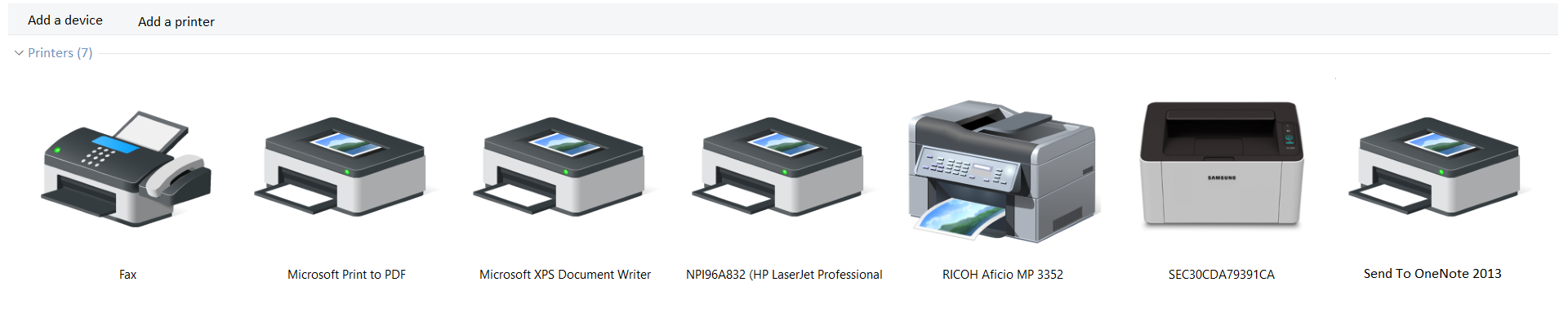
After selecting the Print option (File > Print or by using the keyboard shortcut CTRL + P), on one of the drop‑down lists you will find all printers which are currently available in the system. Select the printerprinterprinter you want to connect to. If it is not listed, you need to install it in your system.
RM6XN5FHmP8x11
Widok drukarek w systemie Windows. Na górze dwa przyciski Add device oraz Add printer. Poniżej widocznych jest kilka ikon obrazujących drukarki (liczba ikon jest zależna o liczby zainstalowanych drukarek w systemie).
Print Preview is an option that enables you to see on the screen a preview of how your document will appear on the printout. The preview is displayed in black‑and‑white until you select a colour printer. The Next Page and Previous Page buttons are available only when your document spans more than one printed page. In such a case you can preview a specific page by typing its number.
R121y4VvrOmVd
Ilustracja interaktywna przedstawia formatkę drukowania w programie MS Word. Po lewej stronie znajduje się wąski pasek, w nim na górze strzałka skierowana w lewo umieszczona w okręgu. Poniżej polecenia jeden pod drugim: Info, New, Open, Save, Save As, Print, Share, Export, Close, Account, Options.
Polecenie Print znajduje się na jaśniejszym tle niż wypełnienie paska, oznacza to, że jest aktywne. Prawą, większą część formatki zajmują opcje związane z drukowaniem. Od góry tytuł Print. Poniżej ikona drukarki podpisana print, obok lista rozwijana Copies z wybraną liczbą 1. Niżej napis Printer, a pod nim lista rozwijana z dostępnymi drukarkami. Widoczna jest wybrana: Microsoft Print to PDF, obok nazwy znajduje się ikona drukarki z zielonym checkboxem w kole, pod nazwą napis Ready. Pod listą napis Printer Properties. Niżej napis Settings, pod nim lista rozwijana zawierająca ustawienia wydruku. Widoczna jest wybrana opcja: Print All Pages, obok opcji znajduje się ikona przedstawiająca trzy kartki, pod opcją napis The whole thing. Poniżej wszystkie dostępne ustawienia wydruku zostały oznaczone numerami od 1 do 4. 1: Print All Pages, he whole thing. 2: Print Selection, Just what you selected. 3: Print Current page, Just this page. 4: Custom Print, Type specific pages, section or ranges. Na ilustracji widoczne są numery, a na nich podpisy. 1. all pages {audio}, 2. selection {audio}, 3. current page {audio}, 4. specific pages/sections {audio}.
Ilustracja interaktywna przedstawia formatkę drukowania w programie MS Word. Po lewej stronie znajduje się wąski pasek, w nim na górze strzałka skierowana w lewo umieszczona w okręgu. Poniżej polecenia jeden pod drugim: Info, New, Open, Save, Save As, Print, Share, Export, Close, Account, Options.
Polecenie Print znajduje się na jaśniejszym tle niż wypełnienie paska, oznacza to, że jest aktywne. Prawą, większą część formatki zajmują opcje związane z drukowaniem. Od góry tytuł Print. Poniżej ikona drukarki podpisana print, obok lista rozwijana Copies z wybraną liczbą 1. Niżej napis Printer, a pod nim lista rozwijana z dostępnymi drukarkami. Widoczna jest wybrana: Microsoft Print to PDF, obok nazwy znajduje się ikona drukarki z zielonym checkboxem w kole, pod nazwą napis Ready. Pod listą napis Printer Properties. Niżej napis Settings, pod nim lista rozwijana zawierająca ustawienia wydruku. Widoczna jest wybrana opcja: Print All Pages, obok opcji znajduje się ikona przedstawiająca trzy kartki, pod opcją napis The whole thing. Poniżej wszystkie dostępne ustawienia wydruku zostały oznaczone numerami od 1 do 4. 1: Print All Pages, he whole thing. 2: Print Selection, Just what you selected. 3: Print Current page, Just this page. 4: Custom Print, Type specific pages, section or ranges. Na ilustracji widoczne są numery, a na nich podpisy. 1. all pages {audio}, 2. selection {audio}, 3. current page {audio}, 4. specific pages/sections {audio}.
If you do not want to share an entire document but only its part, you can send a file containing the printout of the document. The printout will be prepared for a specific printerprinterprinter (installed in the system) and when the file is printed on a different printer, the page breaks and font spacing may change. Such a printout cannot be modified. The printout file will have the extension PRN and as usual will be saved in your Documents folder.
Printing a text document directly from a folder. Open the folder including the file to be printed. Right‑click the file and select the Print option.
Create a desktop shortcut for a printerprinterprinter. Drag and drop the file you want to print onto the icon of the printer. You can also drag and drop the file onto the icon of the printer located in the Printers folder.
Before printing, you can check your document in Print Previewprint previewPrint Preview. If it does not meet your expectations, return to its edition. You do not have to print the entire document. You can only print its parts or selected pages. Always consider if printing is necessary. If it is possible, print on both sides of the paper. You will reduce paper consumption and contribute to environment protection.
Exercises
Exercise 1
ReRL1UWYwMAhi
Wersja alternatywna ćwiczenia: Determine which sentences are true. Możliwe odpowiedzi: 1. Print Preview enables to see on the screen a preview of how your document will appear on the printout., 2. You can print a document by dragging and dropping it onto the icon of a printer., 3. The printing option is available from a context menu., 4. The printout file extension is PRN.
Wersja alternatywna ćwiczenia: Determine which sentences are true. Możliwe odpowiedzi: 1. Print Preview enables to see on the screen a preview of how your document will appear on the printout., 2. You can print a document by dragging and dropping it onto the icon of a printer., 3. The printing option is available from a context menu., 4. The printout file extension is PRN.
Determine which sentences are true.
Print Preview enables to see on the screen a preview of how your document will appear on the printout.
You can print a document by dragging and dropping it onto the icon of a printer.
The printing option is available from a context menu.
The printout file extension is PRN.
zadanie
Source: GroMar, licencja: CC BY 3.0.
Exercise 2
Create a multi‑page text document. Use a virtual printer that prints to a PDF file. Perform the following steps:
select a part of the document and print it,
print three consecutive pages from the middle of the document,
change page orientation and print only odd pages.
Exercise 3
Have your say: Should all documents be printed on paper or is it better to share them online?
Exercise 4
RCbPylbCPcjpi
Wersja alternatywna ćwiczenia: Indicate which pairs of expressions or words are translated correctly. Możliwe odpowiedzi: 1. drukarka - printer, 2. jednostronny - one-sided printing, 3. dwustronny - duplex printing, 4. skalowanie dokumentu - document scaling, 5. ustawienia wydruku - print preview, 6. podgląd wydruku - print settings
Wersja alternatywna ćwiczenia: Indicate which pairs of expressions or words are translated correctly. Możliwe odpowiedzi: 1. drukarka - printer, 2. jednostronny - one-sided printing, 3. dwustronny - duplex printing, 4. skalowanie dokumentu - document scaling, 5. ustawienia wydruku - print preview, 6. podgląd wydruku - print settings
Indicate which pairs of expressions or words are translated correctly.
drukarka - printer
jednostronny - one-sided printing
dwustronny - duplex printing
skalowanie dokumentu - document scaling
ustawienia wydruku - print preview
podgląd wydruku - print settings
zadanie
Source: GroMar, licencja: CC BY 3.0.
RHKuXbNgfBf1z1
Interaktywna gra, polegająca na łączeniu wyrazów w pary w ciągu jednej minuty. Czas zaczyna upływać wraz z rozpoczęciem gry. Jeden ruch to odkrywanie najpierw jednej potem drugiej karty z wyrazem. Każdy wyraz jest odczytywany. Kolejny ruch to odkrywanie trzeciej i czwartej karty. W ten sposób odsłuchasz wszystkie wyrazy. Nawigacja z poziomu klawiatury za pomocą strzałek, odsłuchiwanie wyrazów enterem lub spacją. Znajdź wszystkie pary wyrazów.
Interaktywna gra, polegająca na łączeniu wyrazów w pary w ciągu jednej minuty. Czas zaczyna upływać wraz z rozpoczęciem gry. Jeden ruch to odkrywanie najpierw jednej potem drugiej karty z wyrazem. Każdy wyraz jest odczytywany. Kolejny ruch to odkrywanie trzeciej i czwartej karty. W ten sposób odsłuchasz wszystkie wyrazy. Nawigacja z poziomu klawiatury za pomocą strzałek, odsłuchiwanie wyrazów enterem lub spacją. Znajdź wszystkie pary wyrazów.
Match Polish terms with their English equivalents.
one-sided printing
drukarka
jednostronny
duplex printing
print settings
dwustronny
podgląd wydruku
print preview
ustawienia wydruku
printer
Source: Zespół autorski Politechniki Łódzkiej, licencja: CC BY 3.0.