OneDrive is a file hosting servicefile hosting servicefile hosting service offered by the Office Online suite. It enables storing files in a cloud on the servers of Microsoft. You can synchronisesynchronisesynchronise these files with the computer or other device. They can be accessed through a web browser or a client application. You can make the files publicly available or shareshare share them with selected persons. In most subscriptions the Office online application is added to the OneDrive service, which enables creating, editing and group working on Office documents. Currently the service offers the Recycle Bin feature for storing documents that have been deleted. It also includes an online text editor, which enables viewing and editing text files. It is also possible to view files in the ODF and PDF file formats.
Applications The OneDrive application is available for Android, Windows, IOS, OS X, Windows 8/10/Phone and Xbox 360/One. The service is integrated with the Windows operating systems (from Windows 8 onwards) and the Office suite (from the 2010 version onwards), which enables the users a direct accessdirect accessdirect access to data stored on an OneDrive account.
The OneDrive dialogue box The toolbar is located at the top of the OneDrive dialogue box. The tools are also accessible from the pop‑up menu available in the working area. On the right you can see a menu that enables accessing disc resourcesdisc resourcesdisc resources, searching for a resource, accessing recently edited documents and the information about resources that have been shared with you and that you have shared.
RO02R6smEiGZO
Ilustracja interaktywna przedstawia okno usługi OneDrive. Widoczne są polecenia w menu, od lewej strony: 1 - Search everything , 2 - New, 3 - Upload, 4 - Share, 5 - Copy link, 6 - Download, 7 - Flow, 8 - Sync. Na ilustracji widoczne są numery, a na nich podpisy. 1. Search everything – enables to search for a file. {audio}, 2. New – adds a new folder or an Office document. {audio}, 3. Upload – enables to upload a file or a folder from the computer. {audio}, 4. Share – enables to share files and folders with the members of an organization or on the web. {audio}, 5. Copy link – generates a link to a file. {audio}, 6. Download – enables to download a resource from the virtual disc drive to a disc on your computer or to the memory of another device. {audio}, 7. Flow – organises the automation of data flow. It links various services of Office365 and requires enabling the Microsoft Flow service in a subscription. {audio}, 8. Sync – enforces the synchronisation of the current disc content with another devices. {audio}
Ilustracja interaktywna przedstawia okno usługi OneDrive. Widoczne są polecenia w menu, od lewej strony: 1 - Search everything , 2 - New, 3 - Upload, 4 - Share, 5 - Copy link, 6 - Download, 7 - Flow, 8 - Sync. Na ilustracji widoczne są numery, a na nich podpisy. 1. Search everything – enables to search for a file. {audio}, 2. New – adds a new folder or an Office document. {audio}, 3. Upload – enables to upload a file or a folder from the computer. {audio}, 4. Share – enables to share files and folders with the members of an organization or on the web. {audio}, 5. Copy link – generates a link to a file. {audio}, 6. Download – enables to download a resource from the virtual disc drive to a disc on your computer or to the memory of another device. {audio}, 7. Flow – organises the automation of data flow. It links various services of Office365 and requires enabling the Microsoft Flow service in a subscription. {audio}, 8. Sync – enforces the synchronisation of the current disc content with another devices. {audio}
The toolbar options The options that enable sorting disc resourcesdisc resourcesdisc resources and changing the view of the dialogue box (task list, simple task list, tiles) are available on the right of the toolbar.
Managing files For disc resources another tools are available after selecting an object:
Download,
Delete,
Move to,
Copy to,
Rename.
R9WdZI1oprSiQ
Zrzut ekranu przedstawia pasek narzędzi w Office 365 / OneDrive, który pojawia się po zaznaczeniu dokumentu. Od lewej: pole tekstowe wyszukiwarki (search everything). Następnie przyciski menu: Open, Share, Copy link, Download, Delete, Move to, Copy to, Rename, Flow, Version history.
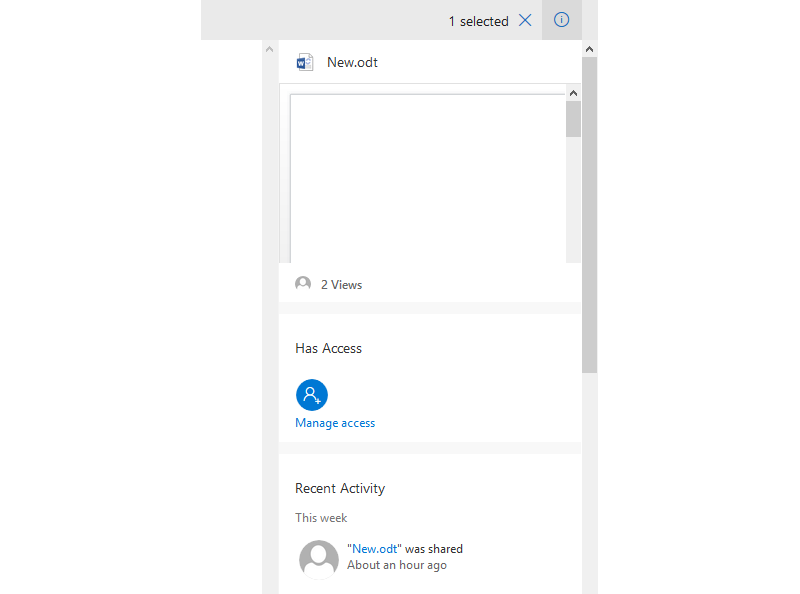
On the left of the working area you can enable the resource properties box, which displays the view of a document, information about its sharing and recent activities associated with this document.
Rq4tuIpZye52I
Zrzut ekranu przedstawia okno szczegółów dokumentu Office 365 / OneDrive. Od góry nazwa dokumentu (w przykładzie New.odt). Poniżej okno podglądu dokumentu. Niżej liczba wejść w dokument (w przykładzie 2 views). Poniżej sekcja 'Has Access', okrągła ikona z postacią ze znakiem plus podpisana Manage access. Na dole sekcja 'Recent Activity'. Napis This week, poniżej ikona z postać obok niej napis "New.odt" was shared Abut an hour ago.
The resource properties box
Source: GroMar, licencja: CC BY 3.0.
RLoWsYt5PY85c1
Pokaz slajdów. Praca w chmurze cyfrowej. Instrukcja obsługi z poziomu klawiatury: 1. Uruchomienie aplikacji - ENTER, 2. Na każdym ze slajdów czytany jest automatycznie tekst alternatywny po polsku, 3. Przy pierwszym uruchomieniu na pierwszym slajdzie, czytanie tekstu po angielsku - TAB, 4. Przejście między slajdami: do następnego slajdu - TAB, do poprzedniego slajdu - TAB + SHIFT, 5. Przejście do czytania napisu po angielsku - strzałka w górę + strzałka w dół (czyta tekst po angielsku widoczny na slajdzie).
Pokaz slajdów. Praca w chmurze cyfrowej. Instrukcja obsługi z poziomu klawiatury: 1. Uruchomienie aplikacji - ENTER, 2. Na każdym ze slajdów czytany jest automatycznie tekst alternatywny po polsku, 3. Przy pierwszym uruchomieniu na pierwszym slajdzie, czytanie tekstu po angielsku - TAB, 4. Przejście między slajdami: do następnego slajdu - TAB, do poprzedniego slajdu - TAB + SHIFT, 5. Przejście do czytania napisu po angielsku - strzałka w górę + strzałka w dół (czyta tekst po angielsku widoczny na slajdzie).
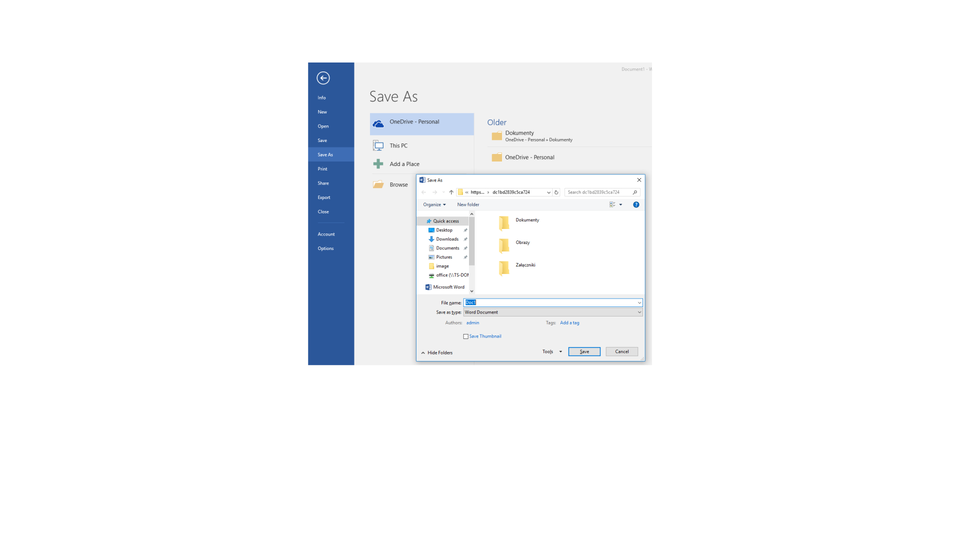
Open a document in Microsoft Word. Save it on OneDrive. Log in to the OneDrive service in a web browser. Check if your document is saved there. Shareshare Share it with your school mates. Check the documents shared with you. Download one of them.
The advantage of working in a digital cloud is undoubtedly the access to your documents from any device connected to the internet.
Exercises
Exercise 1
R16BOiFiJ15oi
Wersja alternatywna ćwiczenia: The OneDrive service: Możliwe odpowiedzi: 1. enables to synchronise files between the computer or another devices, 2. does not enable to view files in the ODF and PDF file formats, 3. enables sharing files publicly or with selected persons, 4. enables creating, editing and group working on Office documents
Wersja alternatywna ćwiczenia: The OneDrive service: Możliwe odpowiedzi: 1. enables to synchronise files between the computer or another devices, 2. does not enable to view files in the ODF and PDF file formats, 3. enables sharing files publicly or with selected persons, 4. enables creating, editing and group working on Office documents
The OneDrive service:
enables to synchronise files between the computer or another devices
does not enable to view files in the ODF and PDF file formats
enables sharing files publicly or with selected persons
enables creating, editing and group working on Office documents
zadanie
Source: GroMar, licencja: CC BY 3.0.
Exercise 2
Create a multimedia presentation on Google Drive. Compare in it the possibilities to create, edit and share files in the following clouds: OneDrive, Google Drive and Dropbox as well as the availability of these services on mobile devices.
Exercise 3
Tell in English if you use services in a cloud and how often you use them. If not, think about what you could use them for.
Exercise 4
RFUAHQ2D96cGZ
Wersja alternatywna ćwiczenia: Indicate which pairs of expressions or words are translated correctly. Możliwe odpowiedzi: 1. synchronizować - synchronise, 2. udostępniać - share , 3. bezpośredni dostęp - direct access, 4. usługa hostingu plików - file hosting service, 5. wirtualny dysk - disc resources, 6. zasoby dysku - virtual disc drive
Wersja alternatywna ćwiczenia: Indicate which pairs of expressions or words are translated correctly. Możliwe odpowiedzi: 1. synchronizować - synchronise, 2. udostępniać - share , 3. bezpośredni dostęp - direct access, 4. usługa hostingu plików - file hosting service, 5. wirtualny dysk - disc resources, 6. zasoby dysku - virtual disc drive
Indicate which pairs of expressions or words are translated correctly.
synchronizować - synchronise
udostępniać - share
bezpośredni dostęp - direct access
usługa hostingu plików - file hosting service
wirtualny dysk - disc resources
zasoby dysku - virtual disc drive
zadanie
Source: GroMar, licencja: CC BY 3.0.
R1KQ5LEpvXaSS1
Interaktywna gra, polegająca na łączeniu wyrazów w pary w ciągu jednej minuty. Czas zaczyna upływać wraz z rozpoczęciem gry. Jeden ruch to odkrywanie najpierw jednej potem drugiej karty z wyrazem. Każdy wyraz jest odczytywany. Kolejny ruch to odkrywanie trzeciej i czwartej karty. W ten sposób odsłuchasz wszystkie wyrazy. Nawigacja z poziomu klawiatury za pomocą strzałek, odsłuchiwanie wyrazów enterem lub spacją. Znajdź wszystkie pary wyrazów.
Interaktywna gra, polegająca na łączeniu wyrazów w pary w ciągu jednej minuty. Czas zaczyna upływać wraz z rozpoczęciem gry. Jeden ruch to odkrywanie najpierw jednej potem drugiej karty z wyrazem. Każdy wyraz jest odczytywany. Kolejny ruch to odkrywanie trzeciej i czwartej karty. W ten sposób odsłuchasz wszystkie wyrazy. Nawigacja z poziomu klawiatury za pomocą strzałek, odsłuchiwanie wyrazów enterem lub spacją. Znajdź wszystkie pary wyrazów.
Match Polish terms with their English equivalents.
disc resources
share
usługa hostingu plików
synchronise
zasoby dysku
bezpośredni dostęp
udostępniać
file hosting service
direct access
synchronizować
Source: Zespół autorski Politechniki Łódzkiej, licencja: CC BY 3.0.