During your work with a text document it may turn out that the text ordered with the use of tabs must be represented in the form of a table. Text editors offer a convenient tool which enables to quickly change text to a table. The option Convert Text to Table is used for this purpose. It places the text in the appropriate cells of the table based on separators, i.e. characters that separate text. Not only tab characters, but also paragraph marks, semicolons or any other character entered with the keyboard, e.g. the space or any letter, can be separator characters.
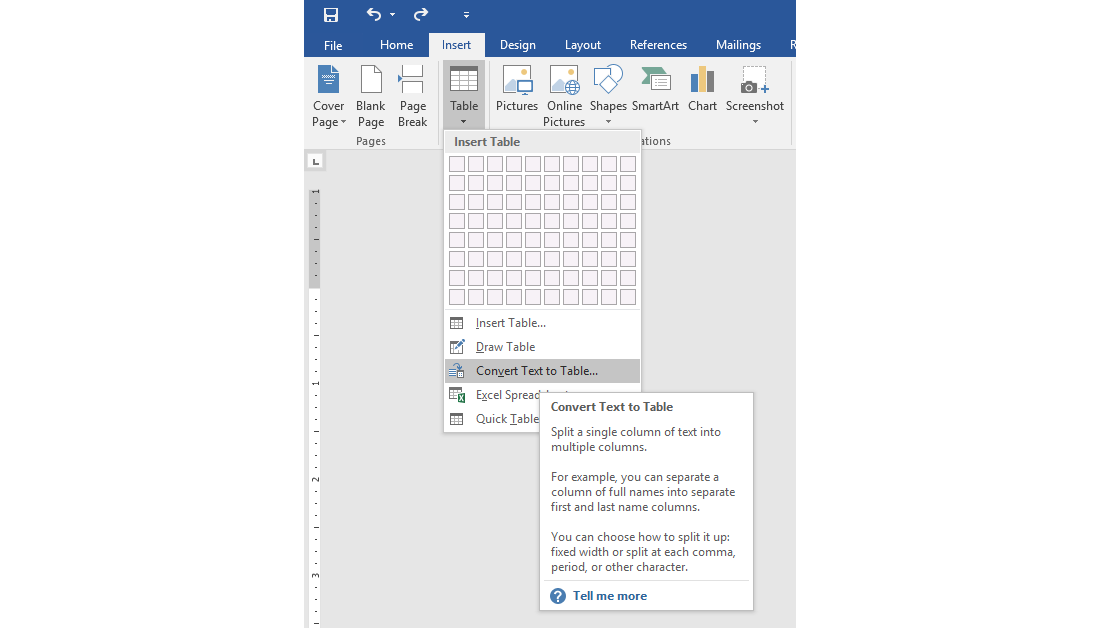
To convert text to a tableconvert text to a tableconvert text to a table, first click the Show/Hide paragraph mark on the Home tab to see how the text is separated in your document. Select the text you want to convert, and then click Insert > Table > Convert Text to Table. In the Convert Text to Table box, choose the appropriate options. Make sure the numbers under Table size correspond to the number of columns and rows you want to create. Under Separate text at, select the separator character which has been used in the text.
R3BY3XGU9vdgT
Zrzut ekranu ilustruje opcję konwersji tekstu na tabelę. Przedstawia fragment edytora tekstowego Word. Widoczna jest aktywna karta Insert, na niej rozwinięta lista Table, na której widoczne są opcje: Insert table, Draw table, Convert Text to Table (aktywne), Excel Spreadsheet, Quick Table. Widoczna jest również pomoc kontekstowa w postaci wyskakującego okna do polecenia Convert Text to Table:Split a single column of text into multiple columns. For example, you can separate a column of full names into separate first and last name columns. You can choose how to split it up fixed width or split at each comma, period or other character. Na dole okna ikona za znakiem zapytania i napis Tell me more.
Download the file with an example including the text with the data on the selected set books. Convert the text to a table. On the Internet find the first names of the writers and change the initials into the first names.
RUGzvKqdOiove1
Plik do pobrania do wykonania ćwiczenia
Plik do pobrania do wykonania ćwiczenia
R9hvpGXUC73cc
Ilustracja interaktywna przedstawia porządki sortowania przedstawione w sposób symboliczny. Pierwszy rysunek to cyfra 0, pod nią cyfra 9 obok strzałka w dół. Drugi rysunek to litera A, pod nią litera Z obok strzałka w dół. Trzeci rysunek to cyfra 9, pod nią cyfra 0 obok strzałkę w dół. Czwarty rysunek to litera Z, pod nią litera A obok strzałka w dół. Na ilustracji widoczne są numery, a na nich podpisy. 1. Ascending sort {audio}, 2. Ascending sort {audio}, 3. Descending sort {audio}, 4. Descending sort {audio}
Ilustracja interaktywna przedstawia porządki sortowania przedstawione w sposób symboliczny. Pierwszy rysunek to cyfra 0, pod nią cyfra 9 obok strzałka w dół. Drugi rysunek to litera A, pod nią litera Z obok strzałka w dół. Trzeci rysunek to cyfra 9, pod nią cyfra 0 obok strzałkę w dół. Czwarty rysunek to litera Z, pod nią litera A obok strzałka w dół. Na ilustracji widoczne są numery, a na nich podpisy. 1. Ascending sort {audio}, 2. Ascending sort {audio}, 3. Descending sort {audio}, 4. Descending sort {audio}
If data in a table need ordering in an ascending or a descending order, use the Sort command. You can sort by any column, according to text or number. You can also sort only the part of the table.
R1904INGKx5Ck
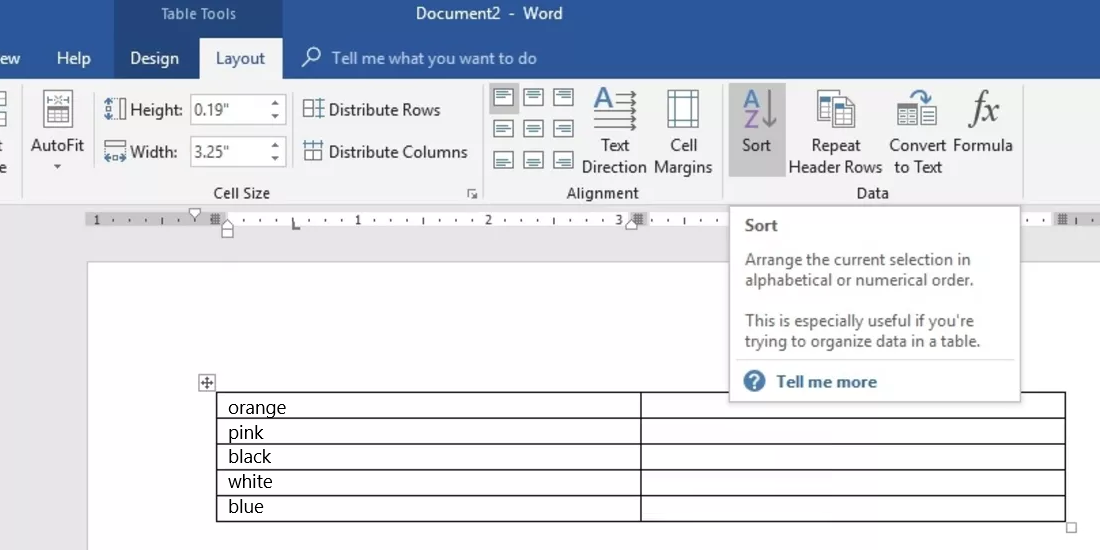
Zrzut ekranu przedstawia przycisk Sort umożliwiający sortowanie tabel w dokumncie Word. Znajduje się on w sekcji Data na karcie Table Tools - Layout. Widoczna jest również pomoc kontekstowa w postaci wyskakującego okna do polecenia Sort: Arrange the curent selection in alphabetical or numerical order. This is especially useful if you,re trying to organize data in table. Na dole okna ikona za znakiem zapytania i napis Tell me more.
The part of the Layout tab including the Sort option
SortingsortingSorting by only one columncolumncolumn often turns out to be not enough. In such a case multi‑level sort must be performed, which is sortingsortingsorting by more than one column.
In order to sort the contents of a table, follow these steps:
select the table (or its part),
on the Table Tools tab, choose Layout, and then Sort,
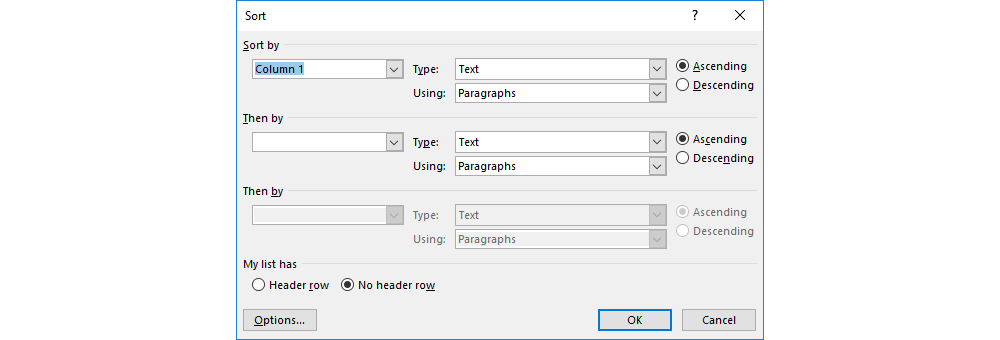
in the Sort dialogue box, select the following options:
click the Header rowrowrow box under My list has, if your table has a header row,
choose the name of the column you want to sort the table by,
specify the type of the data in the column,
select a sort order,
if you want to perform a second level sort, you enter thi information under Then by.
Rt8DhTDlT0N8j
Zrzut ekranu przedstawia okno dialogowe Sort. Na górze sekcja Sort by, w której od lewej strony znajdują się lista rozwijana (z wybrana opcją Column 1), obok dwie listy Type (z wybrana opcją Text) oraz Using (z wybrana opcją Paragraph). Po prawej stronie dwa radiobuttony Ascending (zaznaczony) i Descending. Poniżej znajduje się sekcja Then by, w której od lewej strony znajdują się lista rozwijana, obok dwie listy Type (z wybrana opcją Text) oraz Using (z wybrana opcją Paragraph). Po prawej stronie dwa radiobuttony Ascending (zaznaczony) i Descending. Poniżej znajduje się kolejna sekcja Then by - nieaktywna, w której znajdują się te same elementy co w poprzedniej. Niżej w sekcji My list has znajdują się dwa radiobuttony: Header row, No header row (zaznaczony). Na dole znajdują się trzy przyciski: Options, OK oraz Cancel.
Apart from the contents of tables, Word can also sort the contents of bulleted and numbered lists. In this case you must use the Sort tool on the Home tab.
Exercises
Exercise 1
RcZoaw7juoXAz
Wersja alternatywna ćwiczenia: Determine which sentences are true. Możliwe odpowiedzi: 1. Any character entered with the keyboard can be a separator character in the text which is to be converted to a table., 2. Every table can be converted to text separated by separator characters in place of the column boundaries., 3. Every text can be converted to a table provided that the same characters are used in it as separator characters., 4. The AutoFit to contents option resizes the columns automatically to fit the height of the text in each column.
Wersja alternatywna ćwiczenia: Determine which sentences are true. Możliwe odpowiedzi: 1. Any character entered with the keyboard can be a separator character in the text which is to be converted to a table., 2. Every table can be converted to text separated by separator characters in place of the column boundaries., 3. Every text can be converted to a table provided that the same characters are used in it as separator characters., 4. The AutoFit to contents option resizes the columns automatically to fit the height of the text in each column.
Determine which sentences are true.
Any character entered with the keyboard can be a separator character in the text which is to be converted to a table.
Every table can be converted to text separated by separator characters in place of the column boundaries.
Every text can be converted to a table provided that the same characters are used in it as separator characters.
The AutoFit to contents option resizes the columns automatically to fit the height of the text in each column.
zadanie
Source: GroMar, licencja: CC BY 3.0.
Exercise 2
On the internet, find the information about the mountains which compose the so called Seven Summits. Create a table. Enter the name of each summit in the first column and the continent on which it is located in the second one. Add a header rowrowrow to each column. Sort the names of the mountains alphabetically in an ascending orderin an ascending orderin an ascending order. Add the third column containing the elevation of the peaks and sort the mountains from the lowest to the highest.
On which continent the lowest peak is located, and on which the highest?
Add the fourth column containing the date of the first ascent and sort the mountains in the table from the one summited the least recently to the one summited the most recently.
Which of the summits was climbed as the first, and which one as the last?
Australia: Góra Kościuszki (2230 m), Asia: Mount Everest (8848 m).
Mont Blanc: 1786, Vinson Massif: 1966.
Exercise 3
Describe in English what types of data can be sorted in tables in the text editor available on your computer.
Exercise 4
R1ajNGijTH67p
Wersja alternatywna ćwiczenia: Indicate which pairs of expressions or words are translated correctly. Możliwe odpowiedzi: 1. sortowanie - sorting, 2. rosnąco - in an ascending order, 3. malejąco - in a descending order, 4. konwertuj tekst na tabelę - convert text to a table, 5. kolumna - row, 6. autodopasowanie do okna - AutoFit to contents
Wersja alternatywna ćwiczenia: Indicate which pairs of expressions or words are translated correctly. Możliwe odpowiedzi: 1. sortowanie - sorting, 2. rosnąco - in an ascending order, 3. malejąco - in a descending order, 4. konwertuj tekst na tabelę - convert text to a table, 5. kolumna - row, 6. autodopasowanie do okna - AutoFit to contents
Indicate which pairs of expressions or words are translated correctly.
sortowanie - sorting
rosnąco - in an ascending order
malejąco - in a descending order
konwertuj tekst na tabelę - convert text to a table
kolumna - row
autodopasowanie do okna - AutoFit to contents
zadanie
Source: GroMar, licencja: CC BY 3.0.
R9BehEGyCBDkj1
Interaktywna gra, polegająca na łączeniu wyrazów w pary w ciągu jednej minuty. Czas zaczyna upływać wraz z rozpoczęciem gry. Jeden ruch to odkrywanie najpierw jednej potem drugiej karty z wyrazem. Każdy wyraz jest odczytywany. Kolejny ruch to odkrywanie trzeciej i czwartej karty. W ten sposób odsłuchasz wszystkie wyrazy. Nawigacja z poziomu klawiatury za pomocą strzałek, odsłuchiwanie wyrazów enterem lub spacją. Znajdź wszystkie pary wyrazów.
Interaktywna gra, polegająca na łączeniu wyrazów w pary w ciągu jednej minuty. Czas zaczyna upływać wraz z rozpoczęciem gry. Jeden ruch to odkrywanie najpierw jednej potem drugiej karty z wyrazem. Każdy wyraz jest odczytywany. Kolejny ruch to odkrywanie trzeciej i czwartej karty. W ten sposób odsłuchasz wszystkie wyrazy. Nawigacja z poziomu klawiatury za pomocą strzałek, odsłuchiwanie wyrazów enterem lub spacją. Znajdź wszystkie pary wyrazów.
Match Polish terms with their English equivalents.
in an ascending order
malejąco
rosnąco
in a descending order
sorting
sortowanie
Source: Zespół autorski Politechniki Łódzkiej, licencja: CC BY 3.0.