Advanced use of Internet resources
Zaawansowane wykorzystywanie zasobów Internetu
what is an Internet search engine,
what keywords are,
rationally search for information,
search for images,
save pages in the Favourites folder, Bookmarks,
how to use online knowledge bases,
how to search for information on media websites,
what are educational portals?
An internet search engineinternet search engine is a program or website that allows you to find information on the Internet according to the keywordskeywords or phrases provided by the user. The term „search engine” is used not only for websites that search for information, but also for software designed for indexing information on the Internet.
The most popular search engines are Google, Yahoo and Bing.
Keyword - this is a characteristic string of characters that is a distinctive feature of a document, article or website that directly relates to the content contained in them. The purpose of using keywords is to support the classification and retrieval of information.
If the user wants to find information on a specific topic, he can do it by entering keywords in the browser window of the Internet search engineInternet search engine. However, there are several elements that allow you to specify the content you are looking for and narrow the number of results:
Excluding a word or phrase - to exclude a word, precede it with a minus sign „-” without spaces.
Example: keywords -word
Selecting required words - to select a word, precede it with the plus sign „+” without spaces.
Example: keywords +word
Search for a specific phrase - in order for the search engine to find only pages containing a specific phrase, enter it in quotation marks.
Example: „keywords”
Searching for a phrase on a specific page - to search the site in terms of the content you are looking for, enter site:website_address, and then place the search phrase after the space.
Example: site:website_address keywords
To further narrow down the search area, you can also choose the option Narrow by language and then choose a specific language. Remember that most search engines are not case‑sensitive. An additional advantage of search engines is showing hints when entering the search phrase - it is helpful at the moment when we do not know, for example, the exact name or surname.
When searching, remember about:
update of information (date of addition),
accuracy and reliability of information (references to sources),
author's credibility (e‑mail address),
accessibility (e.g. adjustments to the user's age),
objectivism of the content (links to other websites that touch a topic).
Use Google search engine (www.google.pl) to search for information about the place where you would like to go on holiday. Use the ways you've learned to refine your search results - note the number of results and how it changes.
With Google search engine, you can search for images in several ways:
Typing a keyword and switching the search engine from the All tab to the Images tab.
Image searchImage search - when searching for the same images in other resolutions or similar images. In this case, click the camera symbol located on the bar in which the search phrases are entered, and then select the graphic from the file or enter its source address.
Also in the case of images, you can narrow down the search area by selecting the Tools tab - thanks to that you can reduce the number of results for images of a given size, colour, usage rights, type or time of addition.
Using Google search engine (www.google.pl), search for photos of your favourite pet by entering the appropriate phrase. Use the tools to find the most satisfying result. Then save the selected image and use it to search for similar images using image searchimage search.
To save a given page to Bookmarks, regardless of the browser, open it in its window. The next steps in different browsers are done similarly - below examples for Google Chrome, Mozilla Firefox and Microsoft Edge.
Google Chrome. To add a page to the BookmarksBookmarks, select the Bookmarks option and Add this page to the tabs from the drop‑down menu in the upper right corner. Then, in the dialog box, you can give the name and select the destination folder.
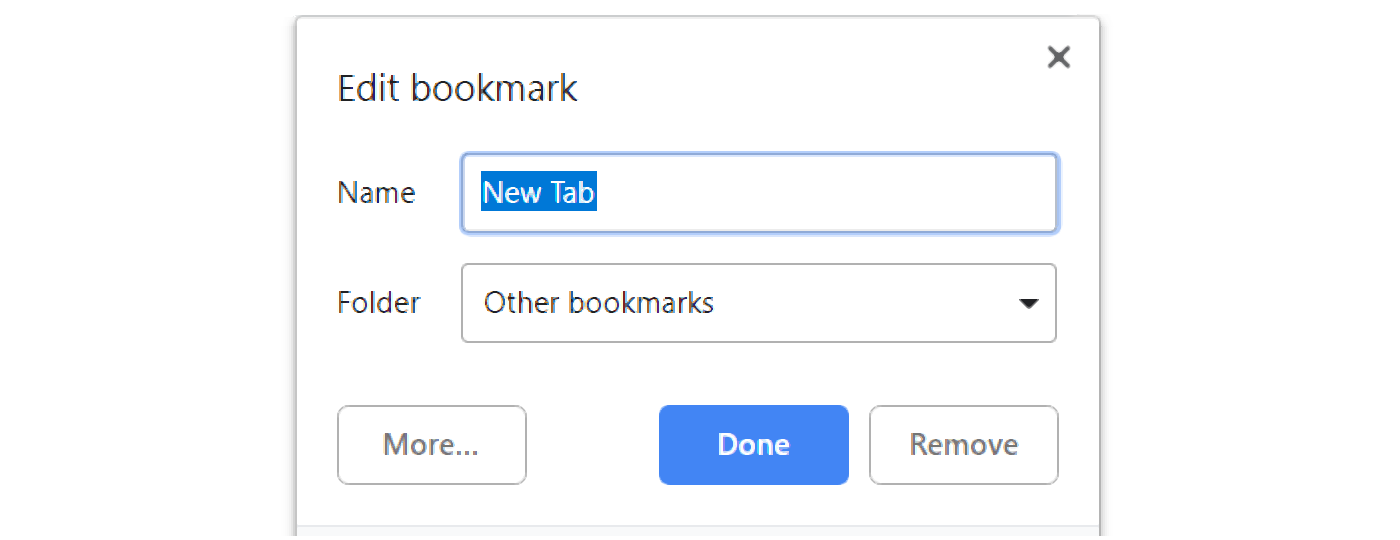
1. Type name of the new bookmark. {audio}
2. From the drop down menu you can choose the place where you will save the bookmark. {audio}
Mozilla Firefox. To add a page to Bookmarks, select Library, Bookmarks and Add Bookmark from the drop‑down menu in the top right corner. Then in the dialog you can give the name, choose the folder in which the bookmark will be placed and give the labels.
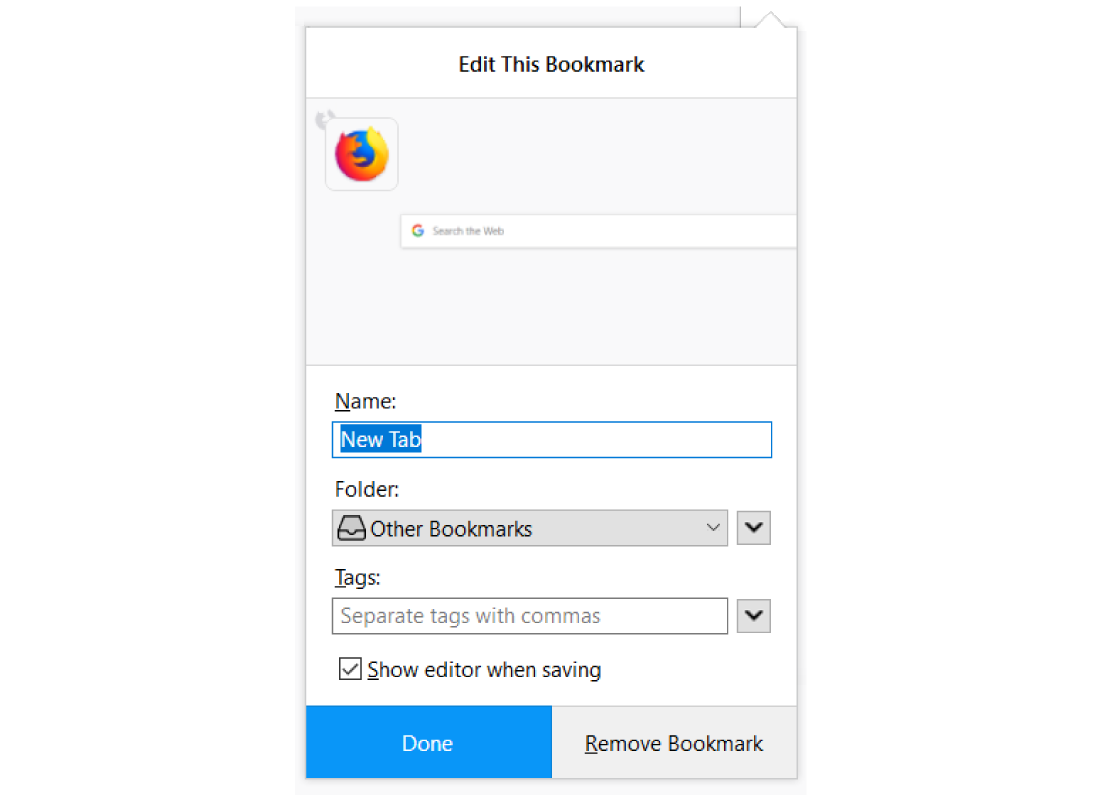
In addition, in each browser you can add a page to your bookmarks by clicking the star symbol to the right of the address bar or by using the keyboard shortcut CTRL + D.
In the selected browser, try adding three pages to BookmarksBookmarks - each time using a different method.
Online EncyclopaediaEncyclopaedia - a compendium of knowledge saved and shared on the Internet. The first internet encyclopaedia was created in 1991.
Wikipedia (www.wikipedia.pl)
Internautica Encyclopaedia (www.encyklopedia.interia.pl);
Online PWN Encyclopaedia (www.encyklopedia.pwn.pl).
On‑line dictionary - it is a set of definitions of words or translations into other languages placed in the Internet resources.
Polish Dictionary of PWN (www.sjp.pwn.pl);
LING (www.ling.pl);
Diki (www.diki.pl).
Internet libraries - these are portals that collect, store and make library materials available online (e.g. books and articles).
Polish Internet Library (www.pbi.edu.pl);
PWN Internet Library (www.ibuk.pl).
Use the search engine to find three examples of online encyclopaedias, libraries and online dictionaries.
Information on a given topic - especially in the case of current events - can be sought on the pages of the press, radio and television. Most media have their own portals, where you can find not only the latest information, but also archival content.
Within 5 minutes, try to find as many web portals as possible. How much did you find? Who in the class received the highest score?
Educational portals are portals on which you can find educational content, as well as games and quizzes to help you acquire knowledge.
Data collection is a continuous process of gathering information, determining their content and storage place, as well as ensuring access to authorized persons. In this process, it is also important to constantly update data on the network. The information found can be stored on hard disks, Internet servers, databases, archives and catalogues.
Exercises
Select true statements regarding search engine searches:
- to search for a phrase on a specific page, use site:website_address
- to exclude a phrase, precede it with the + sign
- to search for a specific phrase, put it in quotes
- to search for a phrase on a specific page, use site:site_name
- to exclude a phrase, precede it with the - sign
- to search for a specific phrase, place it in round brackets
Search the Internet for information about landmarks in your area. Which tools did you use? (e.g. search engine, encyclopaedia, etc.)
Describe in English the methods of saving pages to Bookmarks in the selected web browser.
Indicate which pairs of expressions or words are translated correctly.
- słowa kluczowe - key words
- encyklopedia - encyclopaedia
- zakładki - bookmarks
- portal edukacyjny - educational portal
- wyszukiwanie obrazem - Internet search engine
- wyszukiwarka internetowa - image search
- image search
- Internet search engine
- key words
- słowa kluczowe
- wyszukiwarka internetowa
- bookmarks
- wyszukiwanie obrazem
- zakładki
Glossary
zakładki
Nagranie dostępne na portalu epodreczniki.pl
wymowa w języku angielskim: bookmarks
portal edukacyjny
Nagranie dostępne na portalu epodreczniki.pl
wymowa w języku angielskim: educational portal
encyklopedia
Nagranie dostępne na portalu epodreczniki.pl
wymowa w języku angielskim: encyclopaedia
wyszukiwanie obrazem
Nagranie dostępne na portalu epodreczniki.pl
wymowa w języku angielskim: image search
wyszukiwarka internetowa
Nagranie dostępne na portalu epodreczniki.pl
wymowa w języku angielskim: Internet search engine
słowa kluczowe
Nagranie dostępne na portalu epodreczniki.pl
wymowa w języku angielskim: keywords
Keywords
image searchimage search
Internet search engineInternet search engine
keywordskeywords