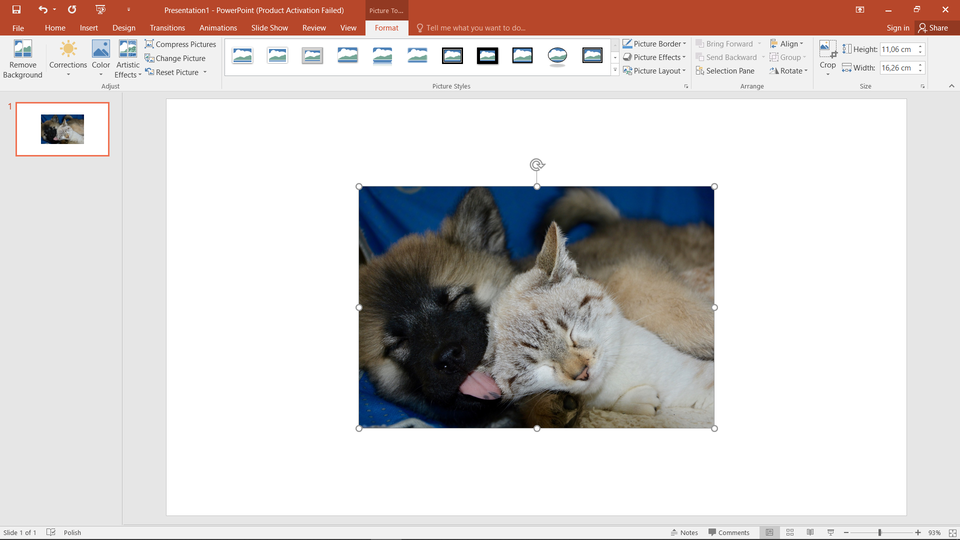
Each object inserted in the slide can be freely modified. This applies to the location and sizesizesize of the object and the various properties characteristic for each type of the object.
Changing the position of the object. To change the position of an object, click the object field, and when the pointer takes the form of a Four‑headed arrow, drag the object field to the new location.
Drag any selected corner of the object after selecting the object field. If you want to set the sizesizesize precisely: enter values in the Object size field on the properties bar.
Filling objects with background. Modifying the edges of an object.
After pointing the mouse to any object on the ribbon, additional tools appear that allow you to set the properties of the field's edge, its filling or adding additional effects to the field.
To format the text in the text fieldtext fieldtext field, select it, and then use the format options available in the Font or Paragraph group on the Main Tools. For text fields, in addition to font parameters, you can set text alignment, text direction, and margins. You can even create columns in text fields. The text field can be formatted in the same way as other shapes by adding a border and fill.
The basic activities involved in formatting graphics objects can include: cropping the imageimageimage, rotating the image, changing the brightness, contrast or sharpness of the image, adding effects to the image.
R1ToiXnT0gU3s1
Pokaz slajdów – formatowanie grafiki. Instrukcja obsługi z poziomu klawiatury: 1. Uruchomienie aplikacji - ENTER, 2. Na każdym ze slajdów czytany jest automatycznie tekst alternatywny po polsku, 3. Przy pierwszym uruchomieniu na pierwszym slajdzie, czytanie tekstu po angielsku - TAB, 4. Przejście między slajdami: do następnego slajdu - TAB, do poprzedniego slajdu - TAB + SHIFT, 5. Przejście do czytania napisu po angielsku - strzałka w górę + strzałka w dół (czyta tekst po angielsku widoczny na slajdzie)
Pokaz slajdów – formatowanie grafiki. Instrukcja obsługi z poziomu klawiatury: 1. Uruchomienie aplikacji - ENTER, 2. Na każdym ze slajdów czytany jest automatycznie tekst alternatywny po polsku, 3. Przy pierwszym uruchomieniu na pierwszym slajdzie, czytanie tekstu po angielsku - TAB, 4. Przejście między slajdami: do następnego slajdu - TAB, do poprzedniego slajdu - TAB + SHIFT, 5. Przejście do czytania napisu po angielsku - strzałka w górę + strzałka w dół (czyta tekst po angielsku widoczny na slajdzie)
When you point the mouse to any object on the ribbon, additional tools appear that allow you to manipulate graphics objects. The same options will be available after selecting from the drop‑down menu (left mouse button on the object) the option to format the shape, graphics. You can find further information on the use of all these options the program's manual.
Each object is created in a separate layerlayerlayer. If two objects overlap, you can set their order. To make all objects visible enough, you can set the right transparencytransparencytransparency for each of them.
In the presentation creation program, you can format the inserted objects. You can change their colours, add a border or many available effects
Exercises
Exercise 1
R1Hh2uSfxbwaB
Wersja alternatywna ćwiczenia: Determine which sentence is true. Możliwe odpowiedzi: 1. Each object is added to the slide on a separate layer., 2. You can set the appropriate transparency for each object in the presentation., 3. When you point the mouse to any object on the ribbon, additional tools appear that allow you to format it., 4. If you want to set the size precisely: enter values in the Object size field on the Format tab., 5. You cannot lighten the images inserted in the presentation., 6. It is not possible to restore the appearance of the initial image inserted in the presentation.
Wersja alternatywna ćwiczenia: Determine which sentence is true. Możliwe odpowiedzi: 1. Each object is added to the slide on a separate layer., 2. You can set the appropriate transparency for each object in the presentation., 3. When you point the mouse to any object on the ribbon, additional tools appear that allow you to format it., 4. If you want to set the size precisely: enter values in the Object size field on the Format tab., 5. You cannot lighten the images inserted in the presentation., 6. It is not possible to restore the appearance of the initial image inserted in the presentation.
Determine which sentence is true.
Each object is added to the slide on a separate layer.
You can set the appropriate transparency for each object in the presentation.
When you point the mouse to any object on the ribbon, additional tools appear that allow you to format it.
If you want to set the size precisely: enter values in the Object size field on the Format tab.
You cannot lighten the images inserted in the presentation.
It is not possible to restore the appearance of the initial image inserted in the presentation.
zadanie
Source: GroMar, licencja: CC BY 3.0.
Exercise 2
Insert into the presentation a few photos of your nearest neighbourhood.
Search for the images on the Internet.
Choose photos which differ significantly in their appearance. These can be photos taken over the years.
Format the pictures for example by adding effects, or by manipulating the colours so that they look uniform - as if they were created at the same time.
Add to each photo a short description and year of creation.
Save the presentation in the home directory.
Exercise 3
Describe in English how you can format the text field in the presentation program of your choice.
Exercise 4
Rk0waBcUQKjMm
Wersja alternatywna ćwiczenia: Indicate which pairs of expressions or words are translated correctly. Możliwe odpowiedzi: 1. pole tekstowe - text field, 2. obraz - image, 3. jasność - brightness, 4. nasycenie - saturation, 5. kontrast - arrangement, 6. położenie - layer
Wersja alternatywna ćwiczenia: Indicate which pairs of expressions or words are translated correctly. Możliwe odpowiedzi: 1. pole tekstowe - text field, 2. obraz - image, 3. jasność - brightness, 4. nasycenie - saturation, 5. kontrast - arrangement, 6. położenie - layer
Indicate which pairs of expressions or words are translated correctly.
pole tekstowe - text field
obraz - image
jasność - brightness
nasycenie - saturation
kontrast - arrangement
położenie - layer
zadanie
Source: GroMar, licencja: CC BY 3.0.
RY4rO9CNsJsSa1
Interaktywna gra, polegająca na łączeniu wyrazów w pary w ciągu jednej minuty. Czas zaczyna upływać wraz z rozpoczęciem gry. Jeden ruch to odkrywanie najpierw jednej potem drugiej karty z wyrazem. Każdy wyraz jest odczytywany. Kolejny ruch to odkrywanie trzeciej i czwartej karty. W ten sposób odsłuchasz wszystkie wyrazy. Nawigacja z poziomu klawiatury za pomocą strzałek, odsłuchiwanie wyrazów enterem lub spacją. Znajdź wszystkie pary wyrazów.
Interaktywna gra, polegająca na łączeniu wyrazów w pary w ciągu jednej minuty. Czas zaczyna upływać wraz z rozpoczęciem gry. Jeden ruch to odkrywanie najpierw jednej potem drugiej karty z wyrazem. Każdy wyraz jest odczytywany. Kolejny ruch to odkrywanie trzeciej i czwartej karty. W ten sposób odsłuchasz wszystkie wyrazy. Nawigacja z poziomu klawiatury za pomocą strzałek, odsłuchiwanie wyrazów enterem lub spacją. Znajdź wszystkie pary wyrazów.
Match Polish terms with their English equivalents.
formatowanie
text field
obraz
pole tekstowe
formatting
image
Source: Zespół autorski Politechniki Łódzkiej, licencja: CC BY 3.0.