Text editors and other programmes that enable entering text (e.g. image programmes) have sets of fonts. As you may notice, some fonts do not enable writing in Polish since they do not include letters which can be found only in the Polish alphabet. They are letters containing the so called diacritics (diacritical marks), i.e marks used in alphabets and other writing systems which are added to a letter. change its articulation, and therefore create a new letter.
In the Polish language there are nine letters created with the use of diacritics: ą, ć, ę, ł, ń, ó, ś, ź, ż. They are the so called diacritic charactersdiacritic charactersdiacritic characters, letters containing diacritics.
On the internet find the examples of other languages which, similar to the Polish language, are based on the Latin alphabet and contain diacritic charactersdiacritic charactersdiacritic characters.
The text which is displayed on the screen is actually stored as numerical values in a text file. The computer converts numerical values to displayed characters. This is performed with the use of a specific coding standardcoding standardcoding standard.
A coding standardcoding standardcoding standard is a numbering system that assigns a numerical value to every character. Particular languages contain various sets of characters, therefore there are many different coding standards. In order to standardise these differences, the Unicode standard has been created, which contains characters of numerous alphabets. It includes most characters of all languages used the most commonly by computer users.
A problem in former years was also the encoding of Polish letters used in computer systems. Both Polish and international standards were developed, and in consequence many unoficial norms were used, which was impractical and caused many problems. It was not until 1990s that the Unicode standard (UTF encoding) was introduced, which solved these problems for various languages containing national diacritic charactersdiacritic charactersdiacritic characters.
The most common keyboard layoutkeyboard layoutkeyboard layout used on computers in Poland is the so called the ‘programmer’s keybord’. It enables entering Polish diacritic charactersdiacritic charactersdiacritic characters by using the right‑hand ALT key with a corresponding similar letter from the Latin alphabet. For instance, to access ‘ń’, you must use thekey combinationkey combinationkey combination ALT + N. The only exception is ‘ź’, which as accessed by pressing the key combination ALT + X. An alternative solution, however rarely used, is the ‘Polish’ keyboard.
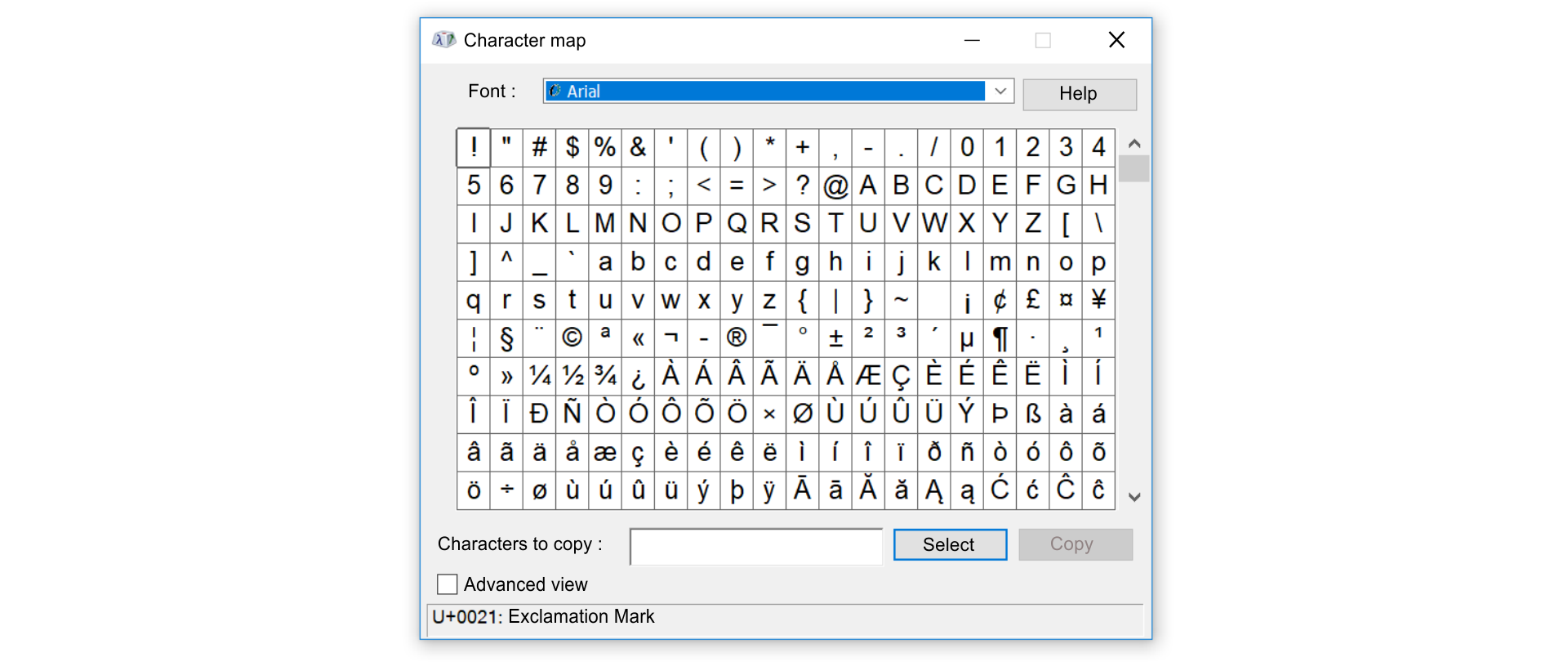
Character Mapcharacter mapCharacter Map is a program built into Windows that enables viewing the characters that are available in a selected font.
Rr1UQ6Y6N52c51
Zrzut z ekranu przedstawia formatką Character map. Na górze z lista rozwijana Font, a obrazku wybrany Arial. Obok przycisk Help. Centralną i największą przestrzeń zajmuje tablica ze znakami (10 wierszy po 20 znaków). Znajdują się tu znaki specjalne np. !, ”, #, $, %, &, ‘, (, ); cyfry od 0 do 9, wielkie i małe litery ułożone alfabetycznie, od a do z – bez polskich znaków oraz znaki diakrytyczne dla różnych języków, w tym również polskiego. W tablicy zaznaczony jest pierwszy znak – wykrzyknik. Na dole formatki znajduje się pole tekstowe Characters to copy i dwa przyciski: Select i Copy. Poniżej checkbox oznaczony Advance View. Na samym dole zapis w unikodzie wraz z opisem zaznaczonego znaku: U+0021: Exclamation Mark.
if the symbol you want to add is on the gallery, insert it,
if not, select the More Symbols option to open the Symbol dialogue box,
scroll the list of symbols of the chosen font up or down to find the symbol you need,
use the Subset drop‑down list to find the symbol quicker,
if you do not see the symbol listed on that gallery, change font,
when you find the symbol you want, double‑click it or press the Insert button,
close the Symbols dialogue box with the Close button.
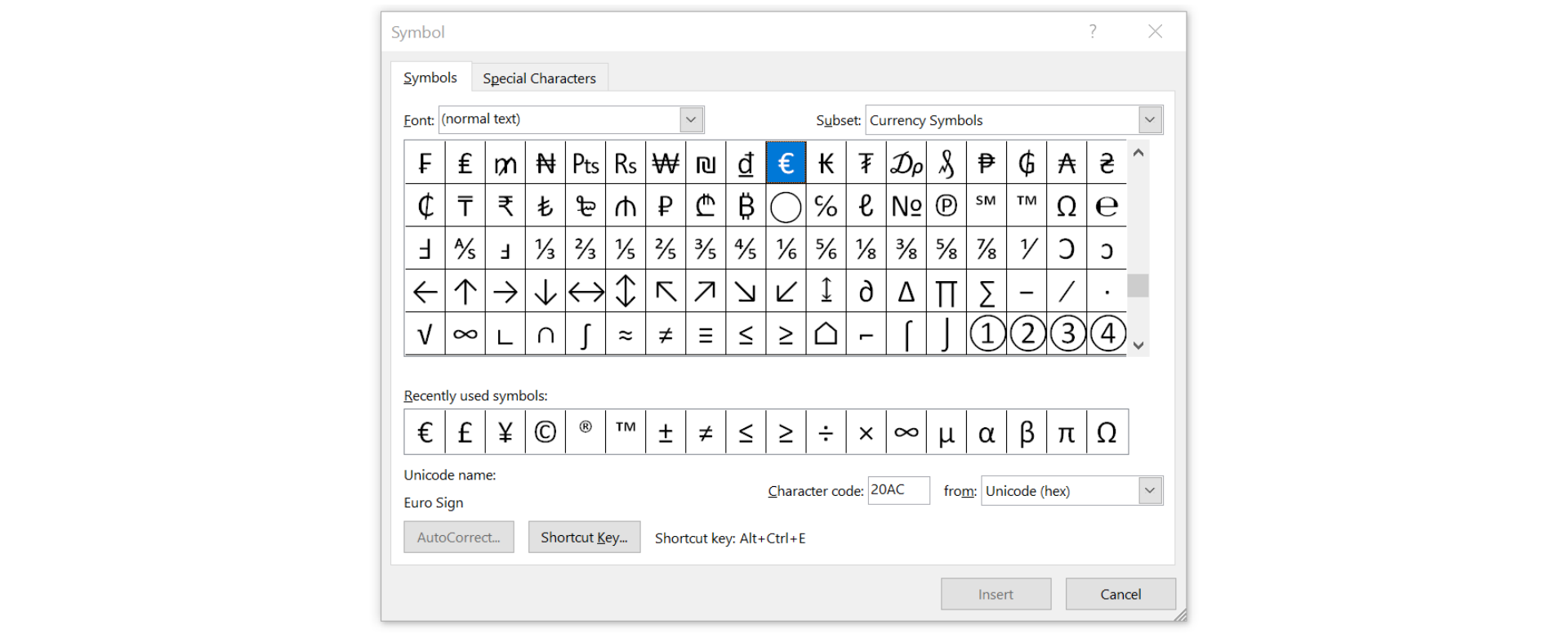
SymbolsymbolSymbol, Webdings and Wingdings are fonts which contain many symbols.
R19hd0jQnqJOO1
Zrzut z ekranu przedstawia formatką Symbol. Na górze znajdują się dwie listy rozwijane Font oraz Subset. Centralną i największą przestrzeń zajmuje tablica ze znakami (5 wierszy po 18 znaków). Są to znaki, których nie da się wpisać bezpośrednio za pomocą klawiatury, Np. ułamki zwykłe jedna trzecia, czy pięć szóstych, znaki walut: euro, funt brytyjski. Można tutaj znaleźć kolekcję strzałek skierowanych w dowolnym kierunku. Symbole matematyczne, np. pierwiastek, nieskończoność, suma, całka, znak różny od. Poniżej znajdują się symbole używane ostatnio – Recently used symbols. Niżej informacje na temat zaznaczonego symbolu – Unicode name. Wyświetlana jest jego nazwa (na rysunku Euro Sign), Character code (20AC) from (Unicode hex). Na dole formatki znajdują się dwa przyciski AutoCorrect... oraz Shortcut Key... Obok zapis skrótu klawiaturowego dotyczący zaznaczonego znaku: Shortcut Key: Alt+Ctrl+E
Press and hold the ALT key and type the character code on the numeric keypad. Remember to add any leading zeroes in order to get a four‑digit code.
Inserting Unicode characters
Type the Unicode character code where you want to insertinsertinsert the Unicode symbolsymbolsymbol and then press ALT+X to convert the code to the symbol.
R1RlfPISoQYEd
Ilustracja interaktywna przedstawia ikony ułożone w dwóch rzędach. W górnym rzędzie od lewej strony znajduje się: głowa konia, serce, uśmiechnięta buźka, kotwica. W dolnym rzędzie od lewej strony znajduje się: filiżanka z trzema falami nad nią, człowiek na wózku inwalidzkim, parasol i nad nim wiele krótkich, pionowych kreseczek oraz parasol przechylony w prawą stronę, jego noga na dole kończy się grubą, poziomą kreską. Na ilustracji widoczne są numery, a na nich podpisy. 1. Black Chess Knight, Unicode: 265E {audio}, 2. White Heart Suit, Unicode: 2661 {audio}, 3. White Smiling Face, Unicode: 263A {audio}, 4. Anchor, Unicode: 2693 {audio}, 5. Hot Beverage, Unicode: 2615 {audio}, 6. Wheelchair Symbol, Unicode: 267F {audio}, 7. Umbrella with Rain Drops, Unicode: 2614 {audio}, 8. Umbrella on Ground, Unicode: 26F1 {audio}
Ilustracja interaktywna przedstawia ikony ułożone w dwóch rzędach. W górnym rzędzie od lewej strony znajduje się: głowa konia, serce, uśmiechnięta buźka, kotwica. W dolnym rzędzie od lewej strony znajduje się: filiżanka z trzema falami nad nią, człowiek na wózku inwalidzkim, parasol i nad nim wiele krótkich, pionowych kreseczek oraz parasol przechylony w prawą stronę, jego noga na dole kończy się grubą, poziomą kreską. Na ilustracji widoczne są numery, a na nich podpisy. 1. Black Chess Knight, Unicode: 265E {audio}, 2. White Heart Suit, Unicode: 2661 {audio}, 3. White Smiling Face, Unicode: 263A {audio}, 4. Anchor, Unicode: 2693 {audio}, 5. Hot Beverage, Unicode: 2615 {audio}, 6. Wheelchair Symbol, Unicode: 267F {audio}, 7. Umbrella with Rain Drops, Unicode: 2614 {audio}, 8. Umbrella on Ground, Unicode: 26F1 {audio}
View the codes assigned to the symbols in the interactive illustration. Try to insert them in a text editor and press the key combinationkey combinationkey combination ALT+X.
If you use a given symbol very often, you can assign to it an unused key combination by using the Sortcut Key option in the Symbol dialogue box.
In most computer systems fonts are supported by the operating system and available in all programmes. Some applications have additional sets of fonts and their installation on the computer expands the set of available fonts.
Exercises
Exercise 1
Rfy7k3yVhhvpm
Wersja alternatywna ćwiczenia: Identify the appropriate methods of inserting a symbol. To insert a symbol: Możliwe odpowiedzi: 1. in the Symbol dialogue box select the symbol you want to insert and double-click it, 2. in the Symbol dialogue box select the symbol you want to insert and press the Insert button, 3. use a key shortcut, if it is assigned, 4. type the Unicode character code and then press the key combination ALT + Z
Wersja alternatywna ćwiczenia: Identify the appropriate methods of inserting a symbol. To insert a symbol: Możliwe odpowiedzi: 1. in the Symbol dialogue box select the symbol you want to insert and double-click it, 2. in the Symbol dialogue box select the symbol you want to insert and press the Insert button, 3. use a key shortcut, if it is assigned, 4. type the Unicode character code and then press the key combination ALT + Z
Identify the appropriate methods of inserting a symbol. To insert a symbol:
in the Symbol dialogue box select the symbol you want to insert and double-click it
in the Symbol dialogue box select the symbol you want to insert and press the Insert button
use a key shortcut, if it is assigned
type the Unicode character code and then press the key combination ALT + Z
zadanie
Source: GroMar, licencja: CC BY 3.0.
Exercise 2
Find in a text editor and give the codes of the following symbols:
R7cYqASkcBafo1
Ilustracja przedstawia symbole: buźka, paragraf, C, stopień, zbiór pusty, gwiazdka, strzałka, samolot.
Source: GroMar, licencja: CC BY 3.0.
Exercise 3
Describe in English the methods of inserting a symbol in the text editor installed on your computer.
Exercise 4
R181DuB3qg2Vf
Wersja alternatywna ćwiczenia: Indicate which pairs of expressions or words are translated correctly. Możliwe odpowiedzi: 1. litery diakrytyczne - diacritic characters, 2. standard kodowania - coding standard, 3. symbol - symbol, 4. układ klawiatury - keyboard layout, 5. symbol - insert, 6. kombinacja klawiszy - shortcut key
Wersja alternatywna ćwiczenia: Indicate which pairs of expressions or words are translated correctly. Możliwe odpowiedzi: 1. litery diakrytyczne - diacritic characters, 2. standard kodowania - coding standard, 3. symbol - symbol, 4. układ klawiatury - keyboard layout, 5. symbol - insert, 6. kombinacja klawiszy - shortcut key
Indicate which pairs of expressions or words are translated correctly.
litery diakrytyczne - diacritic characters
standard kodowania - coding standard
symbol - symbol
układ klawiatury - keyboard layout
symbol - insert
kombinacja klawiszy - shortcut key
zadanie
Source: GroMar, licencja: CC BY 3.0.
R1TZIro9Ghzi41
Interaktywna gra, polegająca na łączeniu wyrazów w pary w ciągu jednej minuty. Czas zaczyna upływać wraz z rozpoczęciem gry. Jeden ruch to odkrywanie najpierw jednej potem drugiej karty z wyrazem. Każdy wyraz jest odczytywany. Kolejny ruch to odkrywanie trzeciej i czwartej karty. W ten sposób odsłuchasz wszystkie wyrazy. Nawigacja z poziomu klawiatury za pomocą strzałek, odsłuchiwanie wyrazów enterem lub spacją. Znajdź wszystkie pary wyrazów.
Interaktywna gra, polegająca na łączeniu wyrazów w pary w ciągu jednej minuty. Czas zaczyna upływać wraz z rozpoczęciem gry. Jeden ruch to odkrywanie najpierw jednej potem drugiej karty z wyrazem. Każdy wyraz jest odczytywany. Kolejny ruch to odkrywanie trzeciej i czwartej karty. W ten sposób odsłuchasz wszystkie wyrazy. Nawigacja z poziomu klawiatury za pomocą strzałek, odsłuchiwanie wyrazów enterem lub spacją. Znajdź wszystkie pary wyrazów.
Match Polish terms with their English equivalents.
litery diakrytyczne
diacritic characters
symbol
symbol
standard kodowania
coding standard
Source: Zespół autorski Politechniki Łódzkiej, licencja: CC BY 3.0.