A spreadsheetspreadsheetspreadsheet is a programme which is used for entering and storing datadatadata, performing any types of calculations on them as well as presenting and analysing results. A spreadsheet may also refer to such an electronic document. A single, two‑dimensional array of data within a spreadsheet programme that contains data, their descriptions and the results of calculations is called a worksheet.
The spreadsheetspreadsheetspreadsheet enables to enter text, number or expression in every cell. Its another useful feature is performing calculations in a more convenient way than with the use of a calculator.
Formulas enable performing calculations and other operations on the data in worksheet cells. Each formulaformulaformula begins with the equal sign (=), followed by numbers, references, calculation operators or built‑in functions.
Ro8gmAgtNF3cV
Ilustracja interaktywna prezentuje formułę równa się PI otwórz nawias zwykł, zamknij nawias zwykły gwiazdka A dwa daszek dwa. Na ilustracji widoczne są numery, a na nich podpisy. 1. Function {audio}, 2. Reference {audio}, 3. Constant {audio}, 4. Operators {audio}.
Ilustracja interaktywna prezentuje formułę równa się PI otwórz nawias zwykł, zamknij nawias zwykły gwiazdka A dwa daszek dwa. Na ilustracji widoczne są numery, a na nich podpisy. 1. Function {audio}, 2. Reference {audio}, 3. Constant {audio}, 4. Operators {audio}.
Spreadsheets calculate a mathematical formulaformulaformula from left to right in accordance with the defined operator precedence. The order of operations in spreadsheets is the same as the order of operations generaly used in mathematics, which you have already learnt. You can change this order by using parentheses. In spreadsheets you cannot use brackets, which you have learnt during your mathematical lessons.
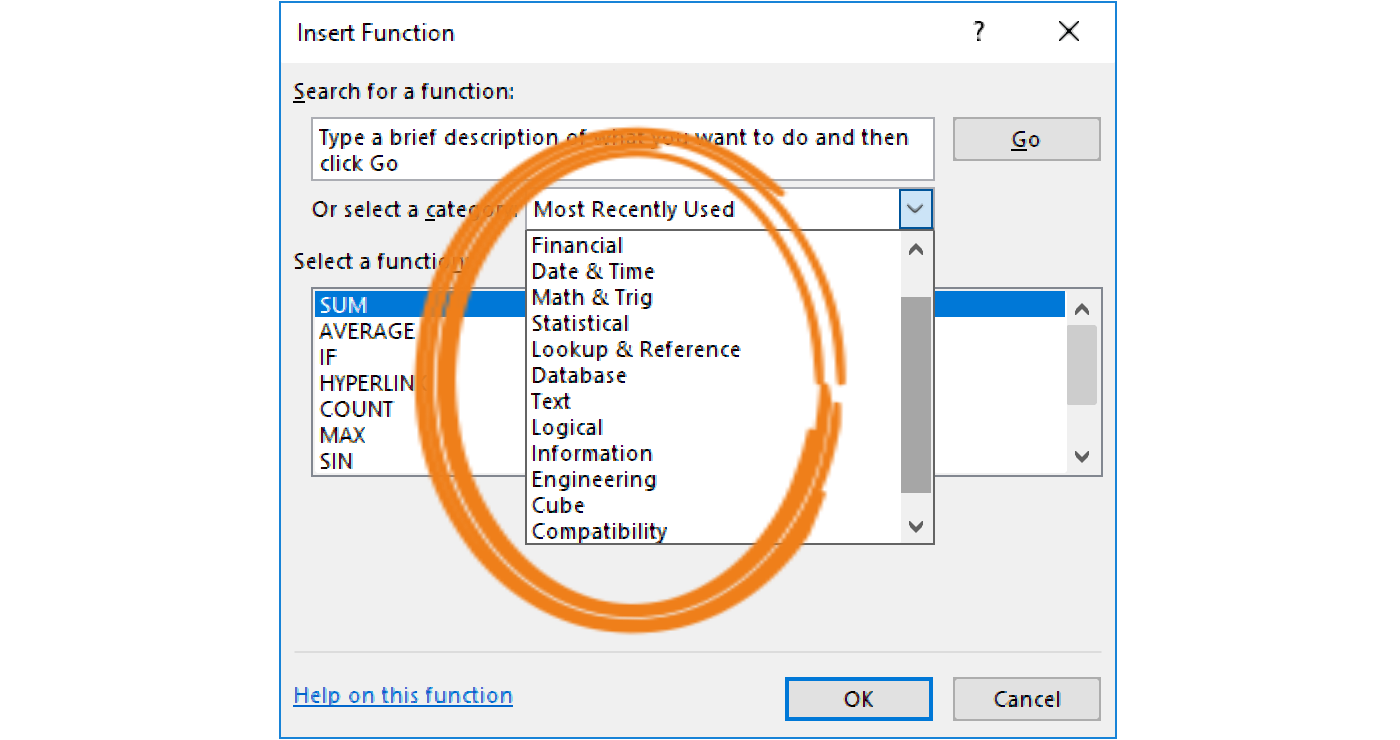
Every spreadsheet offers hundreds of built‑in functions. They are usually categorized by their functionality. The functions in a given category are sorted alphabetically. Each of them is described briefly. You can insert the functionfunctionfunction which you want to apply by using the function wizard or by typing the entire function in a cell with the keyboard.
RZ3hUwEZouIGf
Zrzut ekranu przedstawia formatkę służącą do wstawiania funkcji w arkuszu kalkulacyjnym Insert Function. Zaznaczone są kategorie funkcji: Most Recently Used, Financial, Date & Time, Math & Trig, Statistical, Lookup & Reference, Database, Text, logical, Information, Engineering, Cube, Compatibility.
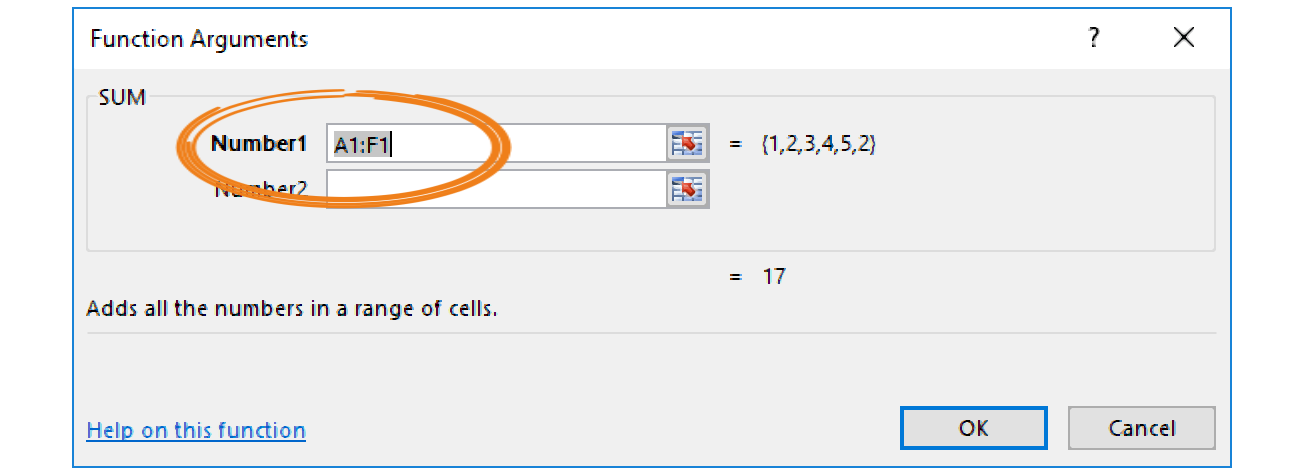
The functionfunctionfunction wizard enables to search for a function and to select it and then to enter all needed arguments.
Rk1RJwAbYxE1m
Zrzut ekranu przedstawia formatkę służącą do tworzenia funkcji SUM w arkuszu kalkulacyjnym Function Arguments. Jest ona podzielona w poziome. W górnej części znajduje się pole tekstowe Number1 z wpisanym zakresem komórek A1:F1. Obok napis ={1,2,3,4,5,2}. Poniżej puste pole tekstowe Number2. W dolnej części znajduje się napis = 17. Poniżej Adds all the numbers in a range of cells. Na dole formatki link do pomocy: Help on this function oraz dwa przyciski OK i Cancel.
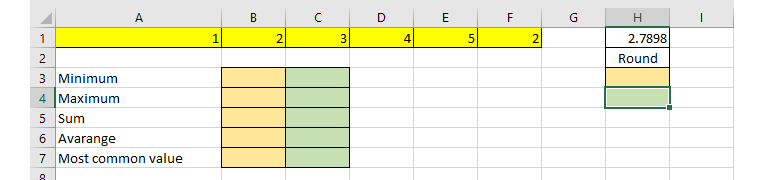
Create the worksheet presented in the illustration. In the orange cells calculate the values by using functions inserted with the function wizard.
Rhxl3XHsQ4guD
Zrzut ekranu przedstawia fragment arkusza kalkulacyjnego. W pierwszym wierszu, w komórkach A1:F1 wpisane są kolejno liczby: 1, 2, 3, 4, 5, 2. Komórki w zakresie A1:F1 mają tło w kolorze żółtym. W komórce H1 wpisana jest wartość 2.7898. W komórce H2 wpisany jest tekst Round. Komórka H3 ma ustawione pomarańczowe tło, komórka H4 ma ustawione zielone tło. W pierwszej kolumnie, w komórkach A3:A7 wpisane są kolejno wartości: Minimum, Maximum, Sum, Average, Most common value. Zakres komórek B3:B7 mają ustawione pomarańczowe tło, zakres komórek C3:C7 mają ustawione zielone tło.
In order to insert a functionfunctionfunction with the keyboard, you have to know its name. During typing the formulaformulaformula, Excel prompts the function syntax. The general form of a formula containing a function looks as follows:
In the worksheet presented in the previous illustration fill in the green cells by typing the function with the keyboard. This time use the range A1:D1 instead of the yellow range of arguments A1:F1.
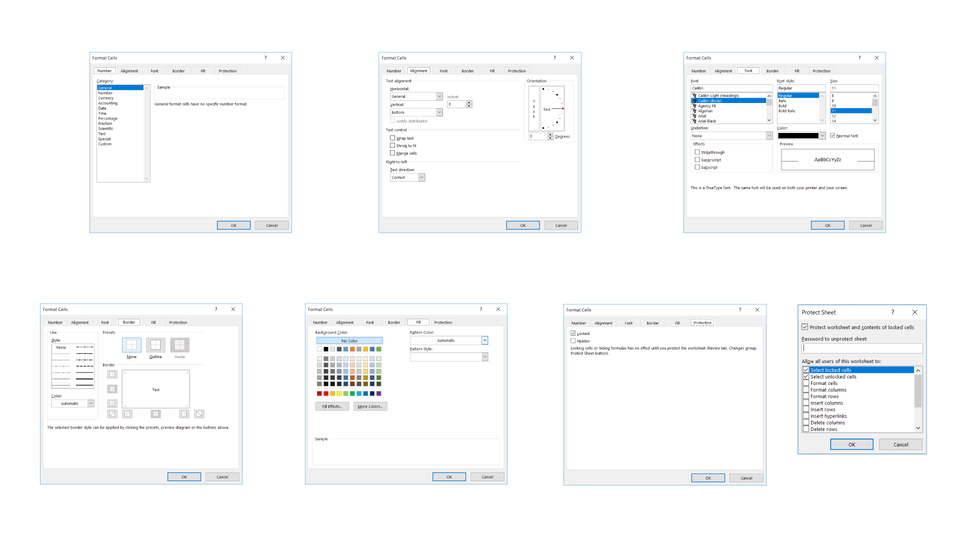
You can format worksheet cells by using three methods:
the pop‑up menu,
the Format menu in the Cells group on the Home tab,
using built‑in styles in the Styles group on the Home tab.
R3WtF2jidtYoL1
Pokaz slajdów - formatowanie danych w arkuszu kalkulacyjnym. Instrukcja obsługi z poziomu klawiatury: 1. Uruchomienie aplikacji - ENTER, 2. Na każdym ze slajdów czytany jest automatycznie tekst alternatywny po polsku, 3. Przy pierwszym uruchomieniu na pierwszym slajdzie, czytanie tekstu po angielsku - TAB, 4. Przejście między slajdami: do następnego slajdu - TAB, do poprzedniego slajdu - TAB + SHIFT, 5. Przejście do czytania napisu po angielsku - strzałka w górę + strzałka w dół (czyta tekst po angielsku widoczny na slajdzie).
Pokaz slajdów - formatowanie danych w arkuszu kalkulacyjnym. Instrukcja obsługi z poziomu klawiatury: 1. Uruchomienie aplikacji - ENTER, 2. Na każdym ze slajdów czytany jest automatycznie tekst alternatywny po polsku, 3. Przy pierwszym uruchomieniu na pierwszym slajdzie, czytanie tekstu po angielsku - TAB, 4. Przejście między slajdami: do następnego slajdu - TAB, do poprzedniego slajdu - TAB + SHIFT, 5. Przejście do czytania napisu po angielsku - strzałka w górę + strzałka w dół (czyta tekst po angielsku widoczny na slajdzie).
DatadataData presented in the form of a table may be unclear, difficult to compare or simply boring, especially if their number is high. Therefore one of the functions of a spreadsheetspreadsheetspreadsheet is the feature of presenting results in a graphical form – as a chartchartchart.
Formulas enable performing calculations and other operations on datadatadata in worksheet cells. You can type them with the keyboard or enter references with the mouse or the arrow keys.
Functions in a spreadsheetspreadsheetspreadsheet are categorized by their functionality and sorted alphabetically. You can insert a function with the keyboard, the same as formulas, or by using the functionfunctionfunction wizard.
You can format worksheet cells by using built‑in styles, the Format menu in the Cells group on the Home tab or the pop‑up menu.
Exercises
Exercise 1
RlJCdlbNNZveF
Wersja alternatywna ćwiczenia: Identify true sentences about formulas: Możliwe odpowiedzi: 1. They can be inserted with the keyboard., 2. They cannot be inserted with the keyboard., 3. They enable performing calculations., 4. Each formula begins with the equal sign (=)., 5. Each formula begins with the hashtag (#).
Wersja alternatywna ćwiczenia: Identify true sentences about formulas: Możliwe odpowiedzi: 1. They can be inserted with the keyboard., 2. They cannot be inserted with the keyboard., 3. They enable performing calculations., 4. Each formula begins with the equal sign (=)., 5. Each formula begins with the hashtag (#).
Identify true sentences about formulas:
They can be inserted with the keyboard.
They cannot be inserted with the keyboard.
They enable performing calculations.
Each formula begins with the equal sign (=).
Each formula begins with the hashtag (#).
zadanie
Source: GroMar, licencja: CC BY 3.0.
Exercise 2
Rv4GUclzhT36C
Wersja alternatywna ćwiczenia: You can insert the following data in a spreadsheet: Możliwe odpowiedzi: 1. words, 2. dates, 3. images, 4. symbols, 5. sounds, 6. equations
Wersja alternatywna ćwiczenia: You can insert the following data in a spreadsheet: Możliwe odpowiedzi: 1. words, 2. dates, 3. images, 4. symbols, 5. sounds, 6. equations
You can insert the following data in a spreadsheet:
words
dates
images
symbols
sounds
equations
zadanie
Source: GroMar, licencja: CC BY 3.0.
Exercise 3
Describe in English how you can format cells in your spreadsheet.
Exercise 4
R1eC2WQ1MEVQQ
Wersja alternatywna ćwiczenia: Indicate which pairs of expressions or words are translated correctly. Możliwe odpowiedzi: 1. formuła - formula, 2. wykres - chart, 3. dane - data, 4. formatowanie - formatting, 5. funkcje - spreadsheet, 6. arkusz kalkulacyjny - functions
Wersja alternatywna ćwiczenia: Indicate which pairs of expressions or words are translated correctly. Możliwe odpowiedzi: 1. formuła - formula, 2. wykres - chart, 3. dane - data, 4. formatowanie - formatting, 5. funkcje - spreadsheet, 6. arkusz kalkulacyjny - functions
Indicate which pairs of expressions or words are translated correctly.
formuła - formula
wykres - chart
dane - data
formatowanie - formatting
funkcje - spreadsheet
arkusz kalkulacyjny - functions
zadanie
Source: GroMar, licencja: CC BY 3.0.
R1A19wWqiGS0M1
Interaktywna gra, polegająca na łączeniu wyrazów w pary w ciągu jednej minuty. Czas zaczyna upływać wraz z rozpoczęciem gry. Jeden ruch to odkrywanie najpierw jednej potem drugiej karty z wyrazem. Każdy wyraz jest odczytywany. Kolejny ruch to odkrywanie trzeciej i czwartej karty. W ten sposób odsłuchasz wszystkie wyrazy. Nawigacja z poziomu klawiatury za pomocą strzałek, odsłuchiwanie wyrazów enterem lub spacją. Znajdź wszystkie pary wyrazów.
Interaktywna gra, polegająca na łączeniu wyrazów w pary w ciągu jednej minuty. Czas zaczyna upływać wraz z rozpoczęciem gry. Jeden ruch to odkrywanie najpierw jednej potem drugiej karty z wyrazem. Każdy wyraz jest odczytywany. Kolejny ruch to odkrywanie trzeciej i czwartej karty. W ten sposób odsłuchasz wszystkie wyrazy. Nawigacja z poziomu klawiatury za pomocą strzałek, odsłuchiwanie wyrazów enterem lub spacją. Znajdź wszystkie pary wyrazów.
Match Polish terms with their English equivalents.
data
dane
spreadsheet
formuła
formula
arkusz kalkulacyjny
wykres
chart
Source: Zespół autorski Politechniki Łódzkiej, licencja: CC BY 3.0.