Starting operating systems in a troubleshooting mode
Uruchamianie systemów operacyjnych w trybie specjalnym
what safe mode is,
how to start various operating systems in this mode.
If the computer has been incorrectly turned off or some problems have occurred during startup, a screen appears that allows you to select safe mode. When the systems does not want to start and you cannot repair it, starting it in safe mode may be the last chance for saving important data. Safe mode is used the most commonly to repair damaged device drivers and incorrectly installed programmes or to update the system.
Safe modeSafe mode is the option of the troubleshooting startup of the operating system with basic functionality. The system loads only needed device drivers and basic services then. Safe mode can help you troubleshoottroubleshoot most problems in the operating system. It is also widely used to remove malicious software. The inability to start the computer in safe mode may suggest hardware problems.
A device driver is a computer program that enables the interaction between a device connected to the computer and the computer system.
A system servicesystem service is a computer programme that ensures the functionality or the set of functionalities of the operating system.
MS WindowsMS Windows
The older versions of the system enable to start it in safe mode during startup by pressing the F8 key. Newer versions, from Windows 8 onward, offer two alternative methods of starting the system in safe mode:
from the sign‑in screensign‑in screen (Shift + Power + Restart),
from Settings (Update & security – Recovery – Advanced startupAdvanced startup – Restart now).
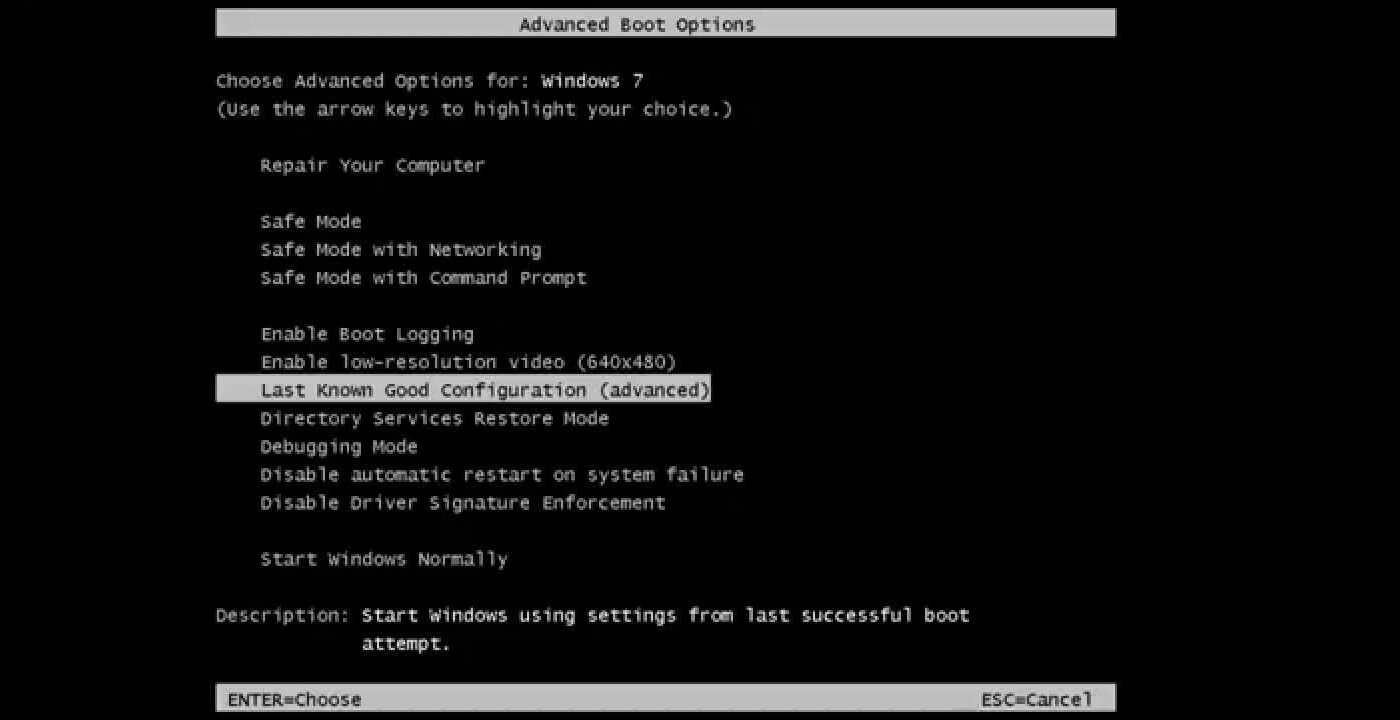
In Windows 10, if errors occur during startup, the Automatic RepairAutomatic Repair tool is run, but if it does not help, you must use the rescue or installation media. Safe ModeSafe Mode with Networking starts Windows in safe mode and includes the network drivers and services needed to access the Internet or other computers on your network. Safe Mode with Command PromptCommand Prompt is also available for advanced users who are familiar with the commands of the command prompt.

Zasób interaktywny dostępny pod adresem https://zpe.gov.pl/a/D18qLQQzX
Mac OSMac OS
Safe modeSafe mode is started by pressing the Shift key immediately after the computer is switched on. The Shift key must be held until the Apple logo appears (along with the progress indicator). The mode starts the repair of the file system and disables all startup elements and login elements. Startup in single‑user mode (Command‑S) is also available for advanced users who are familiar with Linux. Unlike in Windows, in which Safe Mode with Networking is disabled by default, safe mode in Mac OS always includes restoring the network connections.
LinuxLinux
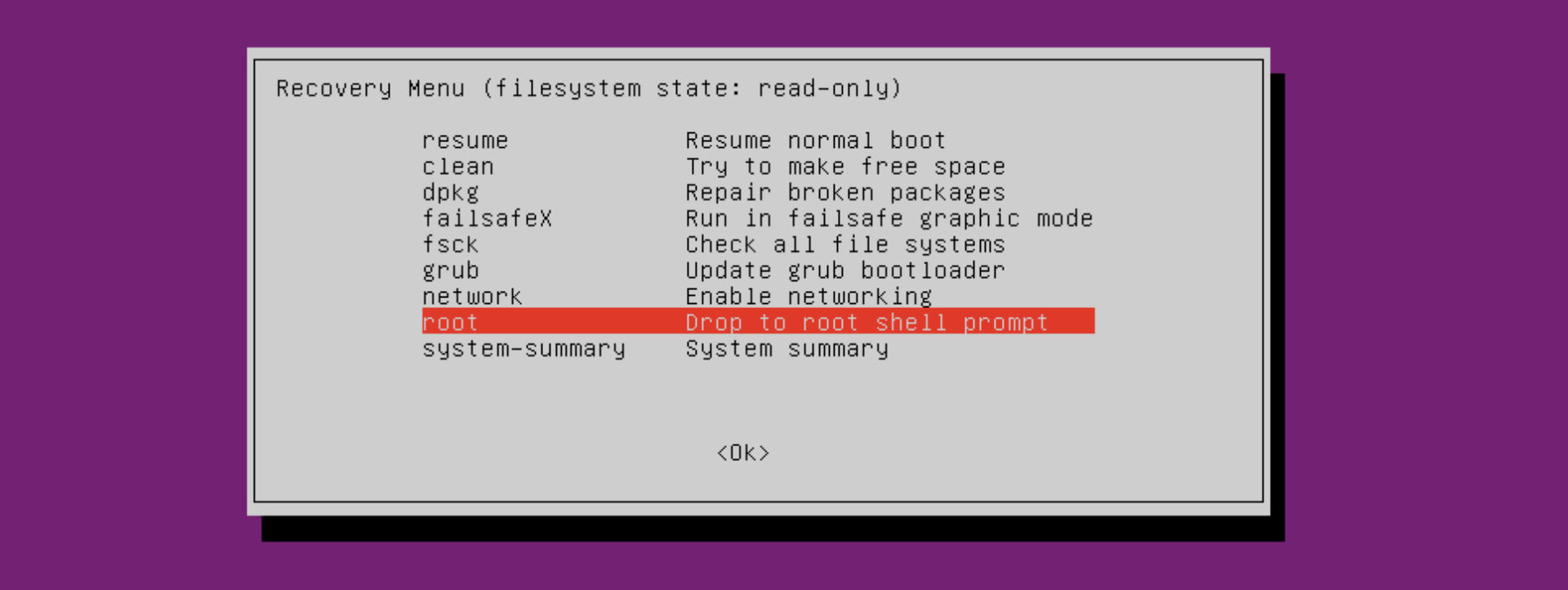
Recovery mode can be selected on the list of the available systems of bootloader (startup programme). If the list is hidden during startup, press the ESC key. When you select recovery mode, the recovery menu is displayed with the following functions, among others:
failsafex – boots your computer in a failsafe graphic mode,
clean – attempts to make free space on the disc,
dpkg – repairs broken software packages,
fsck – repairs the file system,
network – enables networking,
root – runs a root shell prompt.
AndroidAndroid
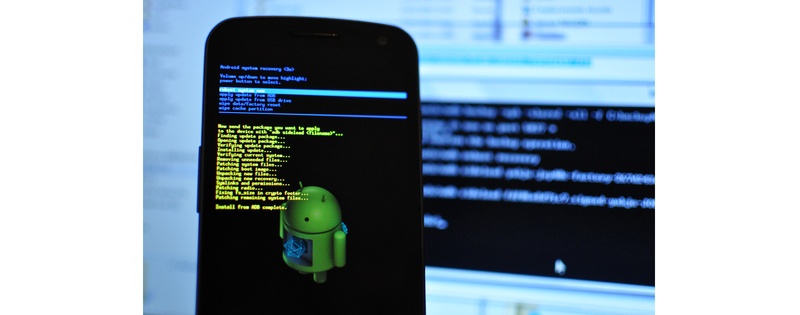
Safe mode can be started on devices with Android only when the device is switched off. Press and hold the power button. On the displayed list of options select Power off by holding it with the finger. After a while the option Reboot to safe mode appears on the screen (on some devices you must hold the Restart button). In safe mode only default applications can be run, while third party tools are blocked.
Start your computer in safe mode.
In order to leave safe mode in all the systems, you have to restart a device.
Some application software also offers safe modesafe mode. The examples of applications using safe mode are the Firefox and Internet Explorer browsers, which enable startup without add‑onsadd‑ons. Microsoft Outlook also can be started in safe mode, which allows to troubleshoottroubleshoot errors related to the support of electronic mail.
On the internet find the information about starting your web browser in safe mode, without loading add‑onsadd‑ons. Start it in this mode.
Windows Explorer started in safe mode operates normally, just as the drivers supporting USB ports, therefore you can connect an external drive or a pendrive and copy important data.
Exercises
Identify true sentences about safe mode:
- It is the option of the troubleshooting startup of the operating system with basic functionality.
- It can help you troubleshoot most problems in the operating system.
- The inability to start the computer in safe mode may suggest hardware problems.
- It is not used to remove malicious software.
Have you ever been forced to start your computer in safe mode? What was the cause? Was the problem removed?
Try to start your tablet or smartphone in safe mode. Describe the consecutive operations in English.
Indicate which pairs of expressions or words are translated correctly.
- tryb awaryjny - safe mode
- usługa systemu - system service
- tryb diagnostyczny - diagnostic mode
- uruchamianie zaawansowane - advanced startup
- sterownik - troubleshoot
- wiersz poleceń - device driver
- device driver
- dodatki
- safe mode
- system service
- usługa systemu
- sterownik
- add-ons
- tryb awaryjny
Glossary
dodatki
Nagranie dostępne na portalu epodreczniki.pl
wymowa w języku angielskim: add‑ons
uruchamianie zaawansowane
Nagranie dostępne na portalu epodreczniki.pl
wymowa w języku angielskim: advanced startup
automatyczna naprawa
Nagranie dostępne na portalu epodreczniki.pl
wymowa w języku angielskim: automatic repair
wiersz poleceń
Nagranie dostępne na portalu epodreczniki.pl
wymowa w języku angielskim: command prompt
sterownik
Nagranie dostępne na portalu epodreczniki.pl
wymowa w języku angielskim: device driver
tryb diagnostyczny
Nagranie dostępne na portalu epodreczniki.pl
wymowa w języku angielskim: diagnostic mode
tryb awaryjny
Nagranie dostępne na portalu epodreczniki.pl
wymowa w języku angielskim: safe mode
ekran logowania
Nagranie dostępne na portalu epodreczniki.pl
wymowa w języku angielskim: sign‑in screen
usługa systemu
Nagranie dostępne na portalu epodreczniki.pl
wymowa w języku angielskim: system service
rozwiązywać problemy
Nagranie dostępne na portalu epodreczniki.pl
wymowa w języku angielskim: troubleshoot
Keywords
add‑onsadd‑ons
device driverdevice driver
safe modesafe mode
system servicesystem service