Mushroom picking
about new functions of a graphic program and a text editor.
Before you start the lesson, do the following:
Draw an image of a forest full of mushrooms. To do this, consider the following tips.
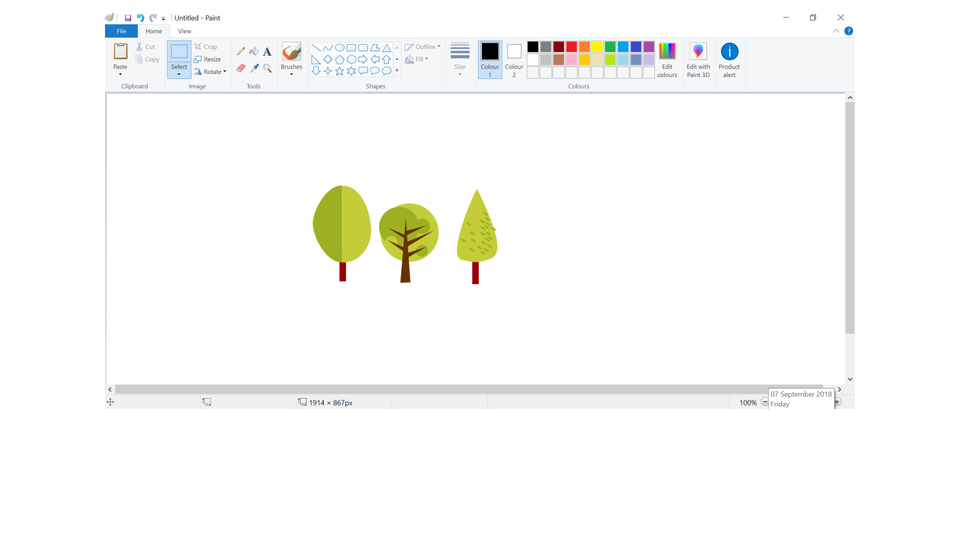
Draw one or several trees.
To increase the number of trees in your forest, select already drawn trees, copy and paste them into your image, and then move to the desired location. Using curves draw a mushroommushroom.
Select the drawn mushroom, copy and paste it to the desired location, and then modify its size, colour, shape.
Draw the remaining elements of the forest landscape, using various brushes and the possibility to fill drawings with colour.
Zasób interaktywny dostępny pod adresem https://zpe.gov.pl/a/DBAcvXFbo
Story about mushroommushroom pickingpicking
Write in a text editor a story about wandering through the forest in search of mushrooms. Apply in it the rules for correct text editing. Pay attention to:
Rules of behaviour in the forest.
Types of mushrooms - describe edible mushrooms and those that are not suitable for consumption.
Find information about mushrooms in the resources of the Internet. You can also talk about it when you walk with your family. Make sure you edit the text correctly. Choose a font. Remember to split the text into paragraphs. To describe individual mushrooms, use bullets. Use highlightinghighlighting for the mushroom names, for example using a different font colour or italics (slanted font). Add the appropriate illustrations to the descriptions of each mushroom. These can be images previously made in the graphic editor or photos found in the resources of the Internet. Remember to keep copyrights.
Rules for text editing
Separate words in a sentence with single space by pressing the spacebar once.
Use the space after the punctuation markspunctuation marks {.,:; ? !}, never before them.
Use the space only before the opening parenthesis and quotation mark, never after them.
Use the space after the closing parenthesis and quotation mark, not before them.
Use the Enter key only when you start a new idea (when you want to close one and open the second paragraph) or insert a blank line.
Change the font
To change the font of the entire text, do the following:
Select all text by any method, e.g. use command Select all from the Edit group on the Home tab or use Ctrl + A. The whole text will be selected.
Left‑click on the drop‑down list and select the font that suits you best.
You can choose from many fonts. The most commonly used ones include Calibri, Times New Roman.
Bullets
To create a bulleted list, do the following
Search and select (enable) the tool responsible for lists. In the paragraph in which the text cursor is placed, the first item of the list appears.
Enter the text for the given item. When you are done, press the Enter key. The cursor will move to the next line and the next item in the list will automatically appear.
Repeat this step until you create all the items in the list.
The last point of the list ends with the Enter key, and then again select (disable) the tool responsible for listing.
HighlightingHighlighting text
To add highlighting (bold, italic, underline, and font colour), do the following:
Select a part of text with any method.
Select the appropriate formatting tools sequentially: Bold, Italic, Underline.
Preparing a presentation
Design a presentation about mushrooms growing in our forests. Do not forget about the rules for preparing a presentation. Follow the instructions below. Plan your work so you can avoid corrections later.
Choose a background theme for your presentation.
If it's your first presentation, choose the tools that you'll use to design it.
Design the title slide.
Add more slides to your presentation.
Put text on slides - you can enter the information you searched directly in the presentation or copy the descriptions of mushrooms from the story.
Insert matching images into the designed presentation. These can be photos saved on your computer, clipart or previously made drawings. If you do not have appropriate images, search for them on the Internet and save them in a selected folder.
When designing a presentation, check the result on a regular basis by switching to slide show.
Remembering the copyright law, please provide sources of information from the Internet.
After finishing the presentation, save it in the appropriate folder. If possible, present it to classmates.
Theme background
To choose a background theme, do the following:
Expand the window with the colours of the background themes.
Move the mouse pointer over the colours and observe how the theme colours change.
Click on the selected colour.
Adding slides
To insert another slide into the presentation, do the following:
Select the New Slide command - then a window will open with ready‑made slide layouts.
By moving the mouse pointer, highlight the subsequent slide layouts.
Choose slide layoutslide layout and click on it. A slide with this layout will be inserted into the presentation.
To change the layout on the previously added slide, do the following:
Click on it with the mouse.
Select the Layout tool, then a window will open with ready‑made slide layouts.
Move the mouse pointer above them and click on the one you want.
Check how the layout was changed.
Pay attention to the location and size of the objects on the slide.
Adding text
To add text to a presentation, do the following:
If you want to enter a title, click on the area Click to add the title.
Enter the title.
Click on the area Click to add text.
Enter text.
Click the mouse outside the designated area or press the ESC key.
Inserting clipart
To insert a clipart, follow these steps:
In the designated area, click the insertion tool icon.
In the open window in the designated field, enter the name of the object you are looking for, e.g. hedgehog.
Confirm your choice by pressing the Enter key or by clicking the Magnifier icon.
Search for the needed picture and select it.
Click the Insert button.
Inserting images
To insert an image saved on your computer, do the following:
In the designated area, click the icon for inserting images.
Search for the needed image or photo in the open window.
Select it.
Click the Insert button.
HighlightingHighlighting text fragments makes it easier to read it. Using paragraphs helps to separate individual information in the text. Punctuation marksPunctuation marks affect the understanding of the text content.
Exercises
Determine which sentence is true.
- The bullet is the symbol used to highlight the elements of the point list.
- The appearance of bullets and numbers in lists can be changed at any time.
- Automatic numbering of list elements can be turned off.
- You cannot change the distance between the bullet and the text.
In the program for presentation preparation, write the title on the first page. Check what fonts you can select. Experiment and choose the style and typeface best suited to your presentation.
Check in the mushroommushroom atlas or search on the Internet for the graphical symbol representing inedible and poisonous mushrooms.
Try to create your own symbols using the graphic program.
Indicate which pairs of expressions or words are translated correctly.
- urządzenie - device
- system operacyjny - operating system
- edytor tekstowy - text editor
- powtarzanie - repeating
- lista numerowana - bulleted list
- lista wypunktowana - numbered list
- operating system
- urządzenie
- system operacyjny
- numbered list
- text editor
- edytor tekstowy
- lista numerowana
- device
Glossary
podświetlanie
Nagranie dostępne na portalu epodreczniki.pl
wymowa w języku angielskim: highlighting
grzyb
Nagranie dostępne na portalu epodreczniki.pl
wymowa w języku angielskim: mushroom
zbieranie
Nagranie dostępne na portalu epodreczniki.pl
wymowa w języku angielskim: picking
znaki interpunkcyjne
Nagranie dostępne na portalu epodreczniki.pl
wymowa w języku angielskim: punctuation marks
układ slajdu
Nagranie dostępne na portalu epodreczniki.pl
wymowa w języku angielskim: slide layout
edycja tekstu
Nagranie dostępne na portalu epodreczniki.pl
wymowa w języku angielskim: text edition
Keywords
highlightinghighlighting
mushroommushroom
pickingpicking
slide layoutslide layout
text editiontext edition