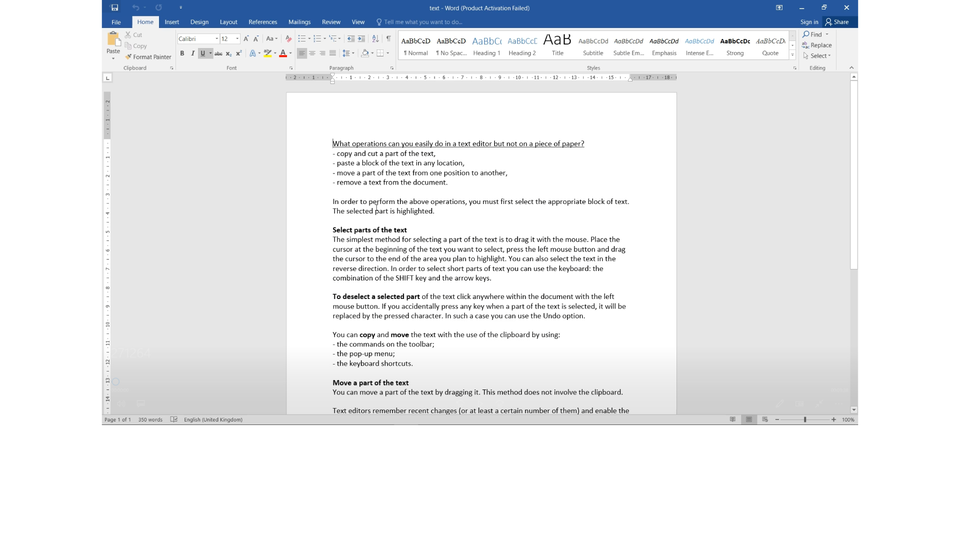
The simplest method for selectingmbe5bd5084255230f_1524300332266_0selecting a part of the text is to drag it with the mouse. Place the cursor at the beginning of the text you want to select, press the left mouse button and drag the cursor to the end of the area you plan to highlight. You can also select the text in the reverse direction. In order to select short parts of text you can use the keyboard: the combination of the SHIFT key and the arrow keys.
Watch the slide show and try yourself to select the text in the document using the methods shown in below.
RzORJKZ0zd0Pj1
Pokaz slajdów – Zaznaczanie tekstu w dokumencie programu Word. Instrukcja obsługi z poziomu klawiatury: 1. Uruchomienie aplikacji - ENTER, 2. Na każdym ze slajdów czytany jest automatycznie tekst alternatywny po polsku, 3. Przy pierwszym uruchomieniu na pierwszym slajdzie, czytanie tekstu po angielsku - TAB, 4. Przejście między slajdami: do następnego slajdu - TAB, do poprzedniego slajdu - TAB + SHIFT, 5. Przejście do czytania napisu po angielsku - strzałka w górę + strzałka w dół (czyta tekst po angielsku widoczny na slajdzie).
Pokaz slajdów – Zaznaczanie tekstu w dokumencie programu Word. Instrukcja obsługi z poziomu klawiatury: 1. Uruchomienie aplikacji - ENTER, 2. Na każdym ze slajdów czytany jest automatycznie tekst alternatywny po polsku, 3. Przy pierwszym uruchomieniu na pierwszym slajdzie, czytanie tekstu po angielsku - TAB, 4. Przejście między slajdami: do następnego slajdu - TAB, do poprzedniego slajdu - TAB + SHIFT, 5. Przejście do czytania napisu po angielsku - strzałka w górę + strzałka w dół (czyta tekst po angielsku widoczny na slajdzie).
To deselect a selected part of the text click anywhere within the document with the left mouse button. If you accidentally press any key when a part of the text is selected, it will be replaced by the pressed character. In such a case you can use the Undombe5bd5084255230f_1524300328672_0Undo option.
You can copy and move the text with the use of the clipboard by using:
the commands on the toolbar
the pop‑up menu
the keyboard shortcuts
R1ESLsKwA7beX
Ilustracja interaktywna przedstawia okno programu MS Word. Widoczne jest menu podręczne, które pojawia się spod prawego klawisza myszy. Wyróżnione są trzy polecenia: wytnij, kopiuj, wklej. Na ilustracji widoczne są numery, a na nich podpisy. 1. Cut {audio}, 2. Copy {audio}, 3. Paste {audio}
Ilustracja interaktywna przedstawia okno programu MS Word. Widoczne jest menu podręczne, które pojawia się spod prawego klawisza myszy. Wyróżnione są trzy polecenia: wytnij, kopiuj, wklej. Na ilustracji widoczne są numery, a na nich podpisy. 1. Cut {audio}, 2. Copy {audio}, 3. Paste {audio}
Text editors remember recent changes (or at least a certain number of them) and enable the user to undombe5bd5084255230f_1524300328672_0undo and redo them. It is a very useful tool in cases when you, for example, accidentally delete a part of the text. To undombe5bd5084255230f_1524300328672_0undo the changes, press the Undombe5bd5084255230f_1524300328672_0Undo button or Ctrl + Z. You can redo the changes by pressing the Redo button or Ctrl + Y.
The ability to perform operations on blocks of the text shortens the time of editing text documents.
Exercises
RfP1XTV4KzWLy
Exercise 1
Wersja alternatywna ćwiczenia: Fill in the gaps in the text so that they match their descriptions: a 1. line of text, 2. all text, 3. single word, 4. sentence, 5. page, 6. letter, 7. line – quickly double-click the word with the left mouse button a 1. line of text, 2. all text, 3. single word, 4. sentence, 5. page, 6. letter, 7. line – click with the left mouse button on the margin near the line you want to select (only available in WordPad and Word) a 1. line of text, 2. all text, 3. single word, 4. sentence, 5. page, 6. letter, 7. line – tripple-click on the paragraph you want to select (in Writer click four times) a 1. line of text, 2. all text, 3. single word, 4. sentence, 5. page, 6. letter, 7. line – press and hold the Ctrl key and click with the left mouse button anywhere within the sentence you want to select; this method doesn’t work in WordPad (in Writer tripple-click with the left mouse button anywhere within the sentence you want to select) 1. line of text, 2. all text, 3. single word, 4. sentence, 5. page, 6. letter, 7. line – press and hold the Ctrl key and press A (Ctrl+A)
Wersja alternatywna ćwiczenia: Fill in the gaps in the text so that they match their descriptions: a 1. line of text, 2. all text, 3. single word, 4. sentence, 5. page, 6. letter, 7. line – quickly double-click the word with the left mouse button a 1. line of text, 2. all text, 3. single word, 4. sentence, 5. page, 6. letter, 7. line – click with the left mouse button on the margin near the line you want to select (only available in WordPad and Word) a 1. line of text, 2. all text, 3. single word, 4. sentence, 5. page, 6. letter, 7. line – tripple-click on the paragraph you want to select (in Writer click four times) a 1. line of text, 2. all text, 3. single word, 4. sentence, 5. page, 6. letter, 7. line – press and hold the Ctrl key and click with the left mouse button anywhere within the sentence you want to select; this method doesn’t work in WordPad (in Writer tripple-click with the left mouse button anywhere within the sentence you want to select) 1. line of text, 2. all text, 3. single word, 4. sentence, 5. page, 6. letter, 7. line – press and hold the Ctrl key and press A (Ctrl+A)
Fill in the gaps in the text so that they match their descriptions:
letter, page, all text, line, single word, line of text, sentence
a ........................ – quickly double-click the word with the left mouse button
a ........................ – click with the left mouse button on the margin near the line you want to select (only available in WordPad and Word)
a ........................ – tripple-click on the paragraph you want to select (in Writer click four times)
a ........................ – press and hold the Ctrl key and click with the left mouse button anywhere within the sentence you want to select; this method doesn’t work in WordPad (in Writer tripple-click with the left mouse button anywhere within the sentence you want to select)
........................ – press and hold the Ctrl key and press A (Ctrl+A)
Exercise 2
In a text editor write any text, for instance: Learning to write during the IT lessons. Copy the text into the clipboard and then paste it into the consecutive paragraphs. Do the task by using the commands on the tool bar.
Save the document in the file Note1.
Using key combinations, select the whole text, copy and paste it into a new document. Name it Note2.
Ctrl + A Select all
Ctrl + C Copy
Ctrl + V Paste
Exercise 3
Explain in English the difference between copying, pasting and moving the text in a text editor.
Exercise 4
R1J0VYByocXCg
Wersja alternatywna ćwiczenia: Indicate which pairs of expressions or words are translated correctly. Możliwe odpowiedzi: 1. wycinanie - cutting, 2. przeciąganie - dragging, 3. kopiowanie - copying, 4. zaznaczanie - selecting, 5. przeciąganie - undo, 6. wycofywanie - dragging
Wersja alternatywna ćwiczenia: Indicate which pairs of expressions or words are translated correctly. Możliwe odpowiedzi: 1. wycinanie - cutting, 2. przeciąganie - dragging, 3. kopiowanie - copying, 4. zaznaczanie - selecting, 5. przeciąganie - undo, 6. wycofywanie - dragging
Indicate which pairs of expressions or words are translated correctly.
wycinanie - cutting
przeciąganie - dragging
kopiowanie - copying
zaznaczanie - selecting
przeciąganie - undo
wycofywanie - dragging
zadanie
Source: GroMar, licencja: CC BY 3.0.
RO7FatGgmuhxO1
Interaktywna gra, polegająca na łączeniu wyrazów w pary w ciągu jednej minuty. Czas zaczyna upływać wraz z rozpoczęciem gry. Jeden ruch to odkrywanie najpierw jednej potem drugiej karty z wyrazem. Każdy wyraz jest odczytywany. Kolejny ruch to odkrywanie trzeciej i czwartej karty. W ten sposób odsłuchasz wszystkie wyrazy. Nawigacja z poziomu klawiatury za pomocą strzałek, odsłuchiwanie wyrazów enterem lub spacją. Znajdź wszystkie pary wyrazów.
Interaktywna gra, polegająca na łączeniu wyrazów w pary w ciągu jednej minuty. Czas zaczyna upływać wraz z rozpoczęciem gry. Jeden ruch to odkrywanie najpierw jednej potem drugiej karty z wyrazem. Każdy wyraz jest odczytywany. Kolejny ruch to odkrywanie trzeciej i czwartej karty. W ten sposób odsłuchasz wszystkie wyrazy. Nawigacja z poziomu klawiatury za pomocą strzałek, odsłuchiwanie wyrazów enterem lub spacją. Znajdź wszystkie pary wyrazów.
Match Polish terms with their English equivalents.
paste
wytnij
cut
copy
wklej
kopiuj
Source: Zespół autorski Politechniki Łódzkiej, licencja: CC BY 3.0.