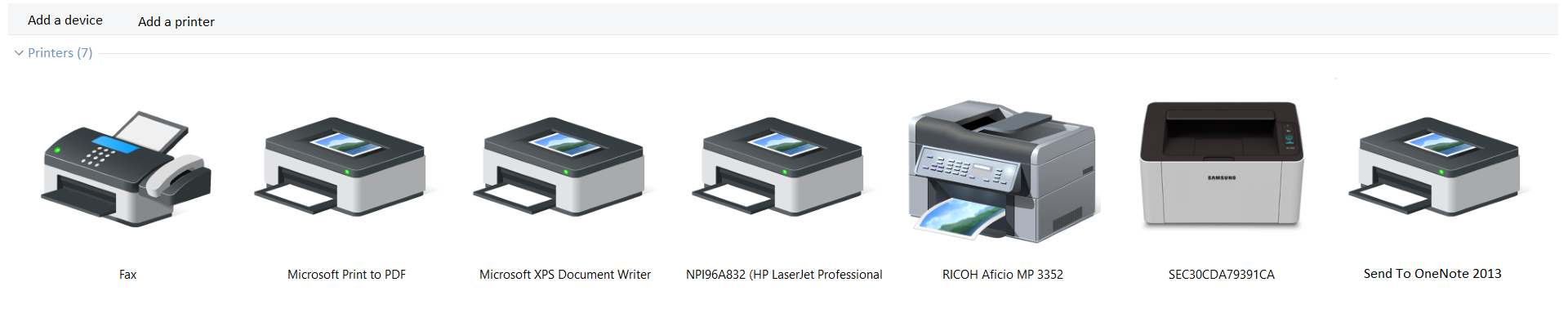
After selecting the Print option (File > Print or by using the keyboard shortcut CTRL + P), on one of the drop‑down lists you will find all printers which are currently available in the system. Select the printerprinterprinter you want to connect to. If it is not listed, you need to install it in your system.
R1JP0iaWlhvhC1
Widok drukarek w systemie Windows. Na górze dwa przyciski Add device oraz Add printer. Poniżej widocznych jest kilka ikon obrazujących drukarki (liczba ikon jest zależna o liczby zainstalowanych drukarek w systemie).
You can print the part of a worksheet by adjusting Settings.
R10v3eI932z8F
Ilustracja interaktywna przedstawia ustawienia obszaru wydruku. Możliwości zostały oznaczone numerami od 1 do 3. 1 - Print Active Sheets (only print the active sheets). 2 - Print Entire Workbook (print the entire workbook). 3 - Print Selection (only print the current selection). Na numerach widoczne są podpisy. 1. The active sheet of a document {audio}, 2. All worksheets of the document {audio}, 3. The selected elements of a worksheet (the range of cells, an object, i.e. a chart, a table) {audio}.
Ilustracja interaktywna przedstawia ustawienia obszaru wydruku. Możliwości zostały oznaczone numerami od 1 do 3. 1 - Print Active Sheets (only print the active sheets). 2 - Print Entire Workbook (print the entire workbook). 3 - Print Selection (only print the current selection). Na numerach widoczne są podpisy. 1. The active sheet of a document {audio}, 2. All worksheets of the document {audio}, 3. The selected elements of a worksheet (the range of cells, an object, i.e. a chart, a table) {audio}.
If you want to print the part of a worksheet, select the area with the mouse or the keyboard before printing. If you print the same selection on the worksheet frequently, you can define a print areaprint areaprint area for this selection. You can define multiple print areas, which will be printed as separate pages. In order to select multiple worksheets in one document, select their labels while holding down the CTRL key.
Headers and footers are additional elements of a printed worksheet. A headerheaderheader is a separate text at the top of the working area of a document. A footerfooterfooter is a separate text located under the document’s working area. Headers and footers are displayed only in special views (in Excel – in Page Layout view and Print Previewprint previewPrint Preview) or on printed pages.
You can add and edit headers and footers in Excel by using the following methods:
the Page Layout dialogue box,
the HeaderheaderHeader & FooterfooterFooter option on the Insert tab, in the Text group,
directly in a document in Page Layout view.
REbg0YmU8ZCoF
Zrzut ekranu przedstawia elementy umożliwiające wstawienie i formatowanie nagłówka i stopki. Po lewej stronie w sekcji Header & Footer dwa menu umożliwiające wstawienie predefiniowanych: nagłówka - Header oraz stopki - Footer. Po prawej stronie w sekcji Header & Footer Elements znajdują się przyciski umożliwiające wstawienie numerów stron - Page Number, liczby stron - Number of Pages, bieżącej daty - Current Date, bieżącej godziny - Current Time, ścieżki pliku - File Path, nazwy pliku - File Name, nazwy arkusza - Sheet Name, obrazu - Picture, formatowanie wstawionego obrazu - Format Picture.
Header and footer elements
Source: GroMar, licencja: CC BY 3.0.
Built‑in elements such as page number, number of pages, date, time or file name are frequently added to the header or footerfooterfooter of a printed view. You can create different headers and footers for the first page and for odd and even pages.
RSggjqHkCOWrc
Ilustracja interaktywna przedstawia ustawienia drukowanej strony. Możliwości zostały oznaczone numerami od 1 do 4. 1 - wybrana orientacja - Portrait Orientation. 2 - wybrany format - A4 (21 cm x 29,7 cm). 3 - przykładowe marginesy - Normal Margins (Left: 1,78 cm Right: 1,78 cm). 4 - przykładowe dopasowanie obszaru wydruku - No Scaling (Print sheets at their actual size). Na numerach widoczne są podpisy. 1. page orientation {audio}, 2. page size {audio}, 3. margins {audio}, 4. print quality {audio}.
Ilustracja interaktywna przedstawia ustawienia drukowanej strony. Możliwości zostały oznaczone numerami od 1 do 4. 1 - wybrana orientacja - Portrait Orientation. 2 - wybrany format - A4 (21 cm x 29,7 cm). 3 - przykładowe marginesy - Normal Margins (Left: 1,78 cm Right: 1,78 cm). 4 - przykładowe dopasowanie obszaru wydruku - No Scaling (Print sheets at their actual size). Na numerach widoczne są podpisy. 1. page orientation {audio}, 2. page size {audio}, 3. margins {audio}, 4. print quality {audio}.
If your worksheet spans more than one printed page, automatically inserted page breaks will be shown as dashed lines. Excel offers a special document view called Page Breakpage breakPage Break Preview. It enables you inserting your own manual page breaks.
Print Previewprint previewPrint Preview is an option that enables you to see on the screen a preview of how your document will appear on the printout. The preview is displayed in black‑and‑white until you select a colour printerprinterprinter. The Next Page and Previous Page buttons are available only when your worksheet spans more than one printed page. In such a case you can preview a specific page by typing its number.
Additional printing options:
printing the background,
centering the worksheet on the printout page horizontally and vertically,
sorting the printouts for the multiple copies of the document,
In the case of lengthy worksheets it is useful to repeat the headerheaderheader rows or columns on every printed page in order to ensure the readability of the printout. A worksheet created in the programme can be scaled. Scaling sometimes enables adjusting the size of the worksheet to the page size.
If you do not want to share an entire document but only its part, you can send a file containing the printout of the worksheet. The printout will be prepared for a specific printerprinterprinter (installed in the system) and when the file is printed on a different printer, the page breaks and font spacing may change. Such a printout cannot be modified. The printout file will have the extension PRN and as usual will be saved in your Documents folder.
Download the file and complete the data, using the internet. Create a table presenting the population of selected European cities for printing as follows:
select the portrait orientation,
add the title “Population” to the header,
enter your first name, surname and the current date in the footerfooterfooter,
repeat the fourth row on every printed page,
center the table on the printout vertically and horizontally.
The programmes used to create spreadsheets offer many methods of printing. They enable to define a print areaprint areaprint area, design footers and headers, select page orientation, repeat headerheaderheader rows and columns on every printed page.
Exercises
Rn9xAwynkTiQb
Exercise 1
Wersja alternatywna ćwiczenia: Identify which of the following sentences about a header and a footer are true: Możliwe odpowiedzi: 1. A footer is a separate text located under the document’s working area., 2. A header is a separate text at the top of the working area of a document. , 3. Page number and number of pages can be added to a footer., 4. File name cannot be added to a header.
Wersja alternatywna ćwiczenia: Identify which of the following sentences about a header and a footer are true: Możliwe odpowiedzi: 1. A footer is a separate text located under the document’s working area., 2. A header is a separate text at the top of the working area of a document. , 3. Page number and number of pages can be added to a footer., 4. File name cannot be added to a header.
Identify which of the following sentences about a header and a footer are true:
A footer is a separate text located under the document’s working area.
A header is a separate text at the top of the working area of a document.
Page number and number of pages can be added to a footer.
File name cannot be added to a header.
zadanie
Source: GroMar, licencja: CC BY 3.0.
Exercise 2
Create a table in a spreadsheet with the data about the longest rivers in Europe. Find the information on the internet. The table should contain three columns:
the name of a river,
its length in kilometers,
countries it flows through.
Write the title „The longest rivers in Europe” in the header. Enter your first name, surname and the page number in the footer. Design a printout so that the header row is printed on every page.
Exercise 3
Describe in English printing to a file.
R1OQQLYYLtyo4
Exercise 4
Wersja alternatywna ćwiczenia: Indicate which pairs of expressions or words are translated correctly. Możliwe odpowiedzi: 1. drukarka - printer, 2. podgląd wydruku - print preview, 3. zakres wydruku - print area, 4. ustawienia wydruku - printing settings, 5. stopka - header, 6. podział strony - gridlines
Wersja alternatywna ćwiczenia: Indicate which pairs of expressions or words are translated correctly. Możliwe odpowiedzi: 1. drukarka - printer, 2. podgląd wydruku - print preview, 3. zakres wydruku - print area, 4. ustawienia wydruku - printing settings, 5. stopka - header, 6. podział strony - gridlines
Indicate which pairs of expressions or words are translated correctly.
drukarka - printer
podgląd wydruku - print preview
zakres wydruku - print area
ustawienia wydruku - printing settings
stopka - header
podział strony - gridlines
zadanie
Source: GroMar, licencja: CC BY 3.0.
R4MZQHPLN8QTa1
Interaktywna gra, polegająca na łączeniu wyrazów w pary w ciągu jednej minuty. Czas zaczyna upływać wraz z rozpoczęciem gry. Jeden ruch to odkrywanie najpierw jednej potem drugiej karty z wyrazem. Każdy wyraz jest odczytywany. Kolejny ruch to odkrywanie trzeciej i czwartej karty. W ten sposób odsłuchasz wszystkie wyrazy. Nawigacja z poziomu klawiatury za pomocą strzałek, odsłuchiwanie wyrazów enterem lub spacją. Znajdź wszystkie pary wyrazów.
Interaktywna gra, polegająca na łączeniu wyrazów w pary w ciągu jednej minuty. Czas zaczyna upływać wraz z rozpoczęciem gry. Jeden ruch to odkrywanie najpierw jednej potem drugiej karty z wyrazem. Każdy wyraz jest odczytywany. Kolejny ruch to odkrywanie trzeciej i czwartej karty. W ten sposób odsłuchasz wszystkie wyrazy. Nawigacja z poziomu klawiatury za pomocą strzałek, odsłuchiwanie wyrazów enterem lub spacją. Znajdź wszystkie pary wyrazów.
Match Polish terms with their English equivalents.
ustawienia wydruku
print preview
drukarka
printing settings
page layout
zakres wydruku
printer
print area
podgląd wydruku
układ strony
Source: Zespół autorski Politechniki Łódzkiej, licencja: CC BY 3.0.