HyperlinkshyperlinksHyperlinks commonly called links are usually associated with websites. However, they can also be used in other electronic documents (text, graphics, presentations, video, animations, PDF). A reference to another place in the document is created (by the hyperlink the user is moved to the point indicated in the document) or to another document (in this case another document is opened).
Most action buttonsaction buttonsaction buttons work with the use of hyperlinkshyperlinkshyperlinks.
The action buttons in the presentationpresentation presentation are used to:
navigate the presentation,
launch another program located on the computer,
open a document located on the computer,
play a movie or sound,
switch to another presentation,
go to any website.
R1DtjwCqILlQn
Ilustracja interaktywna przedstawia ikony Action ułożone w dwóch rzędach. W górnym rzędzie 1: trójkąt równoboczny skierowany wierzchołkiem w lewą stronę. 2: trójkąt równoboczny skierowany wierzchołkiem w prawą stronę. 3: trójkąt równoboczny skierowany wierzchołkiem w lewą stronę, przy wierzchołku pionowa linia długości podstawy. 4: trójkąt równoboczny skierowany wierzchołkiem w prawą stronę, przy wierzchołku pionowa linia długości podstawy. 5: dom. 6: okrąg z literą i w środku. W dolnym rzędzie 7: półokrągła strzałka skierowana w prawy górny róg. 8: kamera. 9: pusta kartka. 10 głośnik. 11: znak zapytania. 12: pusty kwadrat. Na ilustracji widoczne są numery, a na nich podpisy. 1. Back or Previous {audio}, 2. Forward or Next {audio}, 3. Beginning {audio}, 4. End {audio}, 5. Home {audio}, 6. Information {audio}, 7. Return {audio}, 8. Movie {audio}, 9. Document {audio}, 10. Sound {audio}, 11. Help {audio}, 12. Custom {audio}
Ilustracja interaktywna przedstawia ikony Action ułożone w dwóch rzędach. W górnym rzędzie 1: trójkąt równoboczny skierowany wierzchołkiem w lewą stronę. 2: trójkąt równoboczny skierowany wierzchołkiem w prawą stronę. 3: trójkąt równoboczny skierowany wierzchołkiem w lewą stronę, przy wierzchołku pionowa linia długości podstawy. 4: trójkąt równoboczny skierowany wierzchołkiem w prawą stronę, przy wierzchołku pionowa linia długości podstawy. 5: dom. 6: okrąg z literą i w środku. W dolnym rzędzie 7: półokrągła strzałka skierowana w prawy górny róg. 8: kamera. 9: pusta kartka. 10 głośnik. 11: znak zapytania. 12: pusty kwadrat. Na ilustracji widoczne są numery, a na nich podpisy. 1. Back or Previous {audio}, 2. Forward or Next {audio}, 3. Beginning {audio}, 4. End {audio}, 5. Home {audio}, 6. Information {audio}, 7. Return {audio}, 8. Movie {audio}, 9. Document {audio}, 10. Sound {audio}, 11. Help {audio}, 12. Custom {audio}
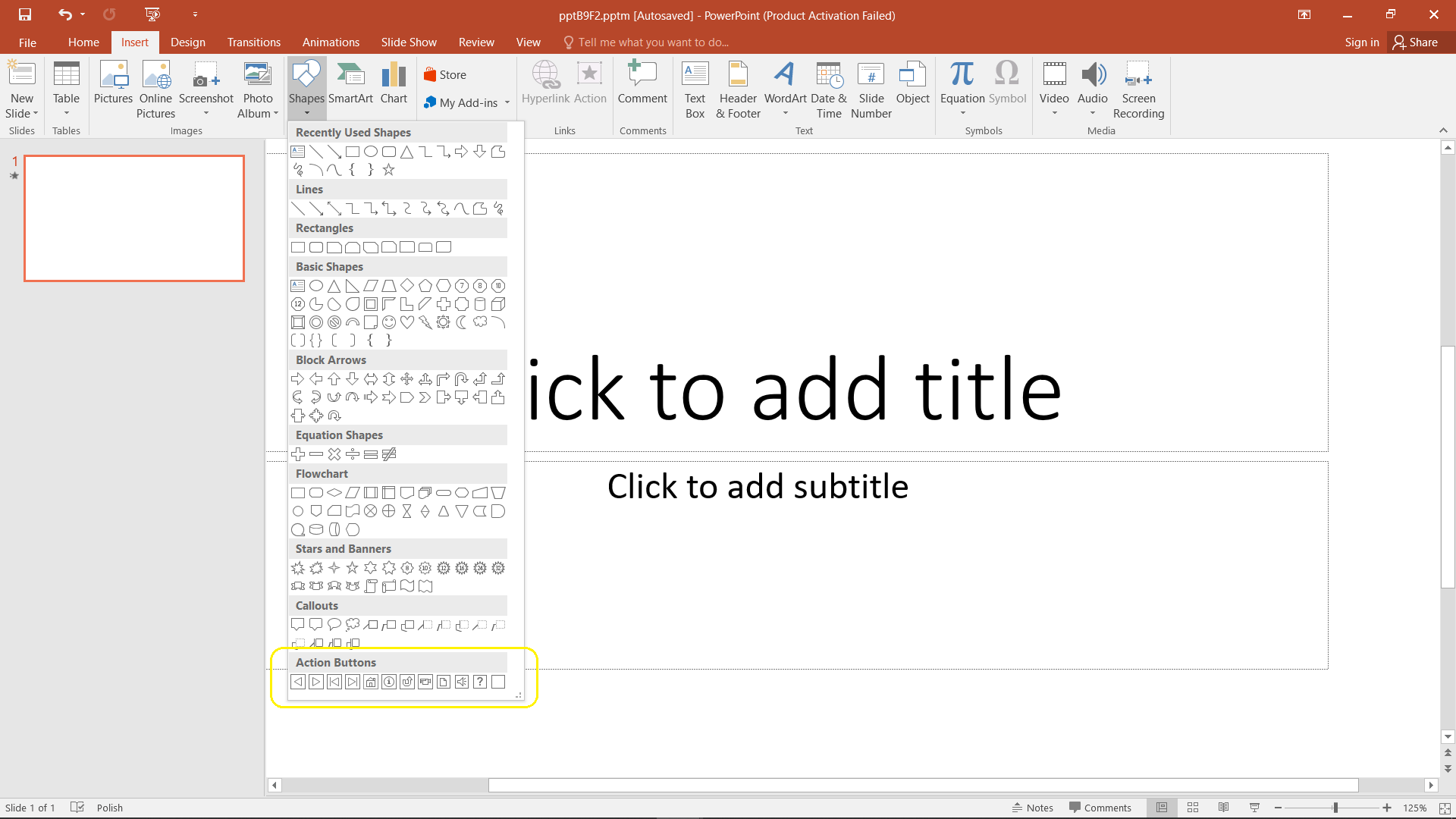
Creating action buttons On the 'Insert' tab in the 'Illustrations' group, click on 'Shapes', then in the 'Action buttonsaction buttonsAction buttons' field, click the shape of the button you want to add. Indicate the position on the slideslideslide where the button should be located.
Rel7jbCiKL1MO1
Zrzut z ekranu przedstawia widok okno programu PowerPoint. Aktywna jest zakładka Insert oraz menu Shapes, gdzie na samym dole listy rozwijanej można znaleźć ikony Action Buttons: Trójkąt równoboczny skierowany wierzchołkiem w lewą stronę, trójkąt równoboczny skierowany wierzchołkiem w prawą stronę, trójkąt równoboczny skierowany wierzchołkiem w lewą stronę - przy wierzchołku pionowa linia długości podstawy, trójkąt równoboczny skierowany wierzchołkiem w prawą stronę - przy wierzchołku pionowa linia długości podstawy, dom, okrąg z literą i w środku, półokrągła strzałka skierowana w prawy górny róg, kamera, pusta kartka, głośnik znak zapytania, pusty kwadrat.
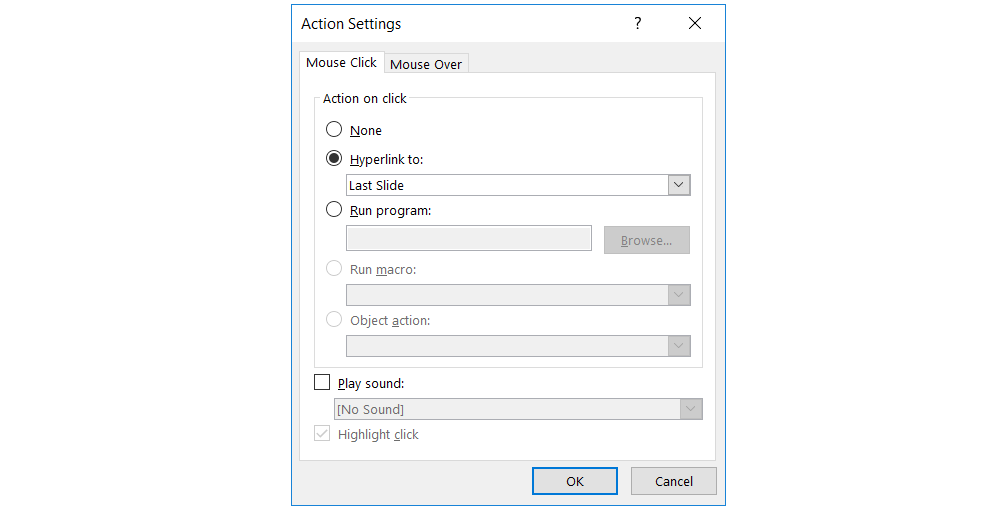
In the Action settings dialog box, select the action to be performed after clicking the button (clicking or hovering mouse pointer). The most common action assigned to the button will be to define the hyperlink. (A separate lesson is devoted to the use of hyperlinkshyperlinkshyperlinks in presentations.)
RZsyE6O0n8nVC
Zrzut z ekranu przedstawia formatkę Action Settings w programie PowerPoint. Widoczna jest aktywna karta Mouse click. Na górze napis Action on click. Poniżej radiobutony: None, Hyperlink to: wraz z listą rozwijaną z wybraną opcją Last Slide. Niżej radiobutton Run program: wraz z oknem tekstowym obok którego znajduje się przycisk Browse. Niżej radiobuton Run macro: wraz z listą rozwijaną. Niżej radiobuton Object action: wraz z listą rozwijaną. Niżej checkbox Object action: wraz z listą rozwijaną z wybraną opcją No Sound. Niżej checkbox Highlight click. Na dole formatki po prawej stronie przyciski OK oraz Cancel.
Prepare a presentationpresentation presentation about endangered plants in your area. (Materials needed for the presentation can be prepared at home or found on the Internet during the lesson). Design the presentation control using action buttonsaction buttonsaction buttons.
Formatting action buttons After placing the action buttons on the slide, you can freely formatformatformat them: change the size, fill color, edge style and add effects to the button. (Students learned the way of formatting objects earlier in previous lessons).
In the previously prepared presentation, replace the standard action buttonsaction buttonsaction buttons with buttons created from the pictures. You can prepare the pictures yourself or search the Internet. Choose them so that they fit the layout of the presentation.
The buttons in the entire presentationpresentation presentation should have the same size, identical style and consistent, even distances between them. The most convenient way to prepare them is to create a master copy on one slide and paste them in the group to other slides.
Exercises
Exercise 1
RvUZILkEDaD2q
Wersja alternatywna ćwiczenia: Determine which sentence is true. Możliwe odpowiedzi: 1. Actions can be assigned not only to the buttons., 2. You can create hyperlinks in PDF documents., 3. Formatting of action buttons is not possible., 4. Action cannot be assigned to graphics., 5. The action of most action buttons is based on the use of hyperlinks.
Wersja alternatywna ćwiczenia: Determine which sentence is true. Możliwe odpowiedzi: 1. Actions can be assigned not only to the buttons., 2. You can create hyperlinks in PDF documents., 3. Formatting of action buttons is not possible., 4. Action cannot be assigned to graphics., 5. The action of most action buttons is based on the use of hyperlinks.
Determine which sentence is true.
Actions can be assigned not only to the buttons.
You can create hyperlinks in PDF documents.
Formatting of action buttons is not possible.
Action cannot be assigned to graphics.
The action of most action buttons is based on the use of hyperlinks.
zadanie
Source: GroMar, licencja: CC BY 3.0.
RjuniJF28WYd9
Exercise 2
Wersja alternatywna ćwiczenia: Indicate what the action buttons are used for in the presentation: Możliwe odpowiedzi: 1. navigating the presentation, 2. starting another program on the computer, 3. opening a document located on the computer, 4. playing a movie or a sound, 5. switching to another presentation, 6. going to any website, 7. inserting a picture from the Internet, 8. inserting a movie or sound
Wersja alternatywna ćwiczenia: Indicate what the action buttons are used for in the presentation: Możliwe odpowiedzi: 1. navigating the presentation, 2. starting another program on the computer, 3. opening a document located on the computer, 4. playing a movie or a sound, 5. switching to another presentation, 6. going to any website, 7. inserting a picture from the Internet, 8. inserting a movie or sound
Indicate what the action buttons are used for in the presentation:
navigating the presentation
starting another program on the computer
opening a document located on the computer
playing a movie or a sound
switching to another presentation
going to any website
inserting a picture from the Internet
inserting a movie or sound
Exercise 3
Describe different types of action buttons in English
Exercise 4
RVFMMhUiOLLTe
Wersja alternatywna ćwiczenia: Indicate which pairs of expressions or words are translated correctly. Możliwe odpowiedzi: 1. prezentacja - presentation, 2. przyciski akcji - action buttons, 3. hiperłącze - hyperlinks, 4. slajd - slide, 5. formatować - previous, 6. następny - to format
Wersja alternatywna ćwiczenia: Indicate which pairs of expressions or words are translated correctly. Możliwe odpowiedzi: 1. prezentacja - presentation, 2. przyciski akcji - action buttons, 3. hiperłącze - hyperlinks, 4. slajd - slide, 5. formatować - previous, 6. następny - to format
Indicate which pairs of expressions or words are translated correctly.
prezentacja - presentation
przyciski akcji - action buttons
hiperłącze - hyperlinks
slajd - slide
formatować - previous
następny - to format
zadanie
Source: GroMar, licencja: CC BY 3.0.
R7pBxxvON4C0Y1
Interaktywna gra, polegająca na łączeniu wyrazów w pary w ciągu jednej minuty. Czas zaczyna upływać wraz z rozpoczęciem gry. Jeden ruch to odkrywanie najpierw jednej potem drugiej karty z wyrazem. Każdy wyraz jest odczytywany. Kolejny ruch to odkrywanie trzeciej i czwartej karty. W ten sposób odsłuchasz wszystkie wyrazy. Nawigacja z poziomu klawiatury za pomocą strzałek, odsłuchiwanie wyrazów enterem lub spacją. Znajdź wszystkie pary wyrazów.
Interaktywna gra, polegająca na łączeniu wyrazów w pary w ciągu jednej minuty. Czas zaczyna upływać wraz z rozpoczęciem gry. Jeden ruch to odkrywanie najpierw jednej potem drugiej karty z wyrazem. Każdy wyraz jest odczytywany. Kolejny ruch to odkrywanie trzeciej i czwartej karty. W ten sposób odsłuchasz wszystkie wyrazy. Nawigacja z poziomu klawiatury za pomocą strzałek, odsłuchiwanie wyrazów enterem lub spacją. Znajdź wszystkie pary wyrazów.
Match Polish terms with their English equivalents.
hiperłącze
presentation
przyciski akcji
hyperlinks
action buttons
prezentacja
Source: Zespół autorski Politechniki Łódzkiej, licencja: CC BY 3.0.